
Inspiring
September 12, 2018
Question

Correcting embedded color information for web display

  • September 12, 2018
  • 8 replies
  • 1291 views

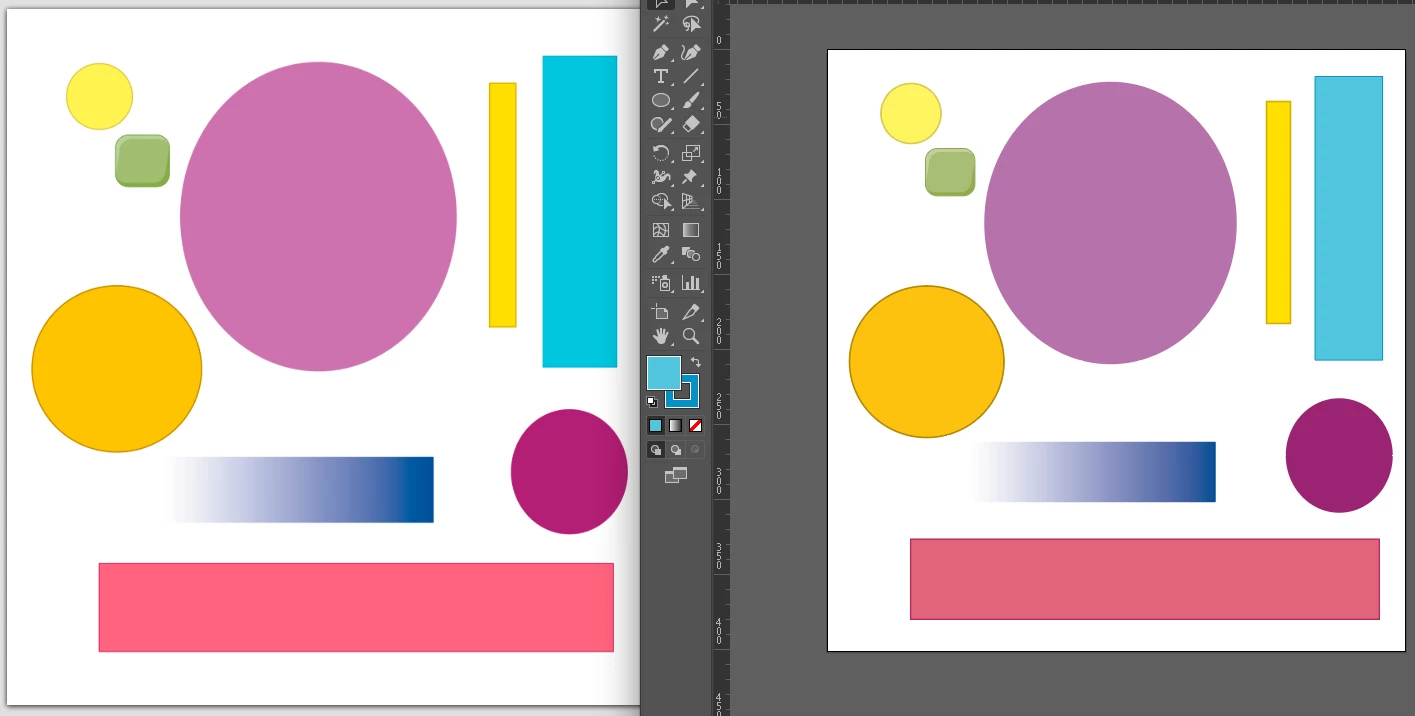
I am trying to troubleshoot an issue with CMYK designed .eps files that were given to me to alter in Illustrator and display via a web link.  I am finding that everything looks great right until I try to post the exported .pngs or .jpegs to web display.  This is not a problem with other images that have been posted to the same web displays, and it happens in more than one platform.  I have been trying all kinds of variations on color modes, and settings within Illustrator.  I believe that the problem is coming from the .eps in the first place.  But now I'm wondering if I can't do something to the exported pngs and jpgs in Photoshop that would drop whatever color information is throwing a wrench into their web appearance.  Does anyone have any experience with something like this?  Here is an example of the kind of color differentiation I'm seeing.  But rather than the usual problem of an RBG image getting dulled when converted to CMYK, I'm struggling with a CMYK image that becomes oversaturated in the web's RGB space.  And so far I haven't been able to find an RGB conversion setting that fixes the problem.  Suggestions?

My original Illustrator question is here
Over saturation in converting CMYK eps files to RGB

This topic has been closed for replies.

8 replies

Inspiring
September 14, 2018

I appreciate y'alls efforts to help here, but this doesn't seem to be something that can be fixed with color profile adjustments, at least not anything that we've covered here so far.  And it's definitely not an issue of monitor calibration.  The effect occurs on multiple computers, Macs and PCs, in multiple browsers, whether I keep CMYK or convert to RBG, whether I embed color profiles or don't, I even tried re-saving the original .eps as a new .eps with the box unchecked for preserving color information (there are a few places online that suggest this), and it's all been the same.  Exporting as an RBG as opposed to converting the working file and then exporting sounded interesting, but it's all the same.  And none of this is a problem with files that I make from scratch myself, so that points me back toward something being embedded in the original color information that either needs an extra step of preservation or deletion somehow.  But I've tried every possible version of affecting that information that either Illustrator or Photoshop has made available as a setting.  So if the answer is out there, it may be something that requires different software to access.

rob day
Community Expert
Community Expert
September 14, 2018

so that points me back toward something being embedded in the original color information that either needs an extra step of preservation or deletion somehow.

Can you share the eps file?

Inspiring
September 17, 2018

I really can't.  I appreciate you being willing to look at one if I could though.  Another layer of complexity is that I'm testing these in browsers, but also proprietary sites with logins that I can't share here either.  I had hoped that the problem would sound familiar to someone here, but it looks like not.

Inspiring
September 14, 2018

I just went back and ran through it all again with the color profiles embedded.  The result is the same.  Something causes my files to become oversaturated upon web display.  I believe that it has something to do with the embedded color information.  But so far no combination of preserving or turning off embedded color information has solved the problem.  This is not a monitor issue.  The same image is displaying substantially differently on the same monitor.  My initial picture is a screen capture of the same image shown through preview or uploaded for display through a link.  It's the same monitor, at the same time.  I am still looking for a way to make these images display correctly.

D Fosse
Community Expert
Community Expert
September 14, 2018

And I believe it has to do with using a web browser that isn't properly color managed, or using a wide gamut monitor without a proper monitor profile, or both.

Before you say "this is not a monitor issue" you need to understand what a monitor profile is and how it's used. The profile is used by the application (not the OS!) to correct for the characteristics of the monitor, in detail.

The profile doesn't correct for anything, the application does. The profile is just a description.

That becomes very important if it's a wide gamut model, which natively displays color much more saturated than a standard monitor.

Are you using a calibrator? What monitor, specifically?

Inspiring
September 14, 2018

I am using an iMac, running macOS Sierra with an NVIDIA graphics card.  I also have a View Sonic side monitor.  I have calibrated my screens, but I do not have a separate calibrator outside of my computer's calibration, and Adobe.  The problem also appears on the monitors of my coworkers, across a wide range of screens.  The problem does not occur with images that I, or my coworkers have made from scratch.  This is why I suspect something being mistranslated in the embedded color information of the original .eps.  I have also read about problems where .eps files don't always change color profiles well.  But it sure seems like I could make some sort of conversion that would remove whatever piece of information is tripping up the color display, or preserve whatever piece of information is being lost if that is the case.  Taking a screen shot of the image in Preview, or on the Illustrator, or Photoshop, board and uploading that for display presents the colors correctly.  But I'm looking for a way that I can use these .eps files in Illustrator, and then export pngs that can be displayed correctly when uploaded for web display.  I was hoping that Photoshop would allow me to run some sort of conversion to the exported pngs beyond what Illustrator could do that might preserve the intended colors.  So far, that does not appear to be possible.

Inspiring
September 14, 2018

I turned them off, because something in the embedded information is wrong.  None of my files have come out correctly with that setting turned on.  Also, the screenshot was from Photoshop, not Illustrator. 

D Fosse
Community Expert
Community Expert
September 14, 2018

sara_pixelpusher  wrote

something in the embedded information is wrong

That doesn't make any sense, unless the profile is corrupt or you have assigned the wrong one.

I promise you - get those three points above right, and the file will display correctly. There's nothing special you need to do, other than check that the machinery is running. Then it works out of the box. Go through the points one by one.

The most frequent problem is that people mostly have it right, but then they don't have a good monitor profile. It can be corrupt, or they have received a bad manufacturer profile through Windows Update. Or they have a good profile, but then changed monitor settings, which will invalidate it.

If you're concerned with correct color, you must have a calibrator. There's no way around it.

D Fosse
Community Expert
Community Expert
September 13, 2018

Basic color management procedure:

  • The file needs to have the correct color profile embedded. If the profile is missing, assign the correct one - i.e. the one that corresponds to the color space the file was created in.
  • The application you're opening the file in has to support color management. It needs to convert from the document profile and into the monitor profile, and send those corrected values to the display.
  • You need to have a valid monitor profile. A valid monitor profile is a description of the monitor's actual, current response. A calibrator will do this for you.

If the file doesn't display correctly, or you see inconsistencies, then one or more of these three conditions are not met. That's it really, it's not complicated.

From what I can see from your description, I suspect all three, but there's not enough information yet to be sure.

D Fosse
Community Expert
Community Expert
September 13, 2018

Oh, and Per is absolutely correct. Never set color management policies to "off", ever. That violates or invalidates all three points above.

Inspiring
September 13, 2018

I just tried saving in the manner suggested, but I'm still getting technicolor pinks and such.  There is no opportunity to have the original .eps . files all remade as .ai files.  I can open them myself and save them as .ai.  And they look fine initially until I put the final exported files into a web display, and then the colors go extra bright.  So that's why I need an after the fact fix.  I do notice that my colors seem brighter after saving for web in the manner suggested by gener7.  Does that indicate anything in particular?

This is a screenshot of the color settings as they open initially.  I changed the custom setting to North America General Purpose 2 and then I exported for web with the settings shown above.

Per Berntsen
Community Expert
Community Expert
September 13, 2018

Is the screenshot of the color settings from Illustrator? I think you can do everything there with no need to use Photoshop.

I don't use Illustrator, but I believe it has Save for web.

The problem is that you have Color management policies for RGB and CMYK set to Off, which disables color management.

Set them both to Preserve embedded profiles, then restart Illustrator and start over.

Open the eps, save it as .ai, then use Save for web to export.

Per Berntsen
Community Expert
Community Expert
September 13, 2018

I have very little experience with vector files, but the eps format doesn't support color management, so ask whoever gave you the file to create it in .ai format, which does support color management.

If you do a search for "eps format" in the InDesign forum, you will find plenty of posts that strongly discourage the use of eps, because it is an archaic and obsolete format that supports neither color management nor transparency.

D Fosse
Community Expert
Community Expert
September 13, 2018

Yes, this is why we have color management. This is the exact problem it solves. It maintains color appearance from one color space to another.

Make sure the correct color profile follows the file by embedding it, and then make sure it is correctly converted when so required.

gener7
Community Expert
Community Expert
September 12, 2018

Open your file in Photoshop. Your color settings should be North American General.  Ctrl/Cmd + Shift + k

Your monitor should be correctly calibrated and profiled.

If it is in CMYK mode, you may have to do a profile conversion from SWOP to sRGB (web)

Usually File > Export > Save for Web will work. There you can choose png. Use these settings:

Then open the exported PNG to see if the colors are correct.