



Question
Correcting fringing in Photoshop
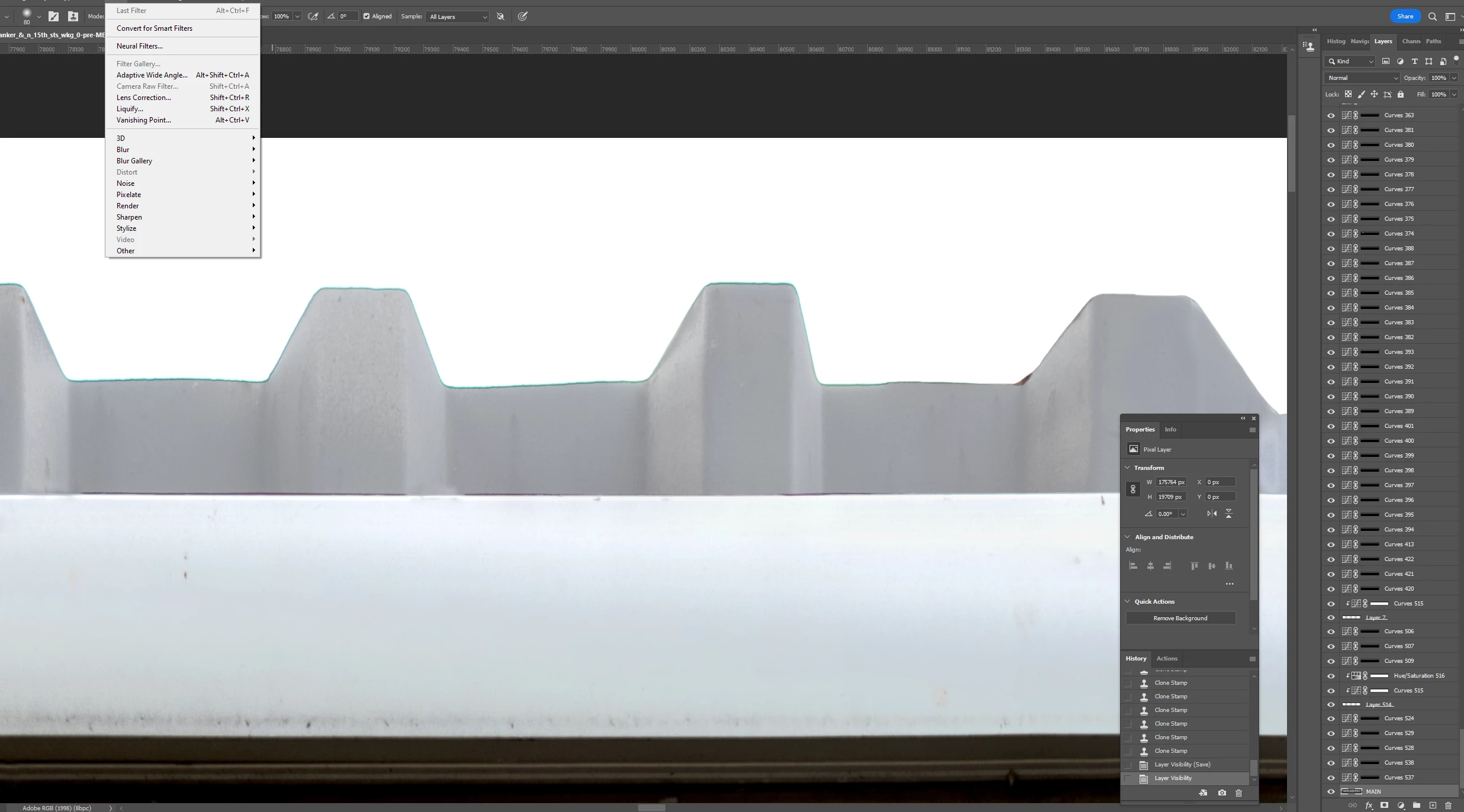
The screenshot below shows fringing (a green outline) around the top of the metal fence. From what I've read online, this is also called Chromatic Aberration and is caused by the camera lens. The fix to it in Photoshop directs going to Camera Raw Filter and following the steps pasted below the screenshot. The problem is, Camera Raw Filter is grayed out for me (visible in screenshot). Does anyone know why that might be? Thanks.
- Open the file in Photoshop
- Go to Filter -> Camera raw filter
- In Camera raw filter, go down the options on the right hand side until you get to Optics
- In Optics, make sure you can see the sliders inside the Defringe section
- Click on the little eyedropper
- Click on an area of fringing in the image – it should correct the chromatic aberrartion instantly
- Close Camera raw filter by clicking “OK”
- Repeat for different colours in the fringing as required
 AdChoices