


Create a long exposure image from video using Photoshop
Create a long exposure image from video using image sequence and stacks in Photoshop
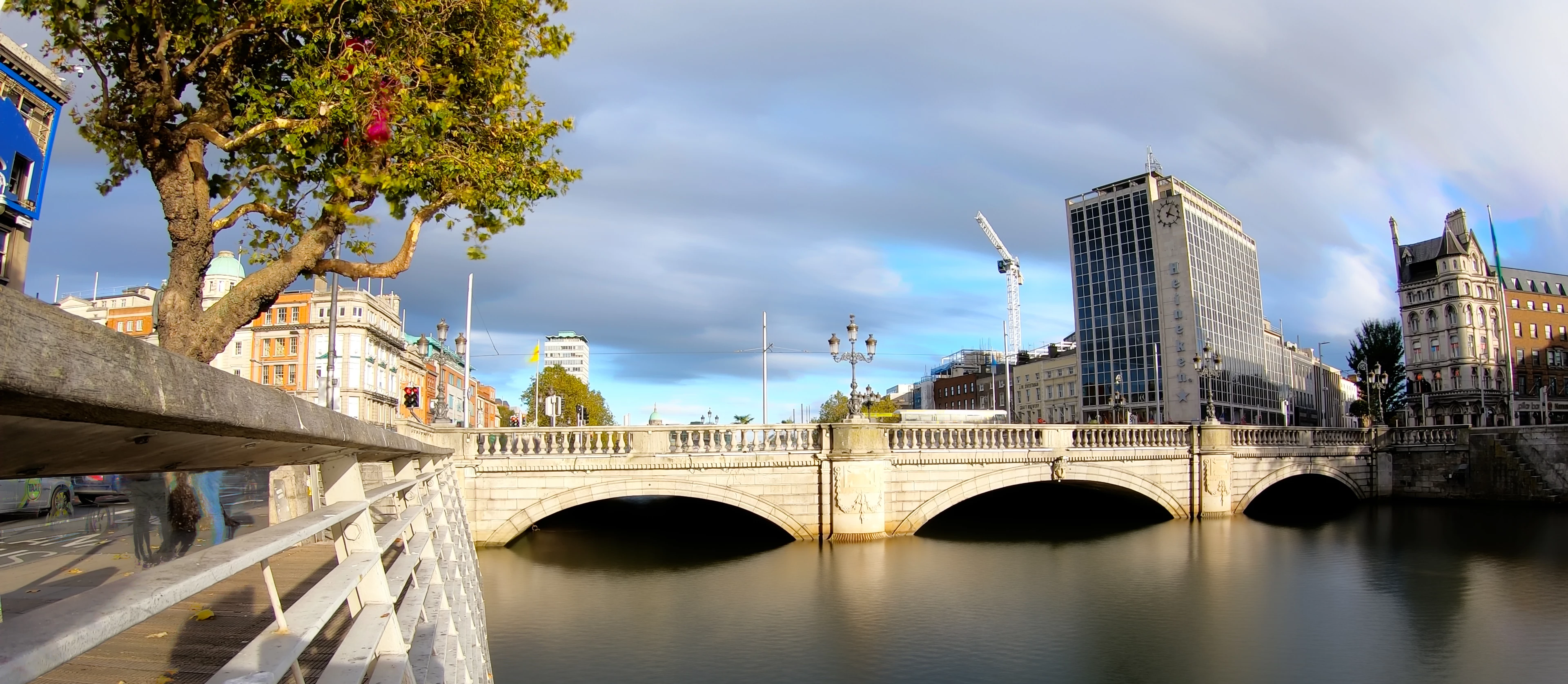
Sometimes it just isn’t possible to photograph a scene as you would like it.
I was here with a client looking at some locations and made a short timelapse video of Dublin’s O’Connell Bridge.
I didn’t have the opportunity to carry a camera, tripod and filters; however, I can still create a long exposure look by using the timelapse, or a regular video clip in Photoshop.
You can complete the whole process in Photoshop but here I am using Premiere Pro to start.
So here is the process.
❶ In Premiere Pro add a clip to the Timeline and select it
- Use CTRL+M or ⌘+M or File>Export>Media...
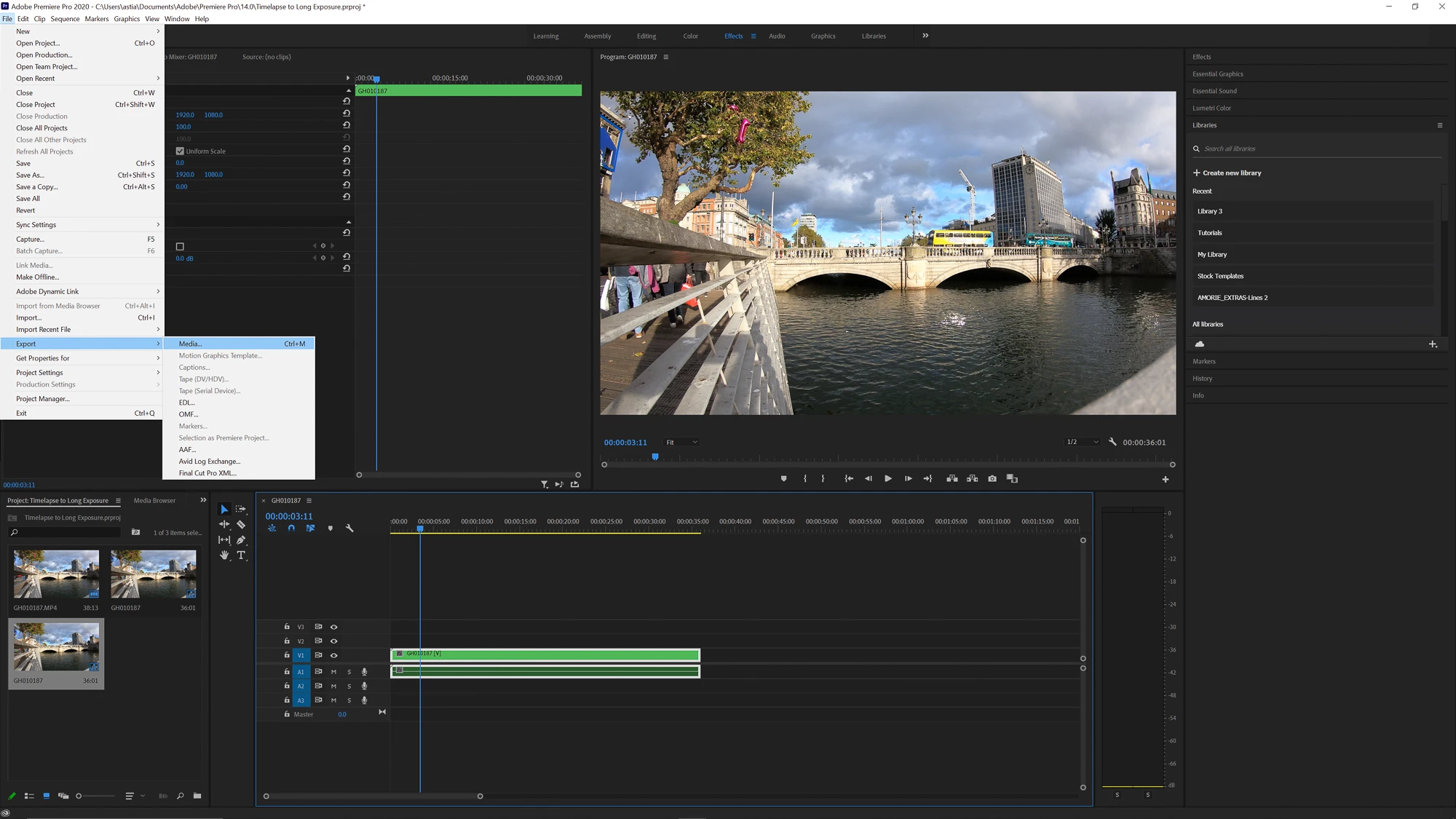
- In the panel that opens, choose JPEG from the Format dropdown, you can of course choose TIFF or PNG
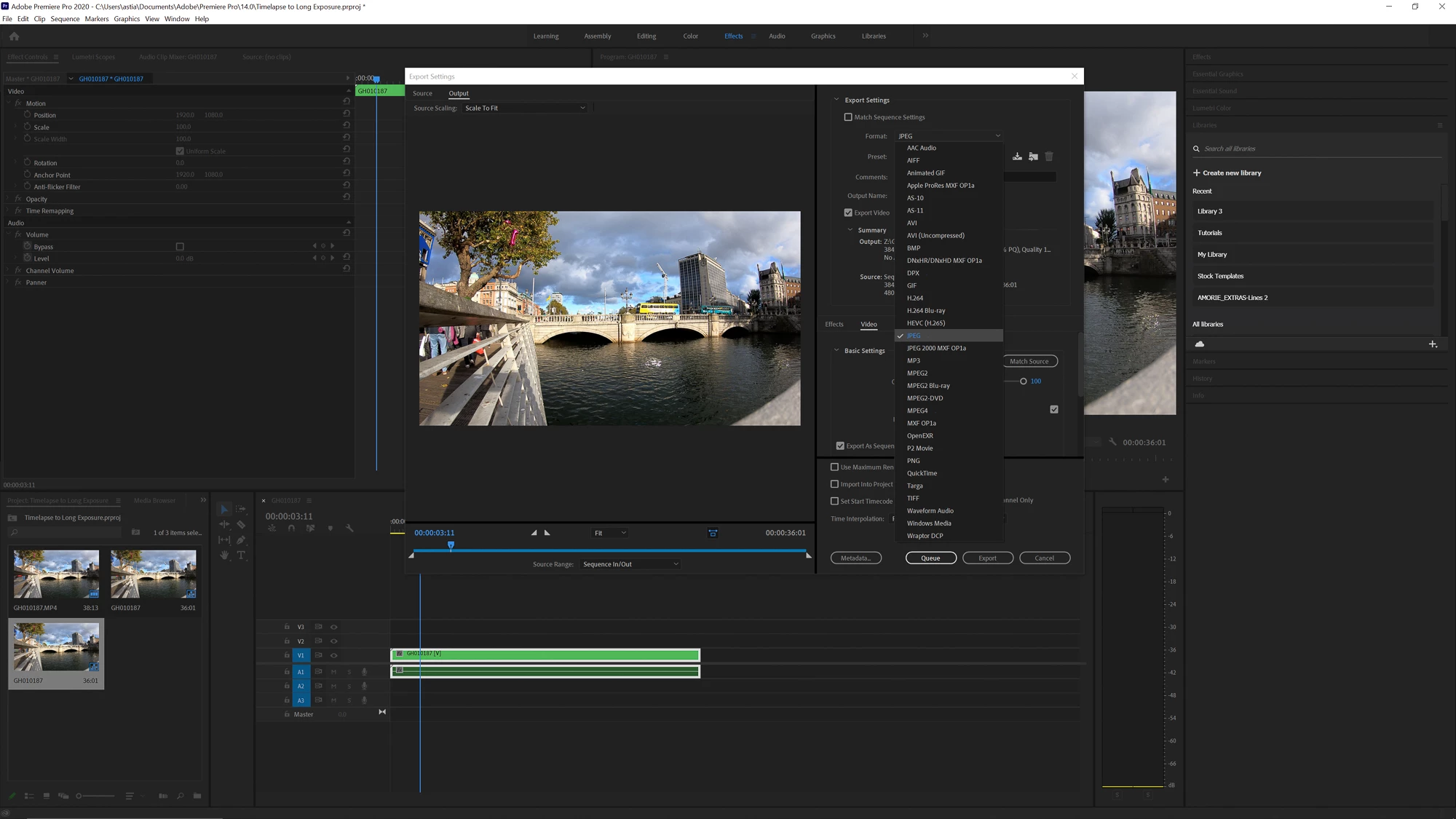
- You can choose how much of the sequence you want to export in the blue bar or Source Range dropdown, here I chose Custom which in this case is equal to Sequence In/Out or Entire Sequence
- You can change the output settings by adjusting quality and dimensions, uncheck the box to choose a smaller output size
- Further settings are available but I chose to keep the original dimensions and quality at 100%
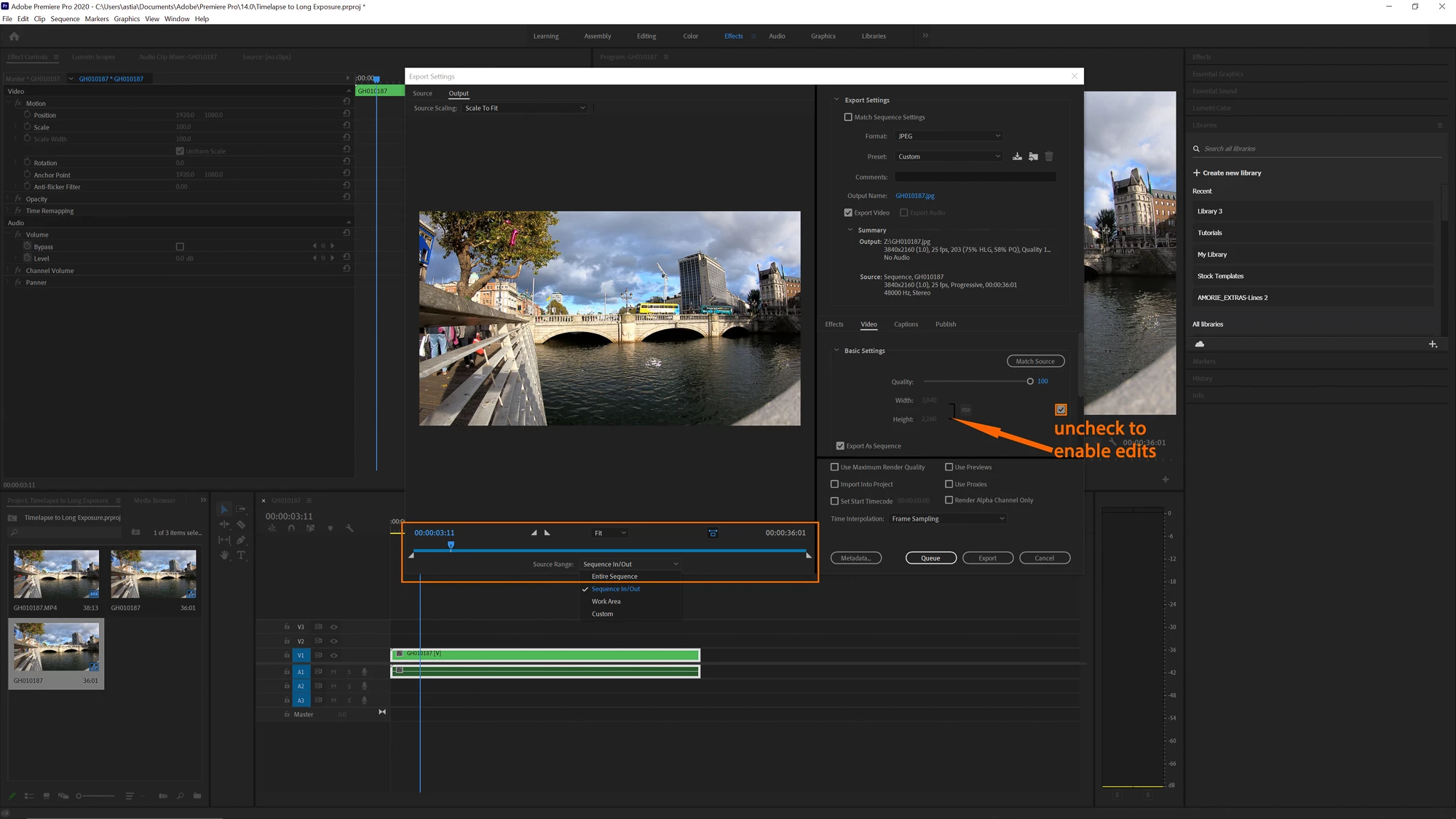
- Choose Export or Queue to add to Adobe Media Encoder where you can choose output destination
❷ Into Photoshop
- Go to File>Scripts>Load Files into Stack...
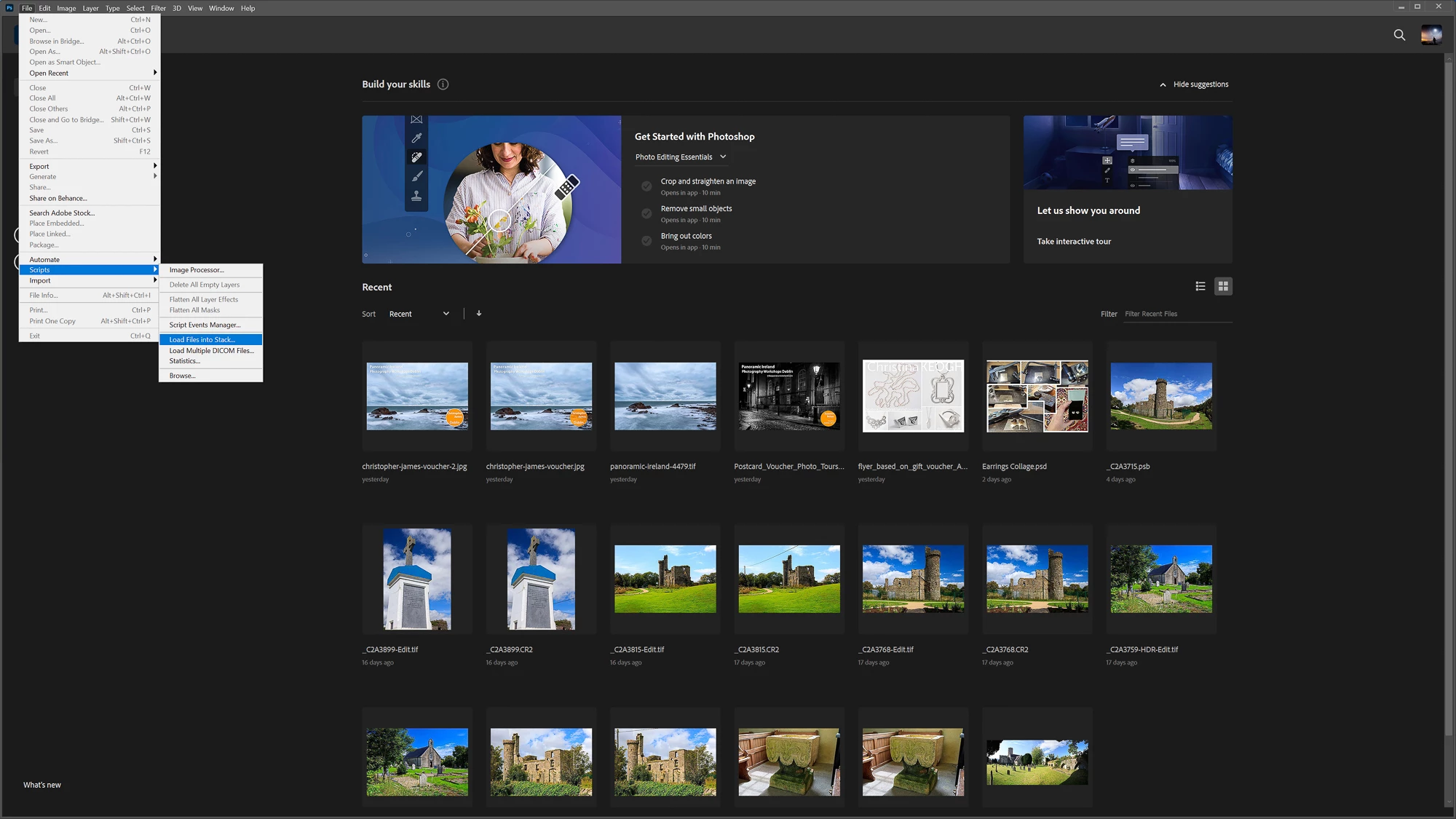
- Select Folder and check Create Smart Object after Loading Layers
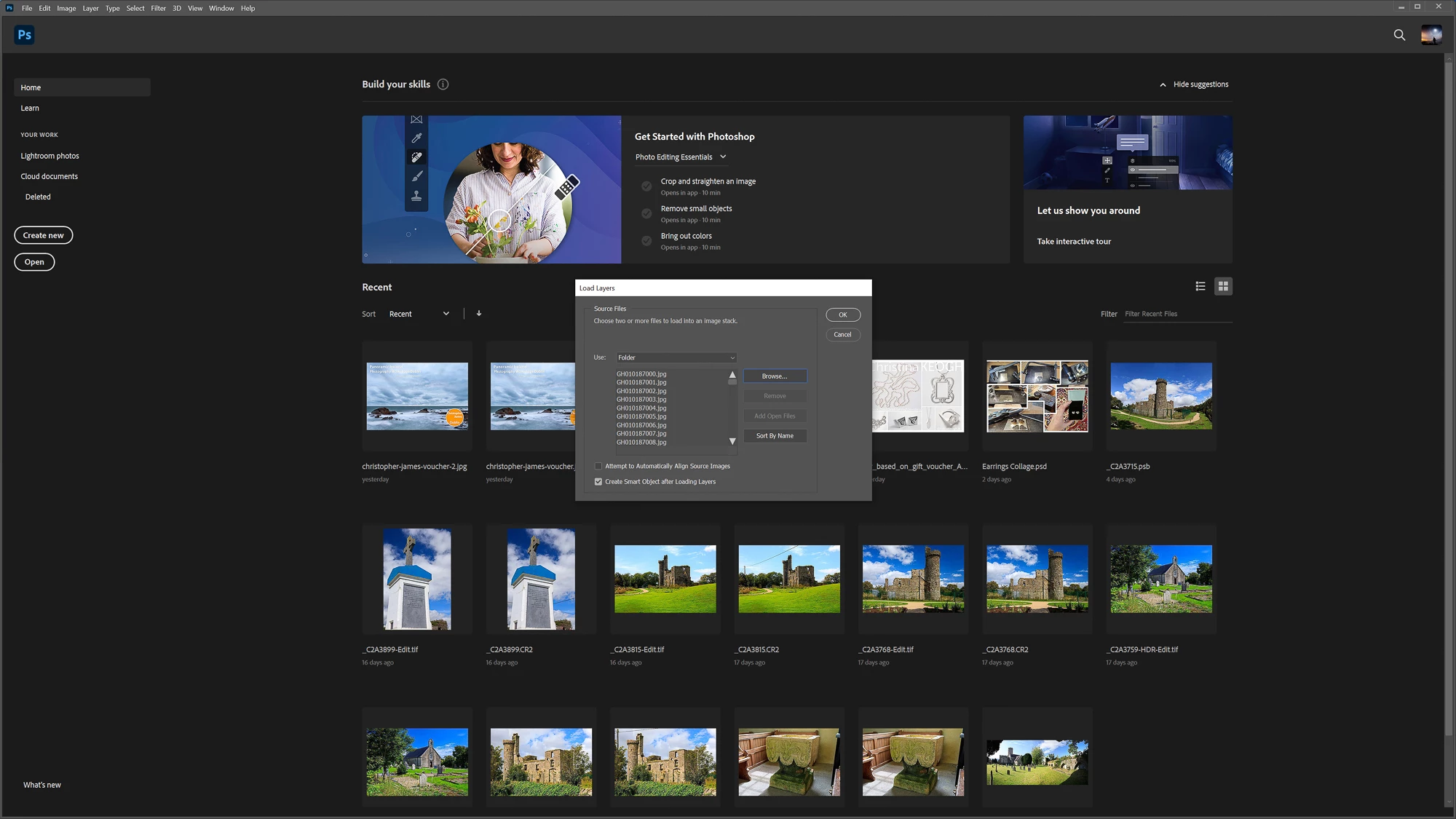
- Browse to find your folder, here I split my jpgs into three folders as there were too many, at 900, for the task here
- There's no need for me to choose to Align Source Images as everything was steady but it is an option if there was movement in your camera during recording
- Click OK
❸ Smart Object / Stack Mode
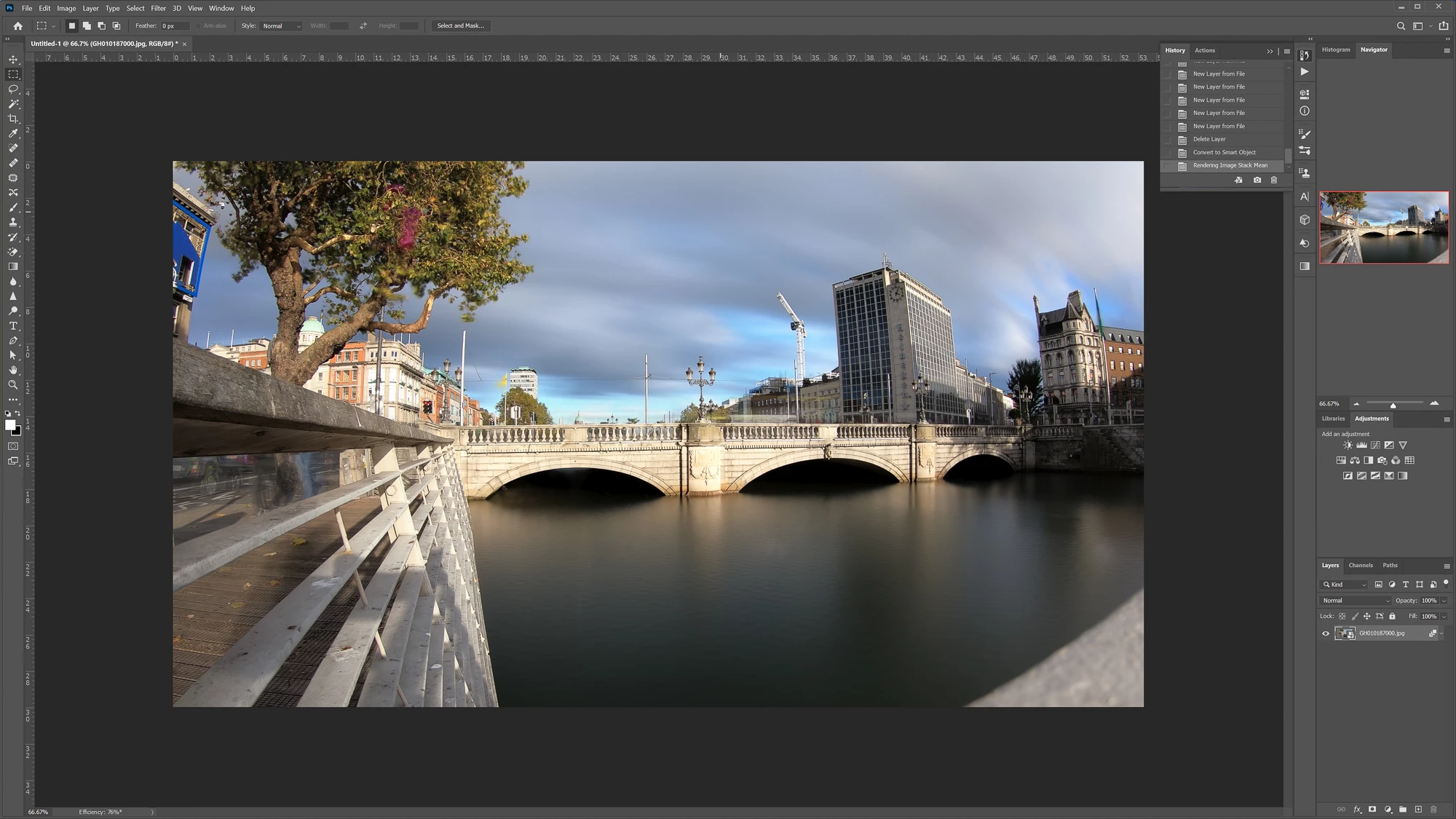
- Go to Layer>Smart Objects>Stack Mode>Mean or Median
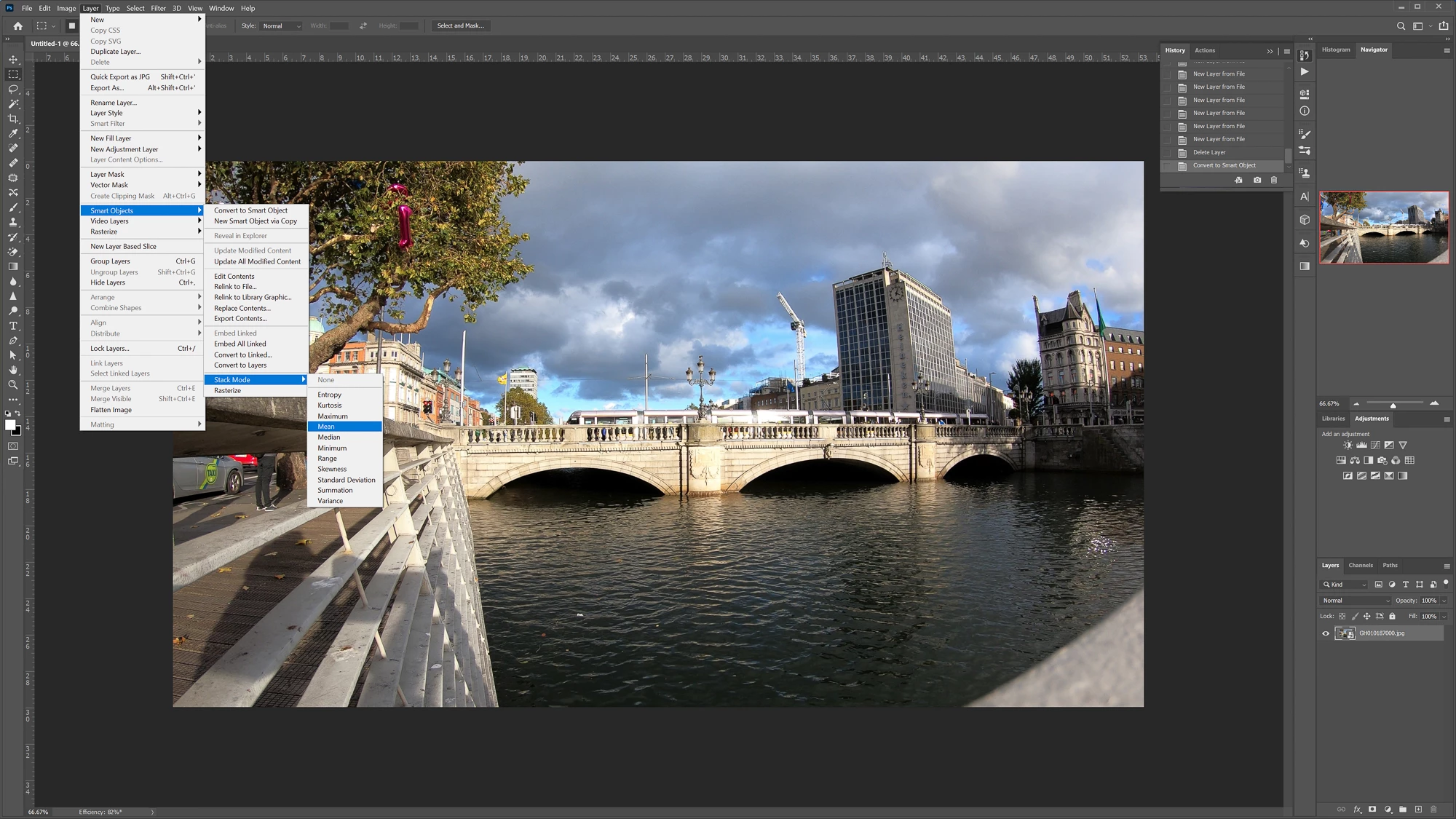
- You can choose any stack mode here but Mean and Median will give the best results for a long exposure image
- Depending on how many images you have, this might take some time
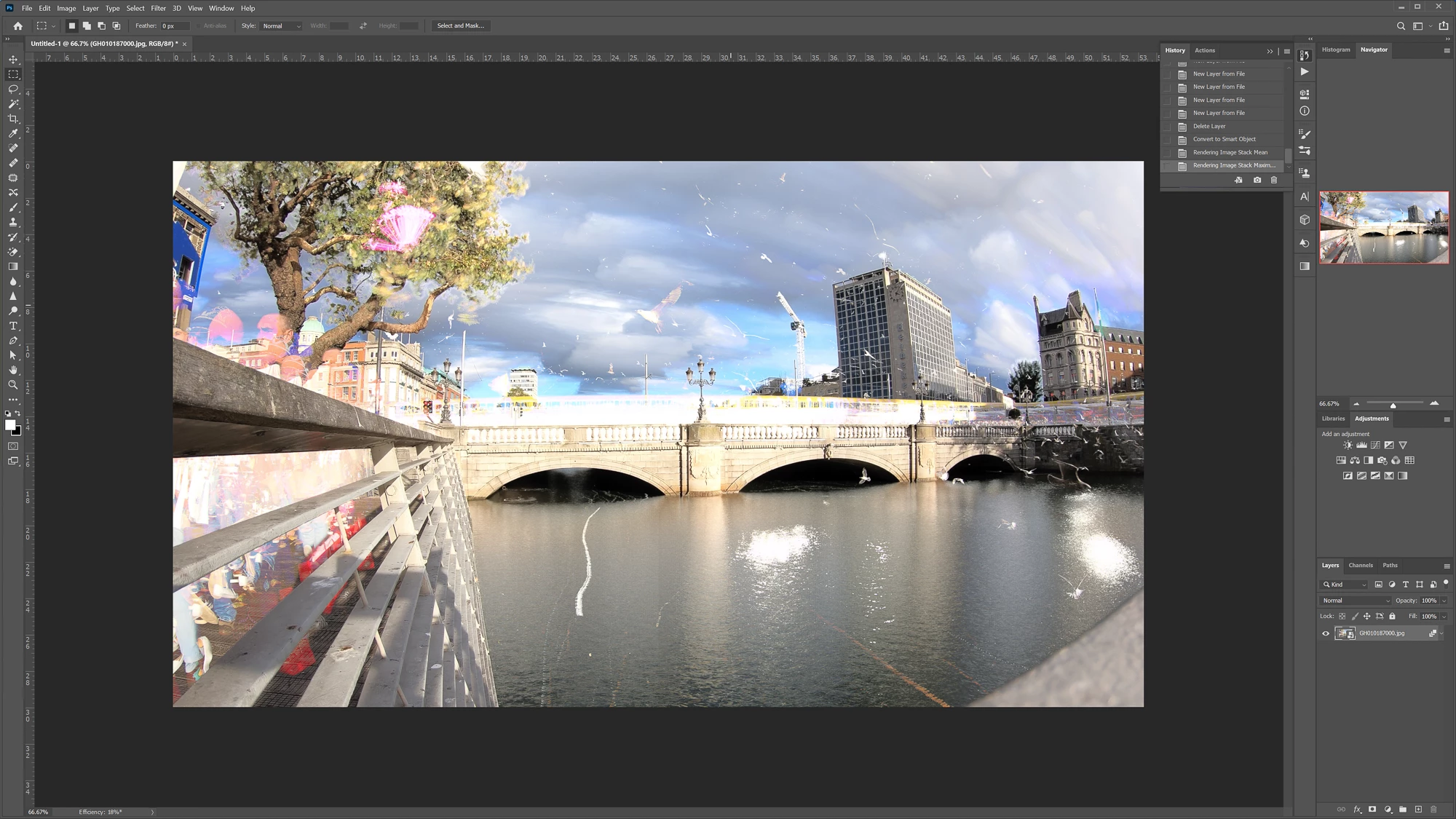
- Try some of the other modes, here is Maximum for instance
- Save your final image
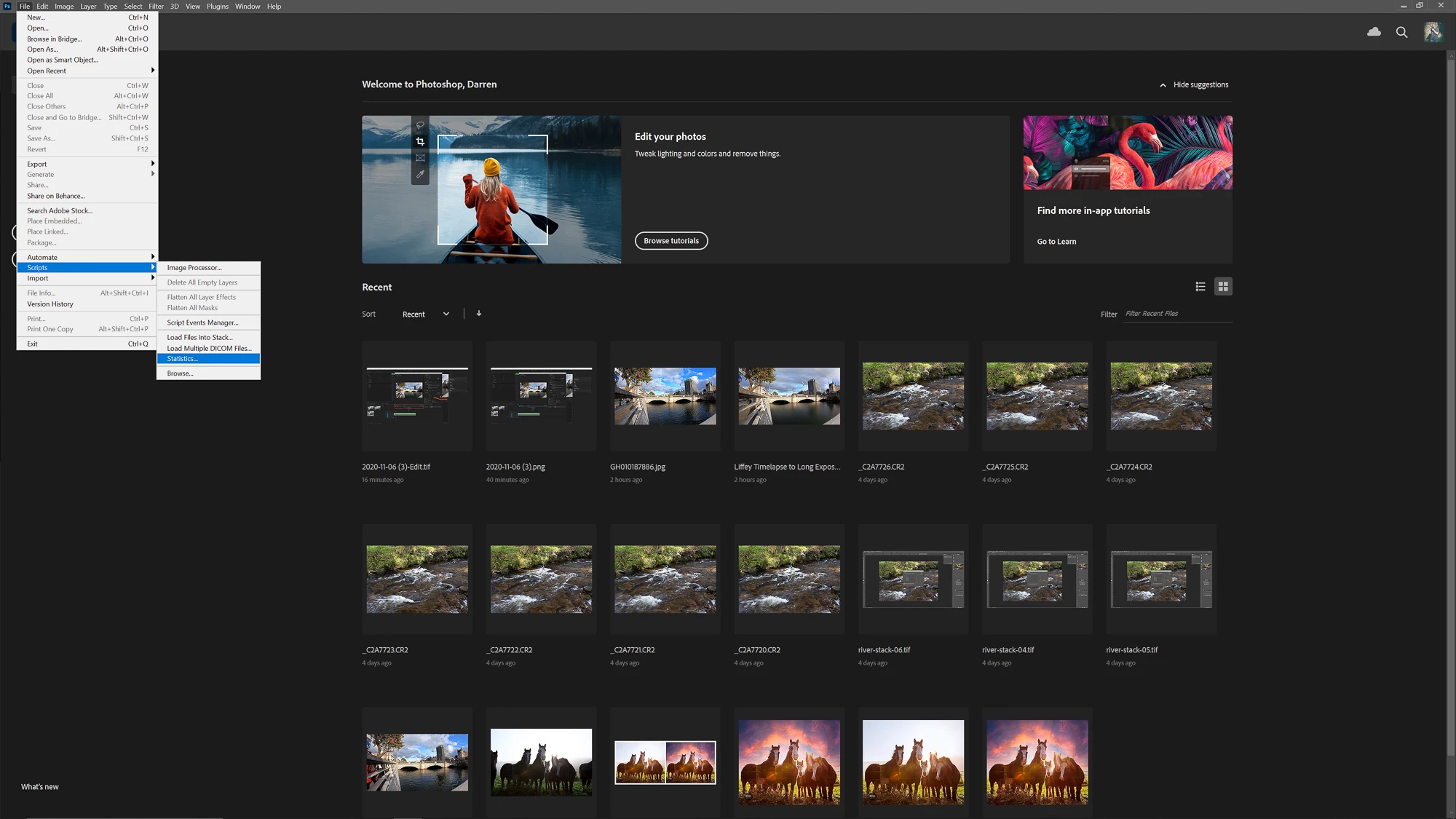
Note for Step ❷ if you know what Stack Mode you want you can choose a different path by going to:
File>Scripts>Statistics...
- Median is selected by default, try this or Mean
- Browse for your files or folder
- Uncheck Align Source Images if your video was steady
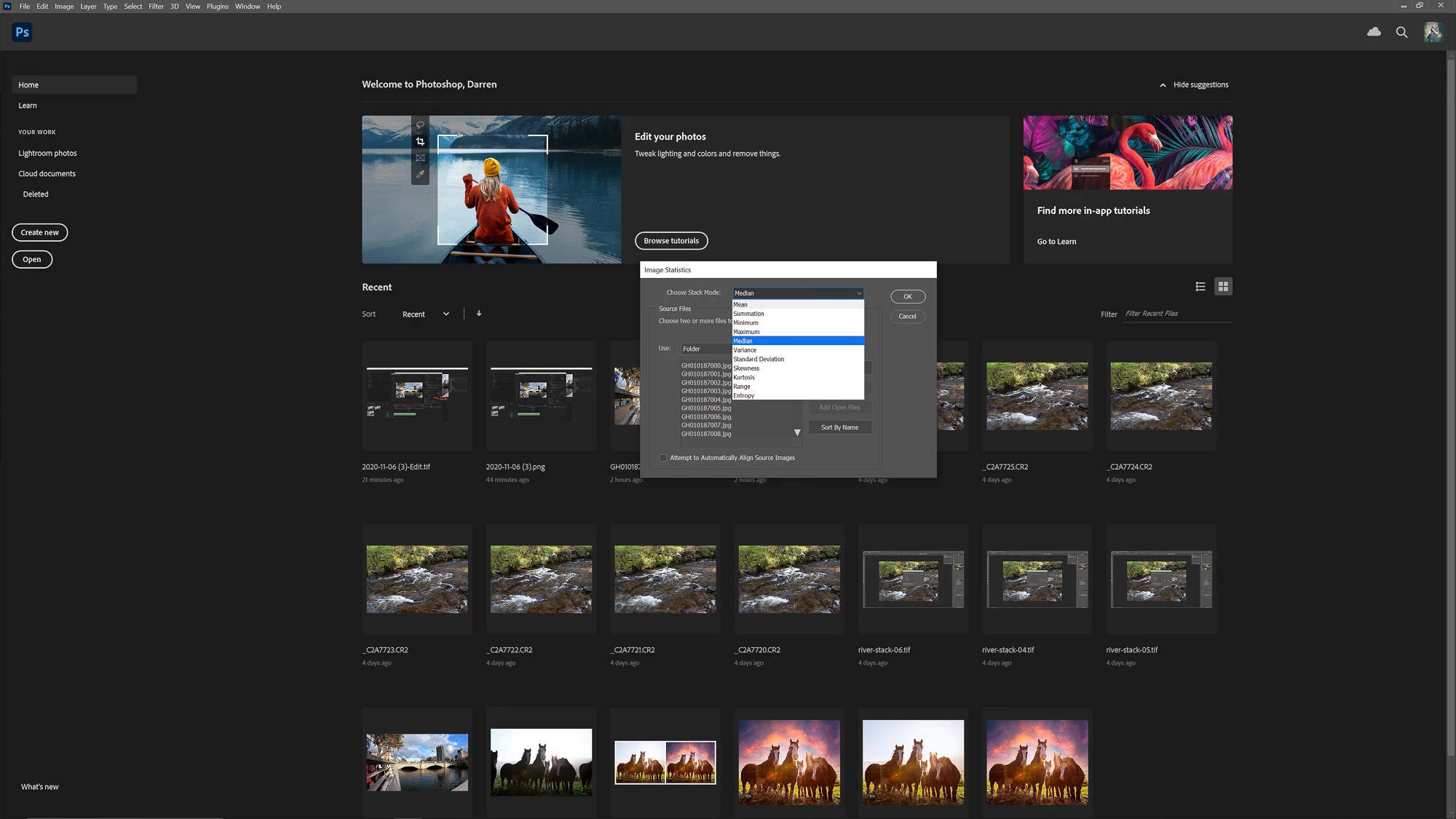
- OK
- Now Photoshop will create the stack based on your settings above, to change the mode just follow step ❸.
It's easy enough to create a still image from a video file but this method allows you to create something new from video.
Some editing to create the final image including crop, curves and saturation adjustments.
 AdChoices