
EddisonPhotos
Participant
December 15, 2016
Question

create a silver or gold look to an existing medal/coin photo

  • December 15, 2016
  • 5 replies
  • 4138 views

Trying to work out how to make this medal photo look more shiny and silver, any idea how I might be able to do this in Photoshop CC 2017, any help would be appreciated.
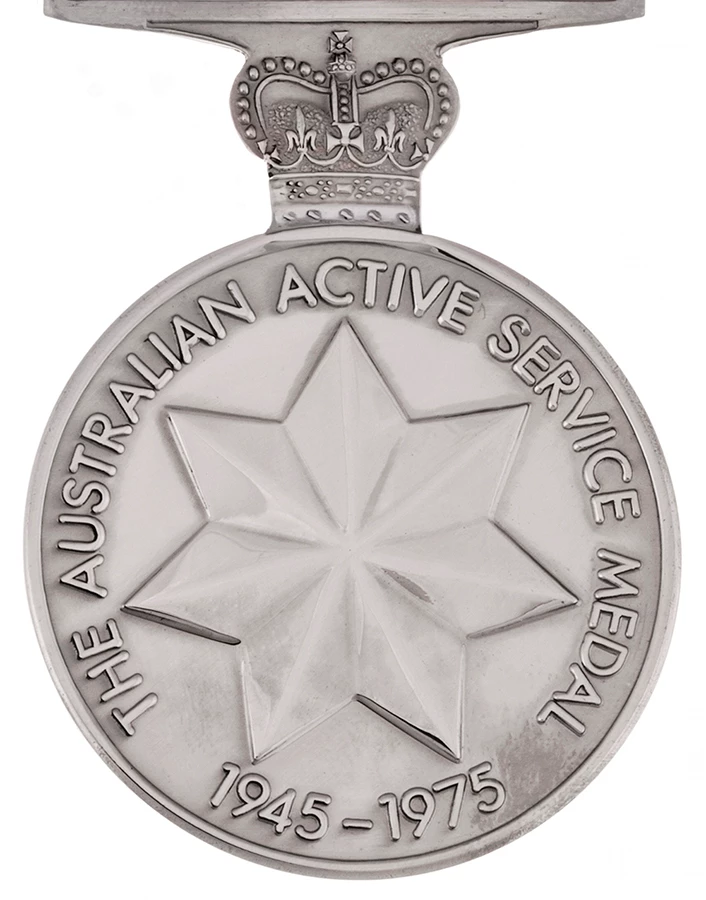
[Moved from non-technical Forum Lounge to specific Program forum... Mod]

[Here is the list of all Adobe forums... https://forums.adobe.com/welcome]

    This topic has been closed for replies.

    5 replies

    barbara_a7746676
    Community Expert
    Community Expert
    December 15, 2016

    Dfosse is right that the metal should be neutral gray. (That is, unless it is picking up reflections.)

    That can also be quickly accomplished in Camera Raw by sliding Saturation all the way to the left.

    That's a start, which you can be in a couple of minutes.

    From there you can fine-tune any way you like. Dodge and Burn tools on selected areas, highlights usinga brush with a modified star so it just looks like highlights. And remove the distracting shadow in the center-right of the star. Something like this:

    davescm
    Community Expert
    Community Expert
    December 15, 2016

    Try this to turn it gold

    A copy of your layer with a layer mask

    A curves layer to increase contrast - clipped to the coin layer

    A Fill layer set to an orange color - clipped to the coin layer and with blending mode set to Color and opacity reduced to 47%

    Dave

    Trevor.Dennis
    Community Expert
    Community Expert
    December 15, 2016

    D Fosse
    Community Expert
    Community Expert
    December 15, 2016

    Silver needs to be absolutely neutral gray, no muddy browns. Drag the highlights up to pure white. They need to sparkle.

    I was tempted to add a little touch of Noel's Starfilter here, to make it pop, but since there's a star already...

    barbara_a7746676
    Community Expert
    Community Expert
    December 15, 2016

    Everyone will probably have their own techniques. For a quick more metallic look I would probably start by choosing Filter > Camera Raw with these settings:

    You can fine-tune from there.

    EddisonPhotos
    Participant
    December 15, 2016

    Thank you for your reply

    Mylenium
    Legend
    December 15, 2016

    No magic involved. You need to extract the edges on a duplicate layer and inset them, then use blending modes to compose them on top and brighten stuff according to light angle just as well as you might need to add additional gradients and areas to serve as reflections. Should be easy enough for the lettering since most of it has a "black outline", but the ridges of the star will need manual masking, but that's easy enough to do with a simply polygon lasso. The basic drill is to create the selection, fill it on a separate layer, move it around and inset it, soften it where necessary, remove the areas facing away from the light source. Things like the inner shadow layer style or bevel will also occasionally come in handy. nothing complicated, it just requires patience and painstaking work. You might also consider increasing the contrast and brightness of the base image using a curves adjustment to make it less even and dull.

    Mylenium

    EddisonPhotos
    Participant
    December 15, 2016

    Thank you for the reply appreciated you answering my question, I will try to follow it and give it a go.