
Participant
January 5, 2019
Answered

Creating a GIF having trouble with layers changing

  • January 5, 2019
  • 2 replies
  • 8010 views

Hello, I want to put an image onto a gif so it moves with it. I importetd the video with "video frames in layers" and started to drag the pictures in the specific frames. Now I encountered a problem. I transformed the picture to adjust it to the video and hit enter. But now every layer before that one also has the transformed picture in it, how can I prevent this ? I want to be able to transfrom pictures in the frame layers without changing the other frame layers. I hope this question is understandable. I'm doing it similar to this video https://www.youtube.com/watch?v=1UW0OLNWbIg Thanks in advance
    This topic has been closed for replies.
    Correct answer JJMack

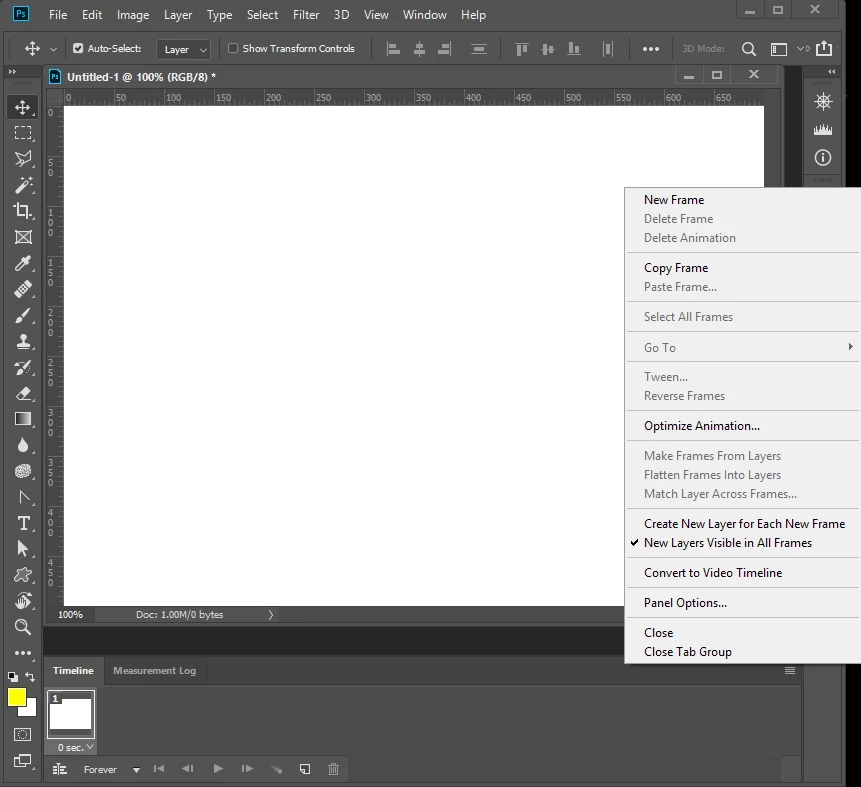
    To me it sounds like you created a Frame animation from the video Frames you imported from a video.  Then you added a new layer. In the Frame Animation Panel fly-put menu Item list you currently have new layer visible in all frames checked.  So the new layer you added was added to all the frame on your frames animation.  Delete the  new layer or layers. Then un check new layer visible in all frames.  Add you new layer or  layers and manually add them to the frame you want them in.

    2 replies

    Silkrooster
    Legend
    January 5, 2019

    From what I gather, visibility, position and styles can be applied to each frame using a single object. To manipulate the object self, like change color or transform, you should create a new object and hide the original from that frame. Then repeat if necessary.

    Trevor.Dennis
    Community Expert
    Community Expert
    January 5, 2019

    Yes, it is definitely a frame animation gotcha, and a potential PITA.  You need to select all the layers you want to affect before moving a layer.   Reading your description, it sounds like a feature After Effects can do.  That being motion tracking an object in a video

    JJMack
    Community Expert
    JJMackCommunity ExpertCorrect answer
    Community Expert
    January 5, 2019

    To me it sounds like you created a Frame animation from the video Frames you imported from a video.  Then you added a new layer. In the Frame Animation Panel fly-put menu Item list you currently have new layer visible in all frames checked.  So the new layer you added was added to all the frame on your frames animation.  Delete the  new layer or layers. Then un check new layer visible in all frames.  Add you new layer or  layers and manually add them to the frame you want them in.

    JJMack
    ZaelleAuthor
    Participant
    January 5, 2019

    That did the trick thanks ! Is it also possible to use for example Layer A for frame layer 1-20 and Layer B for frame layer 21-30 and so on . Or does it have to be done maually for every singe frame ?

    JJMack
    Community Expert
    Community Expert
    January 6, 2019

    Some automation is possible in Frame animations using Tween.  Using a Video timeline you have more options automating smart object layers in video animations.   You can open your Video in Photoshop as a video group  and add new layer you add and convert to smart object layers that you automate in the video timeline. There seems to be some limit as to the number of frames you can have in an animated gif you may have to trim your video to save full duration gif.

    JJMack