bartonlew
Legend
November 29, 2022
Answered

Creating a zine template in PS and printing problems

  • November 29, 2022
  • 1 reply
  • 4393 views

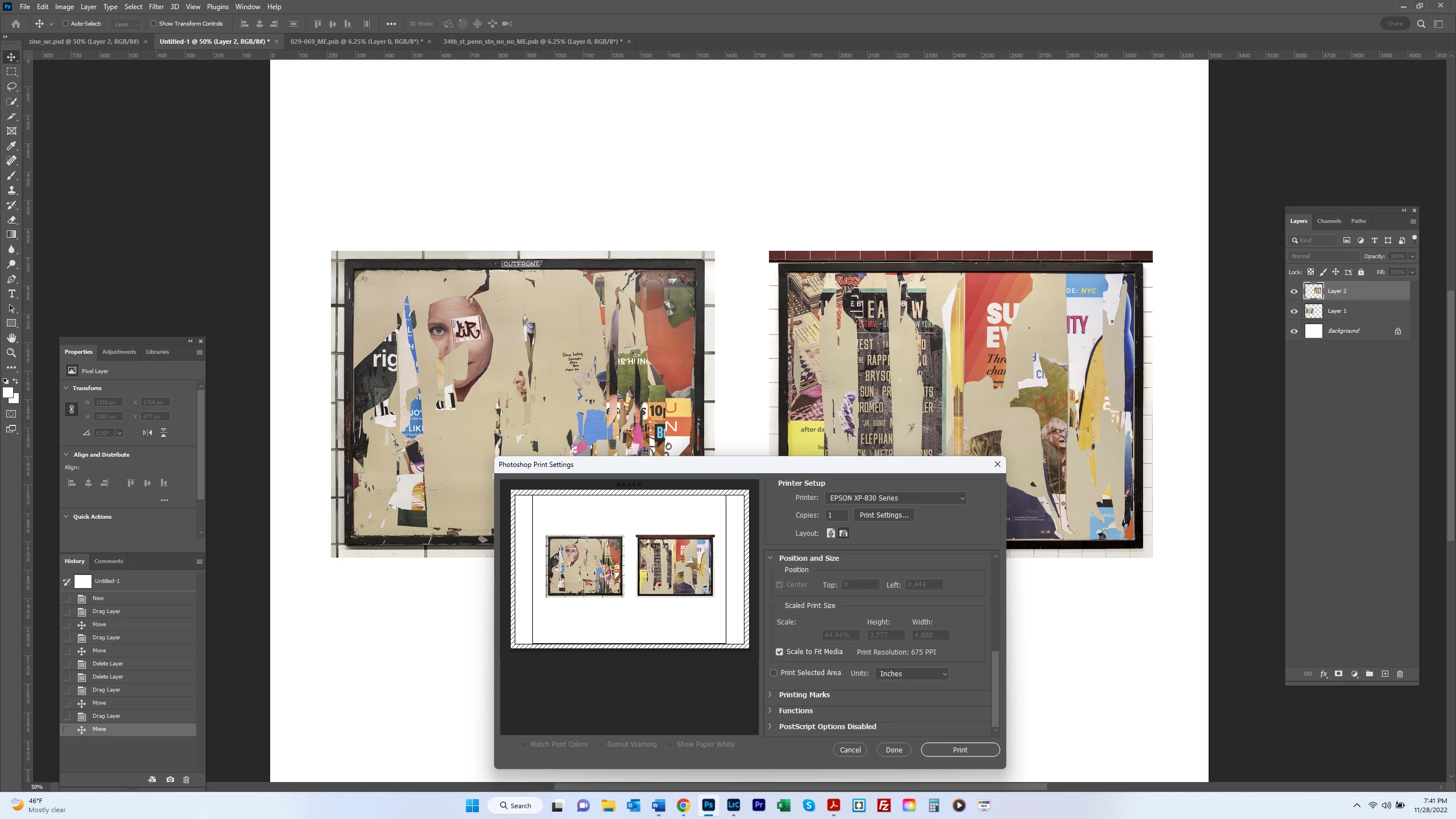
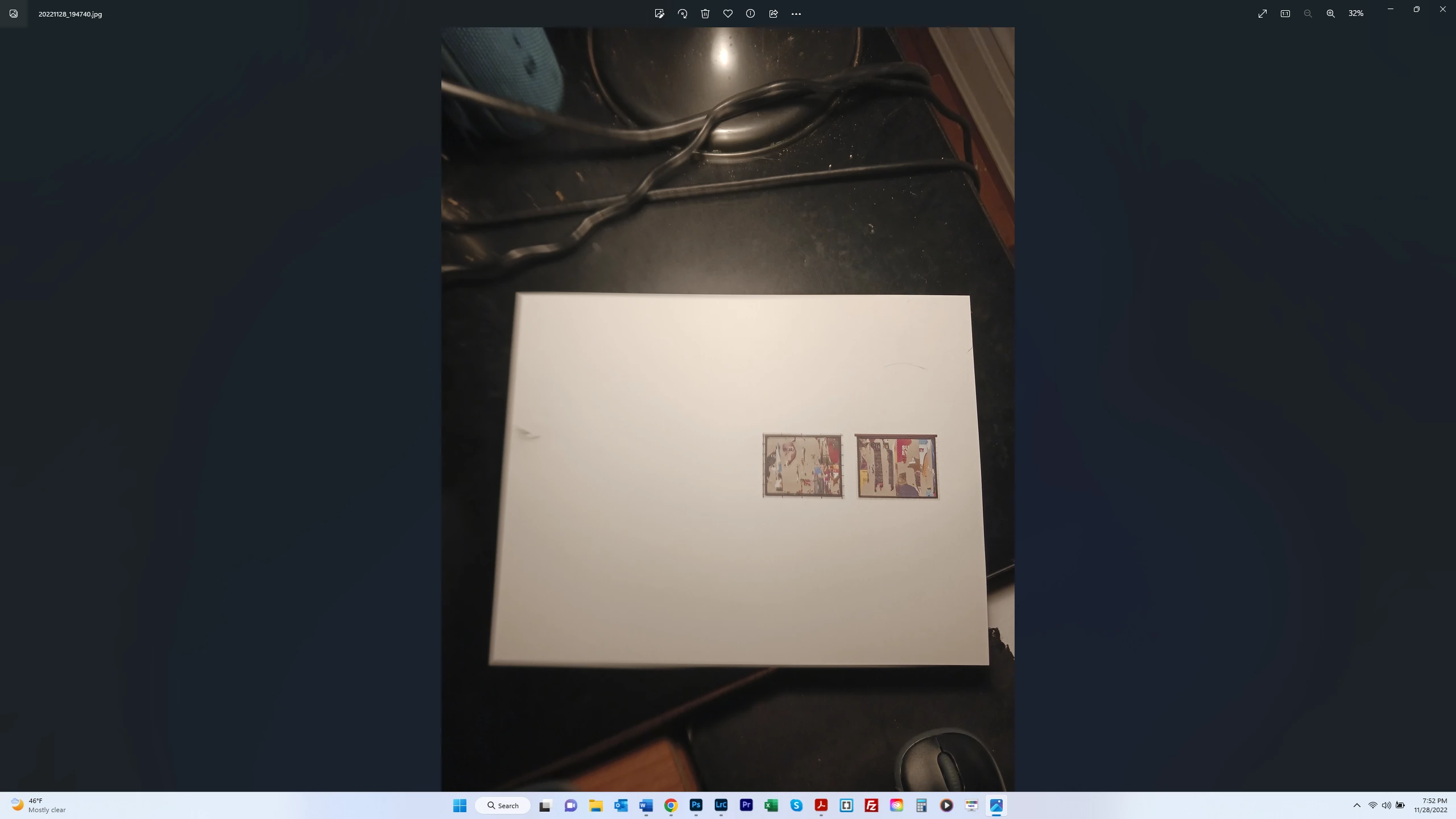
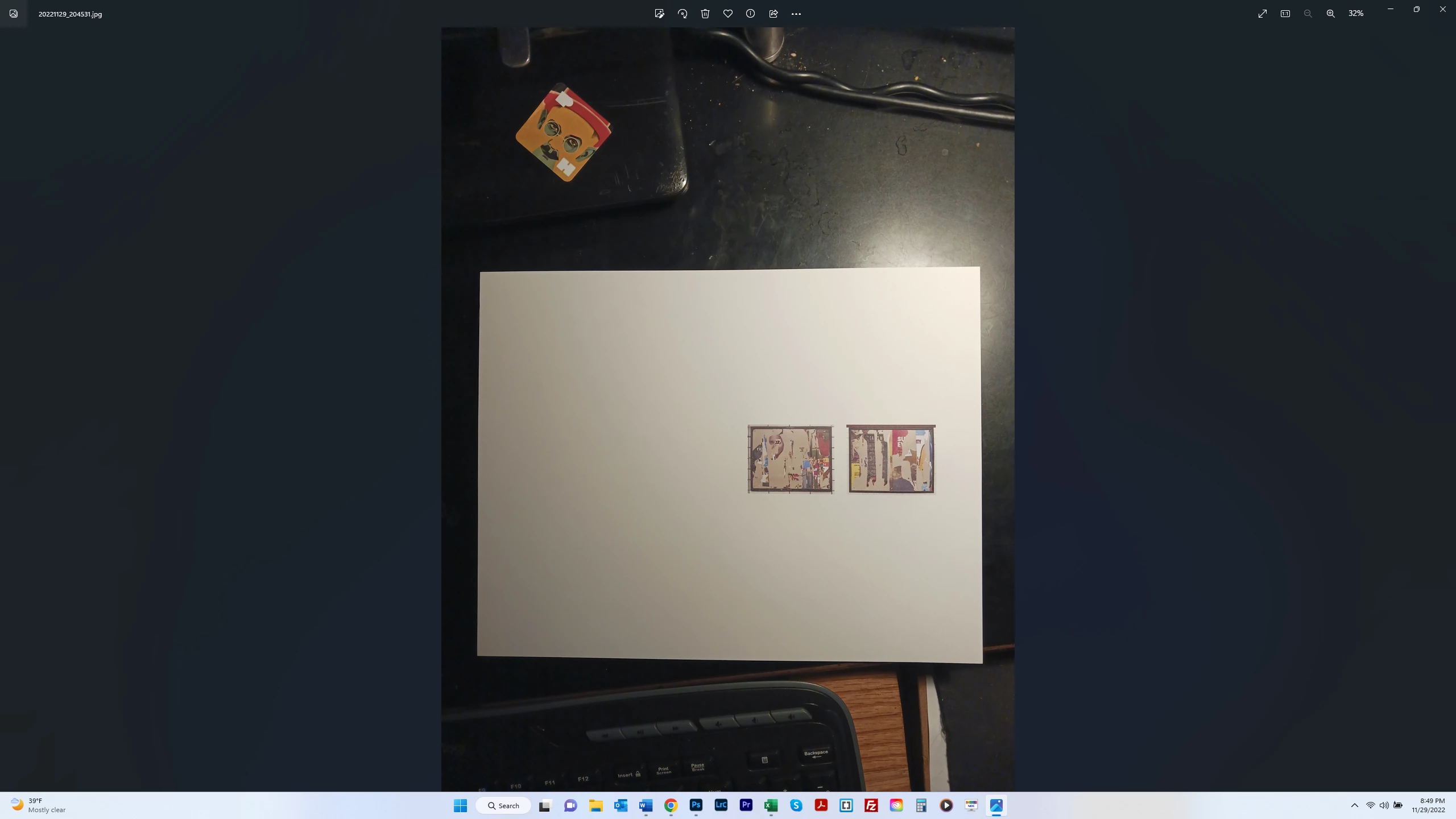
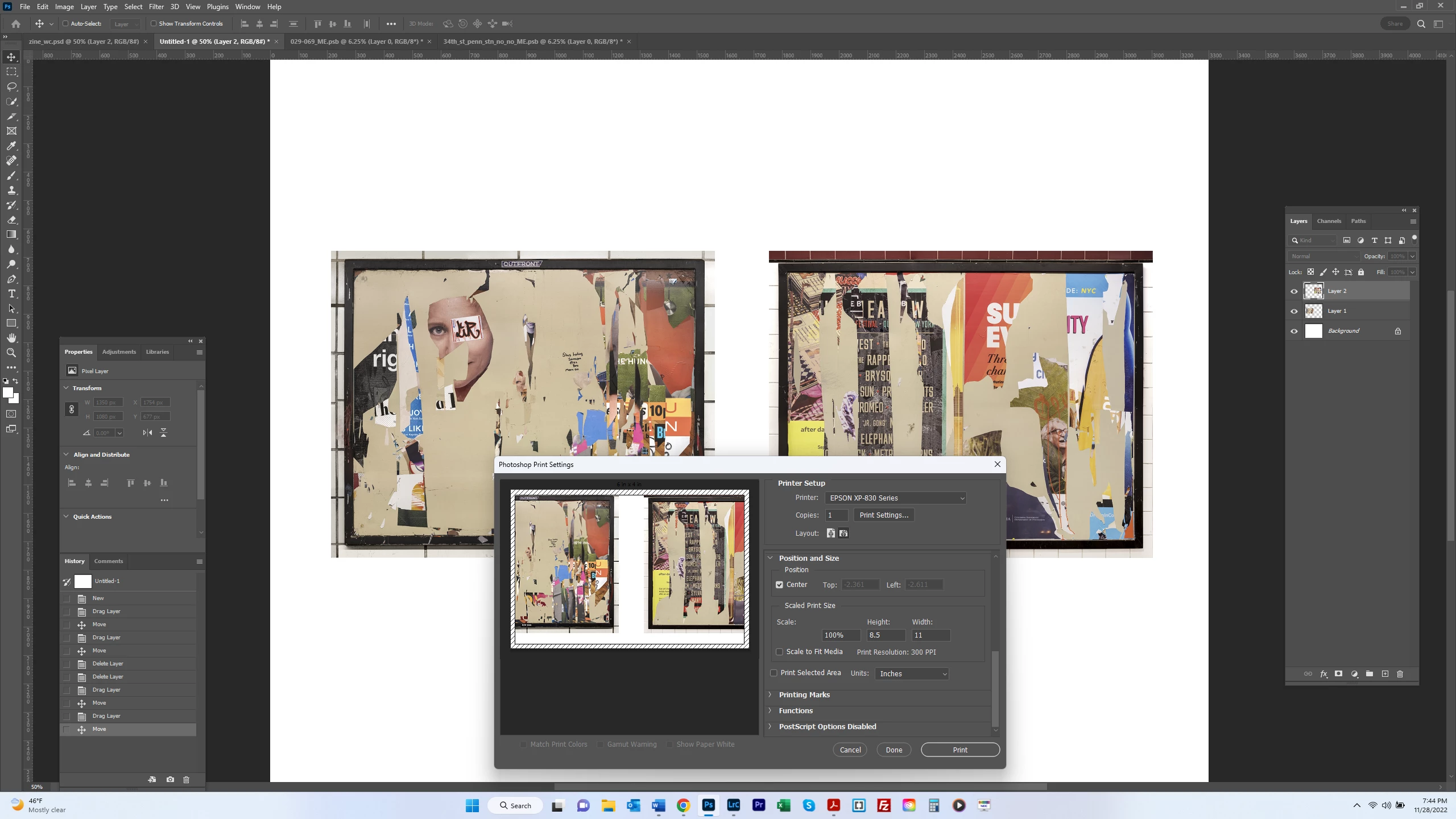
I wanted to create a zine in the Lightroom Book Module that I could fold - so 2 pages (or 4 double sided) per sheet of paper.  But I don't think this is achievable in the Book Module.  So I created a PS file that is 11" W x 8.5" H".  I dropped 2 images into it that are 4.5" W x 3.6" H.  Without selecting Scale to Fit Media, the images spill over the page when going to print (see 1st screenshot).  Selecting Scale to Fit Media produced a print size that seems to achieve the desired proportions but there is additional area outside the left and right boundary lines (white space) as well as a diagonal-dashed border around the entire page (screenshot 2).  What do these areas represent?  Finally, the actual print that came out is of 2 very small images on the 8.5 x 11 paper (screenshot 3).  What is going on here?  Is there a  more automated/easier way to create my zine?  Thanks!


This topic has been closed for replies.
Correct answer Kevin Stohlmeyer

Got it thanks.  So I did that and the image printed out as below.  I printed from the same file I attached earlier showing 2 photos each almost filling up half of a 11 x 8.5 file in PS.  Why is it essentially halving that size and printing both images on one half of the page?  Thanks.  


Reset your print settings this looks like you are trying to print 2 up instead of just 1 page.

1 reply

Conrad_C
Community Expert
Community Expert
November 29, 2022
quote

…the images spill over the page when going to print (see 1st screenshot).  Selecting Scale to Fit Media produced a print size that seems to achieve the desired proportions but there is additional area outside the left and right boundary lines (white space) as well as a diagonal-dashed border around the entire page (screenshot 2).  What do these areas represent?

By @bartonlew


Those areas are the non-printable margins, which can vary among printer models. It looks like you are using an Epson inkjet printer. Many desktop (inkjet and laser) printers cannot print all the way to the edge when a standard paper size is selected. I also use an Epson inkjet, but it’s a different model. When choosing a paper size in the printer driver, mine allows selecting paper sizes with Borderless in the name. Those can print all the way to the edge, by slightly scaling up the page and overspraying the ink past the edges.


Below is a picture showing the Borderless paper sizes available for my Epson inkjet printer. I am not sure if all Epson inkjet printers provide Borderless options, so they may or may not be available for yours.


In traditional (press) printing, if you wanted to print all the way to the edge of 8.5 x 11 inches, you would never print on a 8.5 x 11 sheet. You would print on a larger sheet with the design extending past 8.5 x 11 inch trim marks, and then trim to the marks for a clean borderless edge. The way that Borderless paper sizes scale and overspray on inkjet printers is a workaround for when you can’t put in a larger sheet that can be trimmed down to 8.5 x 11 inches.


Also, if the zine needs real multiple-page layout features such as automatic page numbering, table of contents, bleed (providing for true borderless trim), and imposition (automatically accounting for folding), you should be dropping the Photoshop files into page layout software such as Adobe InDesign.

bartonlew
bartonlewAuthor
Legend
November 29, 2022

Thanks for your thoughtful reply.  I guess I'm not completely understanding why "printing to the edge" is relevant because I didn't think I was doing that.  If you look at my Photoshop file, you can see white border area on the outer edge of both sides.  Perhaps it's just not enough - and Photoshop "thinks" I am priting to the edge (or my printer does)?  It sounds like I may need to get acquainted with InDesign to make my zine.  Oh boy, yet another software to learn.  Is it a steep learning curve - do you know of a good tutorial (usually I can find good ones on youtube if not)? Thanks again for your help.   

Kevin Stohlmeyer
Community Expert
Community Expert
November 29, 2022

Printing to the edge means your entire document including your white space.

The print dialog does not honor your manual white space - it includes that in the overall size.

Crop your pages to remove the extra white space, then use scale to fit media or turn that feature off an manually create your own margins with the white space in your document.