
Participant
June 30, 2017
Answered

Creating Layer Groups in PS CC

  • June 30, 2017
  • 2 replies
  • 568 views

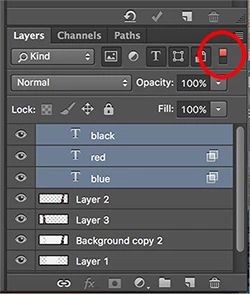
I am new to PS and am having trouble trying to create a group. I have 3 layers that I want to put into a group and when I select them all and drag them to the folder icon near the bottom, they do not all collapse into a group with an expandable folder icon on the left. Instead, they stay exactly the same, except they seem to shift slightly to the left, as if someone pressed the tab key. If I drag them to the folder icon again, they tab over again, further and further. I feel as though they are making groups and I am just creating groups within groups, but I cannot figure out how to make this group look like a collapsable and expandable folder that I can select all at once.
This topic has been closed for replies.
Correct answer mark@headTrix

Hi

The problem is that you are doing a SEARCH in the layers panel.... so its not allowing you to Group your layers and giving a weird behavior since it doesnt want to Group layers without knowing what is missing and whats not. The search is NOT showing the layer styles. If you just TURN off the Layers search by clicking the little red icon on top of the panel... then you can either:

Click the New Group Icon and then drag your layers into that Folder (Group)

or select the Layers in the Timeline and drag them down to the New Group Icon

or select the layers that you want to put in your group (selecting each layer with the Command Key (Control Key on Windows)

and simply press COMMAND G - to Group! (Control G on PC)

Hope that helps! Stay organized!

best,
mark

2 replies

mark@headTrixCommunity ExpertCorrect answer
Community Expert
June 30, 2017

Hi

The problem is that you are doing a SEARCH in the layers panel.... so its not allowing you to Group your layers and giving a weird behavior since it doesnt want to Group layers without knowing what is missing and whats not. The search is NOT showing the layer styles. If you just TURN off the Layers search by clicking the little red icon on top of the panel... then you can either:

Click the New Group Icon and then drag your layers into that Folder (Group)

or select the Layers in the Timeline and drag them down to the New Group Icon

or select the layers that you want to put in your group (selecting each layer with the Command Key (Control Key on Windows)

and simply press COMMAND G - to Group! (Control G on PC)

Hope that helps! Stay organized!

best,
mark

headTrix, Inc. | Adobe Certified Training & Consulting
c.pfaffenbichler
Community Expert
Community Expert
June 30, 2017

Could you please post a screenshot taken at View > 100% and with the pertinent Panels (Layers, Channels, Options Bar, …) visible?

Participant
June 30, 2017

c.pfaffenbichler
Community Expert
Community Expert
June 30, 2017

Is the Layers Panel scrolled all the way to the top?