
Participating Frequently
February 16, 2023
Answered

Creating selection from multiple closed paths in Photoshop 2023

  • February 16, 2023
  • 1 reply
  • 1969 views

HI  -  Help Please!

I am creating ,ultiple paths in order to make selection and to replace the background colour with pure white etc.

However, whenever I have small paths inside the larger path I cannot create selection of all of them - PS creates only the outside path selection and ignores anything inside. T resolve it I have to create seperate paths for inside shapes and make selection seperately but my client needs an image with one working Path 1 to crate slection for different backgrounds.

Here is my image with path in magenda.
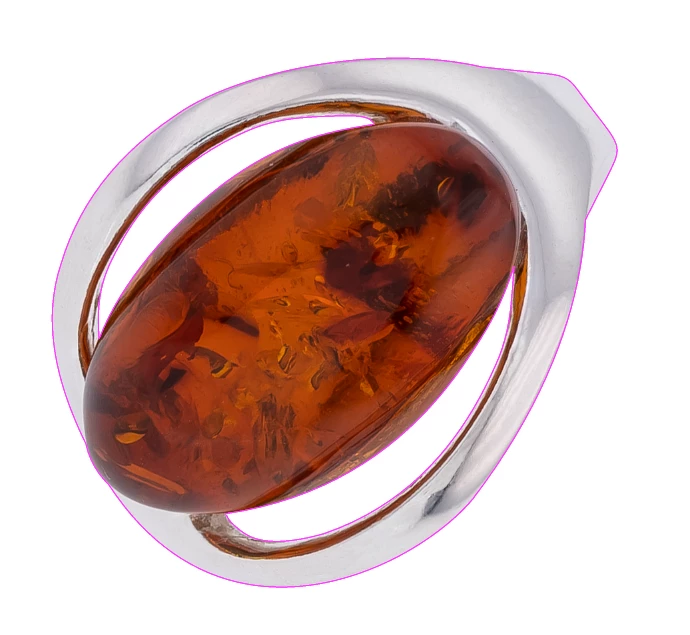
And after CTRL+Enter (create selection) I have only the selection of the outside pathe as below:
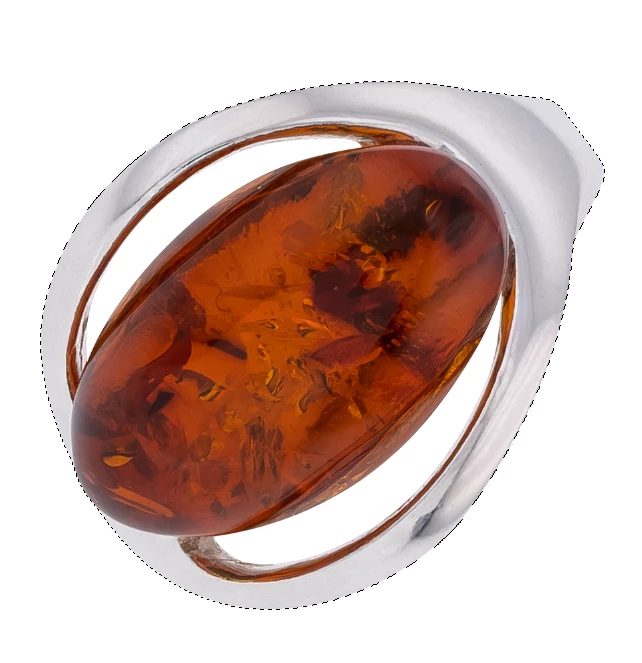
WOuld anybody thik of what am I doing wrong?

Kind regards

Stash


This topic has been closed for replies.
Correct answer Imaginerie

Try to select using the path selection tool (black arrow) the whole of your path (you should see all the node points on the path). Once you've done that, change the "combine shape" option, to "exclude" ; since you want to exclude the holes from your main shape. While you do it, keep an eye on your path panel, and check that your "holes" become grey. Your screenshot shows me that they are white at the moment, meaning they are part of the whole shape and not holes... If that makes sense...
But in order to make it work, your whole path must be selected (not just highlighted)...
For the future cut-outs you need to do, make sure this option is selected BEFORE you create the path.


Let me know if that works.

1 reply

Imaginerie
Community Expert
Community Expert
February 16, 2023

Hey Stash!

Can you post a screenshot of the menu bar for the pen tool?

Specifically this area:


the way you set determines if the whole is consituted of all the timy path or just the outline
If you could show how your path look in the path panel?


the way the grey and white area appears will help me figure out if anything is wrong.

Participating Frequently
February 17, 2023

Hi Imaginerie,

Thank you very much for replying.

My pen tool screen shot looks as below:

and whichever option I choose the selection is always of the outside shape without the insert path.

The look in the path panel is as below:

One more comment. More often then not whenever I use to create Selection from Path I have the selection of the space between the ring outside and the perimeter of the image and in order to have just the path I had to use Select Inverse (Ctrl+SHift+I) to get the selection of the object only. Somehow, after I re-instaled PS again couple of days ego that does not happen.

Looking forward to your reply.

Kind regards

 Stash

Imaginerie
Community Expert
ImaginerieCommunity ExpertCorrect answer
Community Expert
February 17, 2023

Try to select using the path selection tool (black arrow) the whole of your path (you should see all the node points on the path). Once you've done that, change the "combine shape" option, to "exclude" ; since you want to exclude the holes from your main shape. While you do it, keep an eye on your path panel, and check that your "holes" become grey. Your screenshot shows me that they are white at the moment, meaning they are part of the whole shape and not holes... If that makes sense...
But in order to make it work, your whole path must be selected (not just highlighted)...
For the future cut-outs you need to do, make sure this option is selected BEFORE you create the path.


Let me know if that works.