Known Participant
December 7, 2019
Answered

Dark colors are clipped and displayed improperly in Photoshop 2020

  • December 7, 2019
  • 2 replies
  • 888 views

Using Photoshop 2020 on Windows 10.  When opening files with dark tones (seems to be levels around 25 or lower), they appear to clip early.  As such, pure black or near pure black is displayed as 14,14,14 instead of 5,5,5 or 0,0,0.  All dark tones are clipped to that artificial dark gray-ish color, and colors themselves appear posterized at low levels.


The files themselves are perfectly fine, as they are displayed properly in the RAW editor (both Lightroom and Capture One Pro), and also display properly when the files are opened in Photshop CC 19 (which I have installed alongside 2020). I also can export the file or such, and when viewing that exported file in another program (even Windows photo viewer), it looks perfect...it only displays improperly in Photoshop 2020.


First thing I checked was to see if Proof Colors were on, and they are not.  I can't see any setting that would cause this.  Obviously not a video display driver issue, as it displays properly in every app except Photoshop 2020.


As a sample: this image shows how the image is displayed when rendered properly:

http://www.jordansteele.com/2019/ps_weird3.png


This is a screenshot of the image as it is displayed in Photoshop 2020:

http://www.jordansteele.com/2019/ps_weird.png


This is a screenshot of how the color picker is displayed in Photoshop 2020, showing what happens to the display of colors at the low end:

http://www.jordansteele.com/2019/color_picker.png


I have tried to uninstall (and remove preferences) and then reinstall...it did not solve the issue.

Help?
This topic has been closed for replies.
Correct answer D Fosse

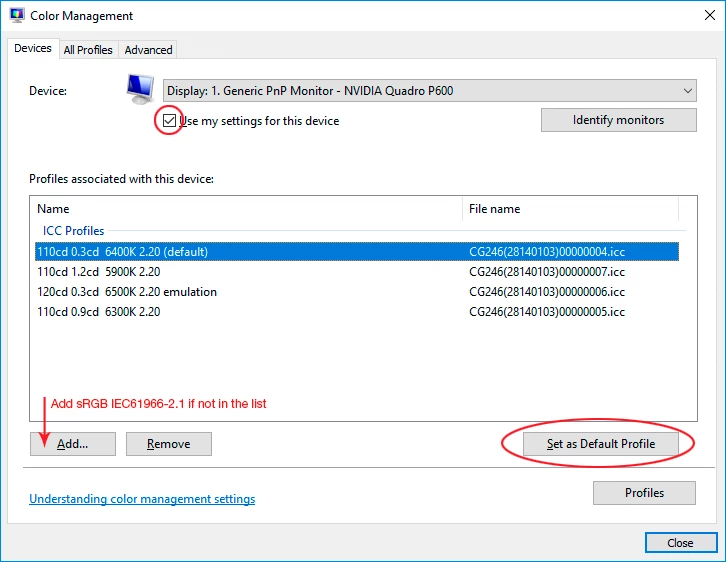
That's a broken display profile. Are you using a calibrator? If you do, rerun it, and make sure it's making v2 and matrix-based profiles. Not v4 or table-based (LUT) - both are known to be problematic in some scenarios.


Bad monitor profiles can often affect applications differently (if they are color managed and actually use the profile).


If not, you have probably received a bad manufacturer profile through Windows Update. That happens surprisingly often.


In the meantime, you can use a generic profile - sRGB if your monitor is standard gamut, or Adobe RGB if wide gamut.

2 replies

D Fosse
Community Expert
D FosseCommunity ExpertCorrect answer
Community Expert
December 7, 2019

That's a broken display profile. Are you using a calibrator? If you do, rerun it, and make sure it's making v2 and matrix-based profiles. Not v4 or table-based (LUT) - both are known to be problematic in some scenarios.


Bad monitor profiles can often affect applications differently (if they are color managed and actually use the profile).


If not, you have probably received a bad manufacturer profile through Windows Update. That happens surprisingly often.


In the meantime, you can use a generic profile - sRGB if your monitor is standard gamut, or Adobe RGB if wide gamut.

davescm
Community Expert
Community Expert
December 7, 2019

I thought that Dag, but then saw the comment and screenshot showing that CC2019 displayed correctly, but CC2020 did not. Both should use the same display profile

Dave

davescm
Community Expert
Community Expert
December 7, 2019

Hi

What happens if you check Preferences >Performance >Legacy Compositing?

Dave