Known Participant
September 16, 2021
Answered

Delete lens flare background

  • September 16, 2021
  • 3 replies
  • 3290 views

Hello, I have picture for lens flare,

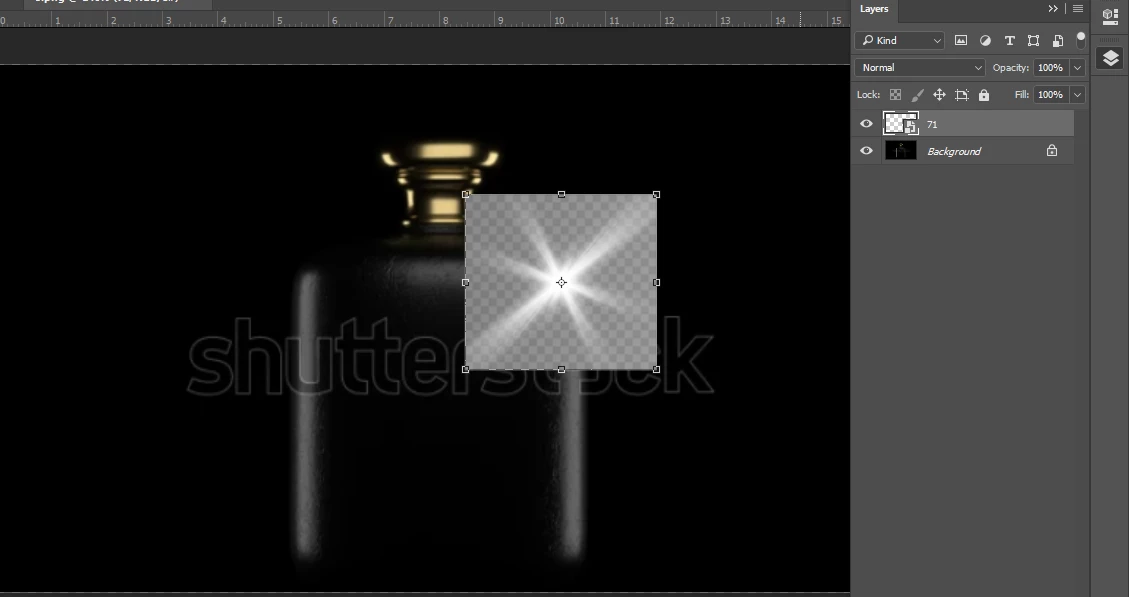
I face a problem when I put the picture in Photoshop, it appears with a gray and silver square background.


I tried to use a blend if, but it didn't work.

I tried to remove it in more than one way and it didn't work,
Any ideas, guys?  

Correct answer Trevor.Dennis

Can you give us the link to the lens flare file?


Lots of flare images have softer gradient components that can extend all the way to the image boundary, so it is often best to create them within the image document you wish to use them in.


You might be able to feather out the periphery by using a layer mask, and feathering the mask in Mask Properties.

I made this flare with Pro Digital's Starfilter Pro 4.  You can see that it extends to the image boundary
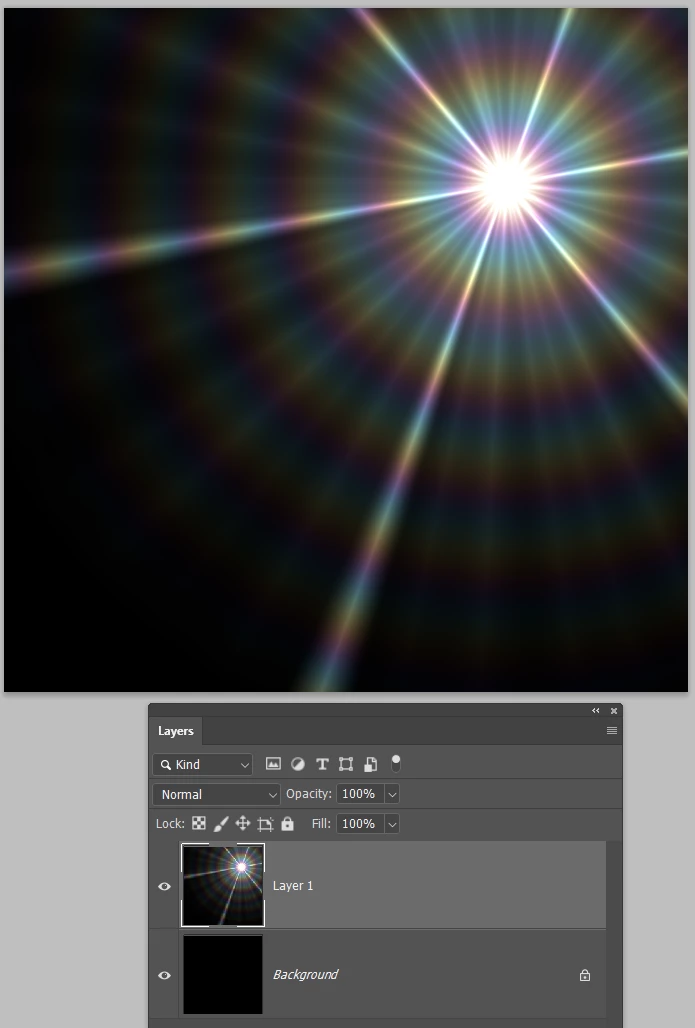
 

I've used Ctrl A to select all, and Select > Transform Selection  and dragged in a corner handle while holding down the Alt key to reduce the selection.  I then added a layer mask so the flare now only extends to the white area of the mask, but still has a hard transition.
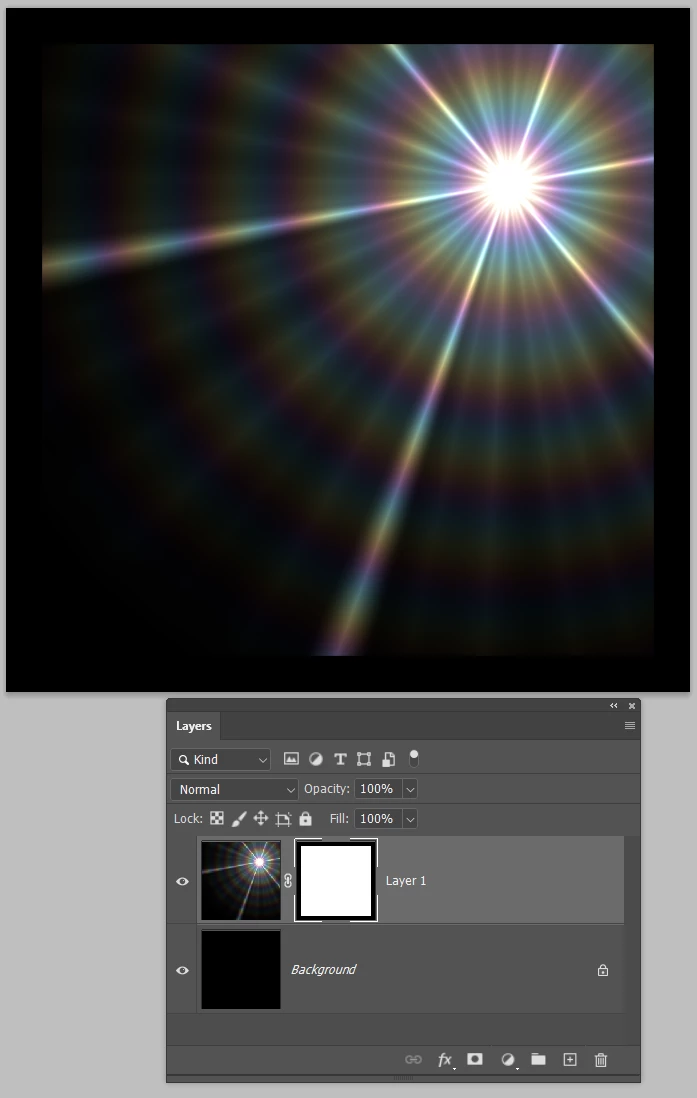
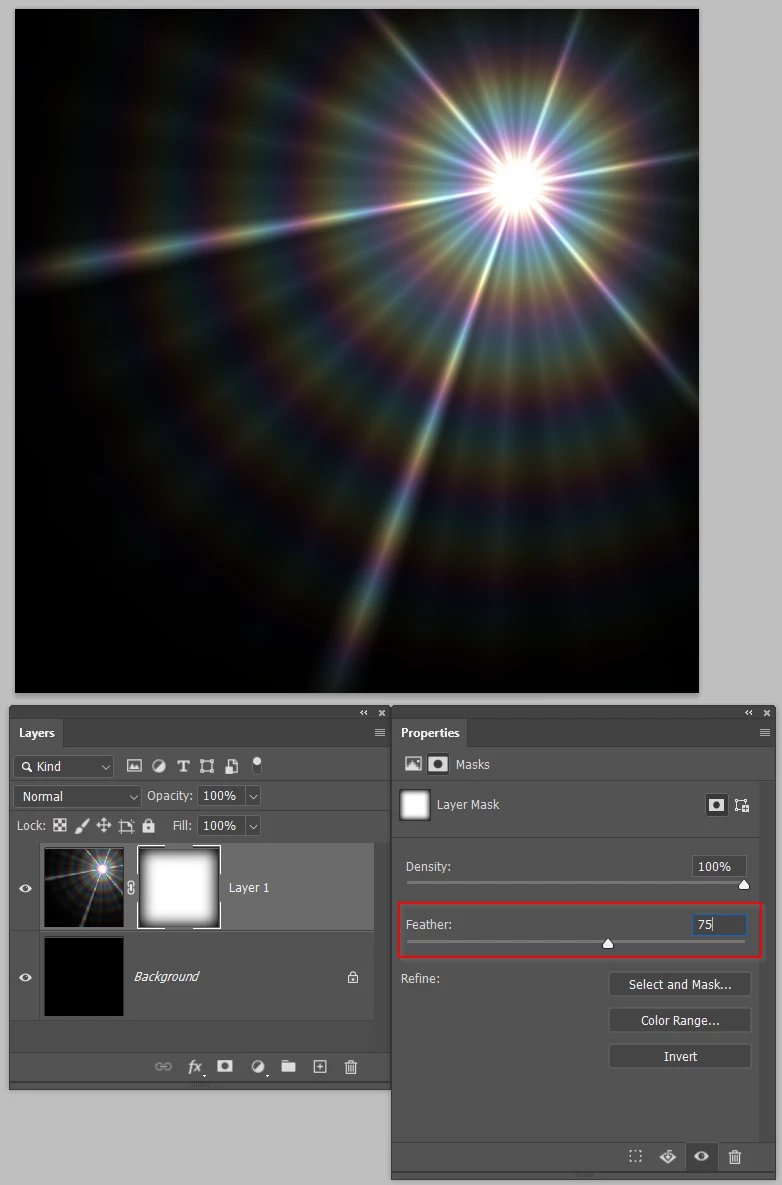
Selecting the layer mask opens Mask Properties, and adding a decent amount of Feather softens the transition.  You could now use a JPG flare, but you'd probably have to change its blend mode to something like Lighten or Screen.

 

3 replies

Trevor.Dennis
Community Expert
Trevor.DennisCommunity ExpertCorrect answer
Community Expert
September 16, 2021

Can you give us the link to the lens flare file?


Lots of flare images have softer gradient components that can extend all the way to the image boundary, so it is often best to create them within the image document you wish to use them in.


You might be able to feather out the periphery by using a layer mask, and feathering the mask in Mask Properties.

I made this flare with Pro Digital's Starfilter Pro 4.  You can see that it extends to the image boundary


I've used Ctrl A to select all, and Select > Transform Selection  and dragged in a corner handle while holding down the Alt key to reduce the selection.  I then added a layer mask so the flare now only extends to the white area of the mask, but still has a hard transition.

Selecting the layer mask opens Mask Properties, and adding a decent amount of Feather softens the transition.  You could now use a JPG flare, but you'd probably have to change its blend mode to something like Lighten or Screen.
 

hisoka.95Author
Known Participant
September 16, 2021

Thank you, your method did the trick. Thank you.
But I think there is a simpler way that I can't figure out by myself  that's why I uploaded the file, if you have other ideas please share them with me.
Forgive me for my lack of knowledge of Photoshop and Illustrator

https://drive.google.com/file/d/1RlJ7oxj3n6lMNgt8aP9xZKKUPSBUnhjV/view?usp=sharing


Thank you to everyone who replied to me in this post, and thank you for your giving and time,

I hope one day to be a contributor to this wonderful community

c.pfaffenbichler
Community Expert
Community Expert
September 16, 2021

If the unwanted background is true black set the placed image to the Blend Mode »Screen«. 

c.pfaffenbichler
Community Expert
Community Expert
September 16, 2021

What is the image’s file format? 

hisoka.95Author
Known Participant
September 16, 2021

there are two files one jpg and eps.

I tried to open the jpg image to photoshop and the result appeared as the image that I attached in the question.

davescm
Community Expert
Community Expert
September 16, 2021

jpg does not support transparency

Dave

PECourtejoie
Community Expert
Community Expert
September 16, 2021

Hello, you did get a fake transparent image, or it is the jpeg preview of a lens flare, instead of the png file with transparency...

Get the proper png image with transparency, and you'll be all set.

It seems easy to reproduce with a few brush strokes, then some smudging, or directional blur...

hisoka.95Author
Known Participant
September 16, 2021

Thanks..

When I downloaded them I only found two extension jpg and eps , there are no png image.

c.pfaffenbichler
Community Expert
Community Expert
September 16, 2021

Is the eps a vector-eps? Does it open in Illustrator?