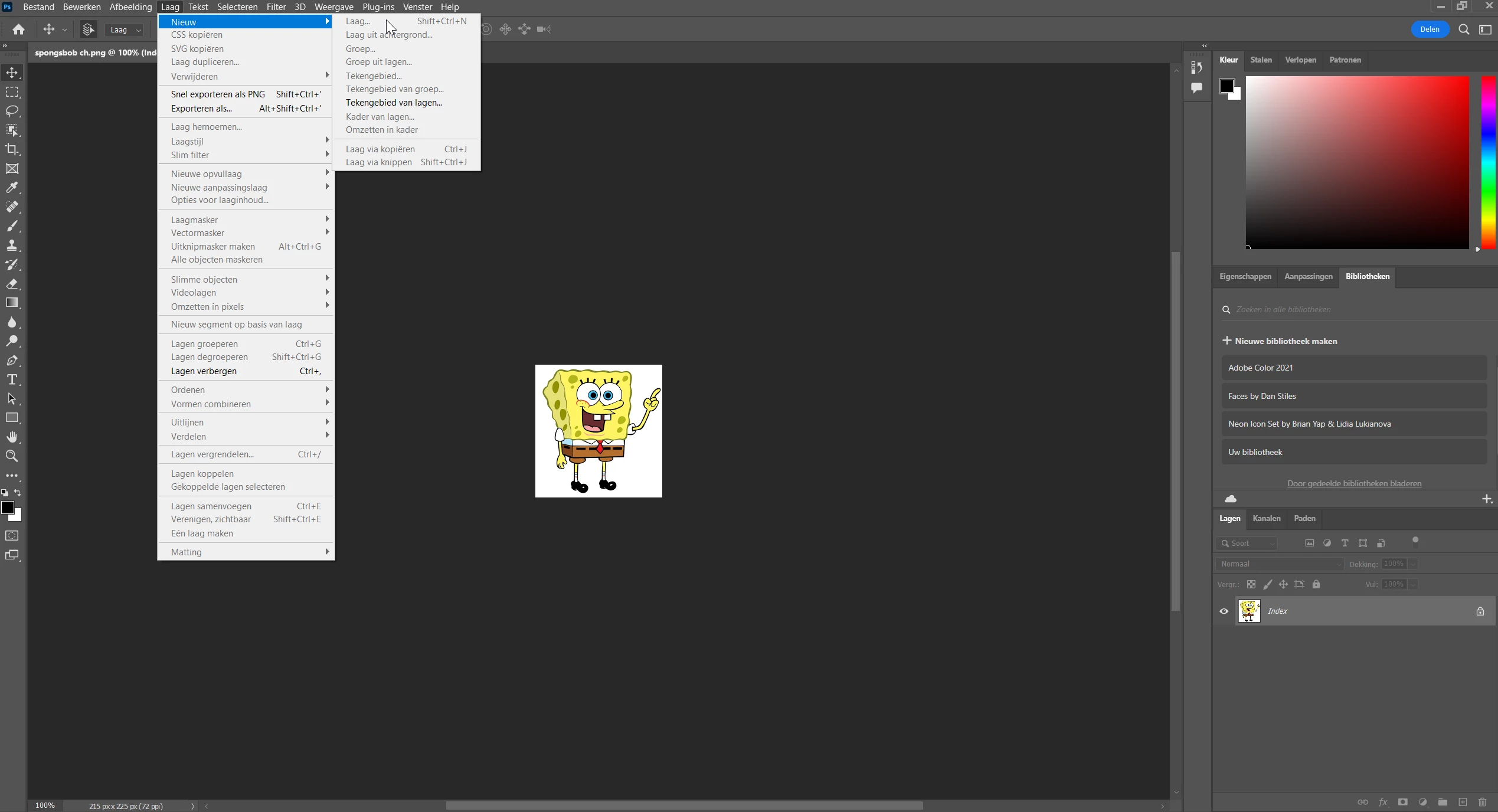
After you convert the artwork from Index Color to RGB (Image > Mode), double-click on your Layer to unlock it.
Whatever the tutorial was going to get you to do, this is an easy one. So, ignoring the tutorual for a moment, you have two choices that are quite easy, since your white background is flat and contiguous. Select the Magic Wand tool, set tolerance to a low number like 5 or 10, check Contiguous, then click on the white background. this should select ONLY the white of your background. The first choice is to simply hit Delete and the background goes away, (since this a low-res graphic, the edges might have a slight fringe to them). The second (non-destructive) way is to make the selection, then create a layer mask ( Layer > Layer Mask > Hide Selection). This gives you a mask that hides your background, and you can adjust it anyway you want to improve the edges without affecting the original artwork at all. (Look up how to work with masks and you can see the benefits).
Try the tutorial, too and see how that works for you.
There are many ways to carve a stick!



 AdChoices