
Participating Frequently
January 1, 2018
Answered

Desaturated colors in Photoshop

  • January 1, 2018
  • 4 replies
  • 12562 views

I’ve read dozens of posts on similar topics and I’ve found no solution to my specific problem whatsoever.

The colours in photoshop (and Bridge) are displaying incorrectly. They appear desaturated with a distinctly green colour cast. This is not the case in non colour managed programs such as ‘Photos’ and Camera Raw, in which the photos appear as shot. How have I deduced that the problem is with Photoshop and not in non managed programs such as 'photos' or ACR for example? I've outlined my trouble shooting steps below, but I'd say most definitively I've viewed the Tagged/Embedded: Wacked RGB from the getty images photo disc (www.gballard.net). I've been working with skin tones for years and all four skin tone images are definitely unnatural.

This may seem like a ‘colour settings’ issue, but I’m not sure that it is.

I primarily work in video, and any photos I edit are destined for the web, rather than print.

My workflow is:

Camera shooting sRGB > Camera Raw (photos appear normal) > Photoshop. (Jpegs directly opened in Photoshop display the same problem)

Windows 10 > Radeon RX580 >BenQ SW2700PT, calibrated with an X-Rite i1 Display.

The monitor is a wide Gamut display, which can run in multiple colour spaces including Adobe RGB. I run it in sRGB, and it is calibrated with an SRGB D65  profile because my work is online based.

Problem solving steps

  1. Calibration - the monitor has been calibrated multiple times, each with the same result. Calibration reports confirm correct calibration. The monitor displays correct colours in other programs such as Premiere, just not photoshop or bridge.
  2. The x-rite i1 - calibrates colours correctly on other monitors.
  3. Graphics Card - I have disabled the graphics card in Performance > Graphics Processor Settings and rebooted Photoshop, but the problem persists. I have also uninstalled and reinstalled latest drivers.
  4. Photoshop color settings - I've tried them all.
  5. Photoshop preferences - I've reset the preferences but problem persists.
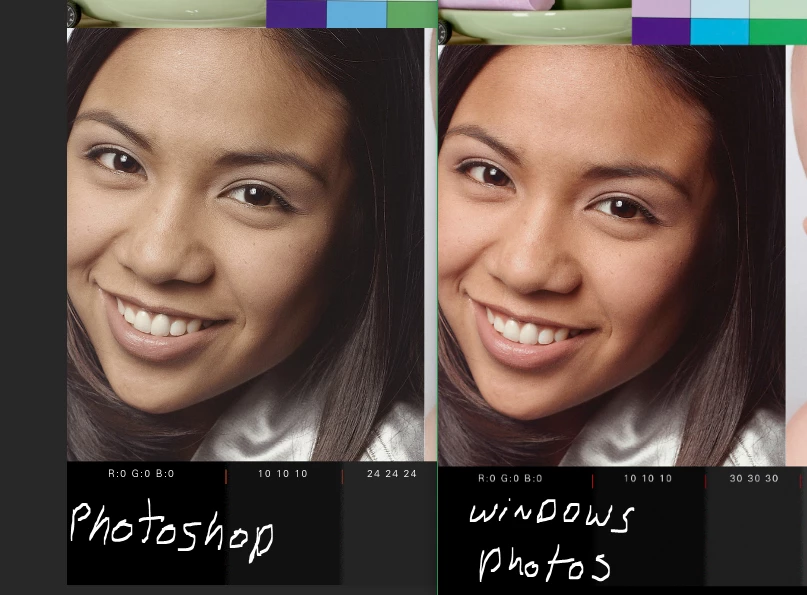
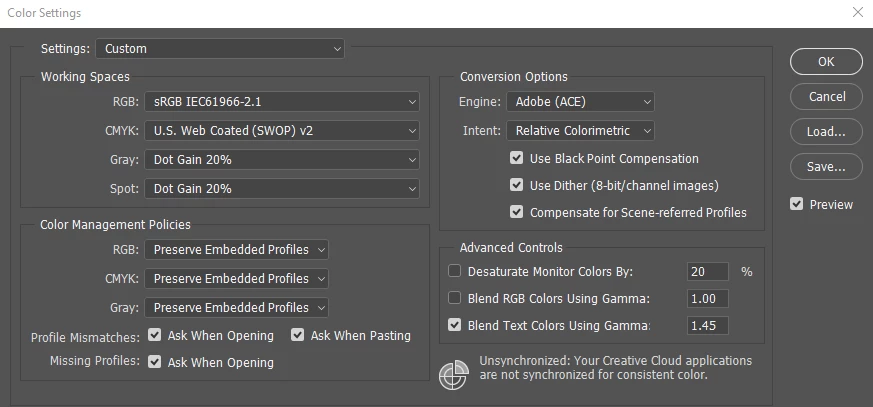
My current Color Settings are in the image below. I have viewed all options in ‘Proof Setup’ - nothing fixes the issue.
I also have a mac, which displays the photos exactly the same in Camera Raw and Photoshop. The images appear similar to my camera LCD.

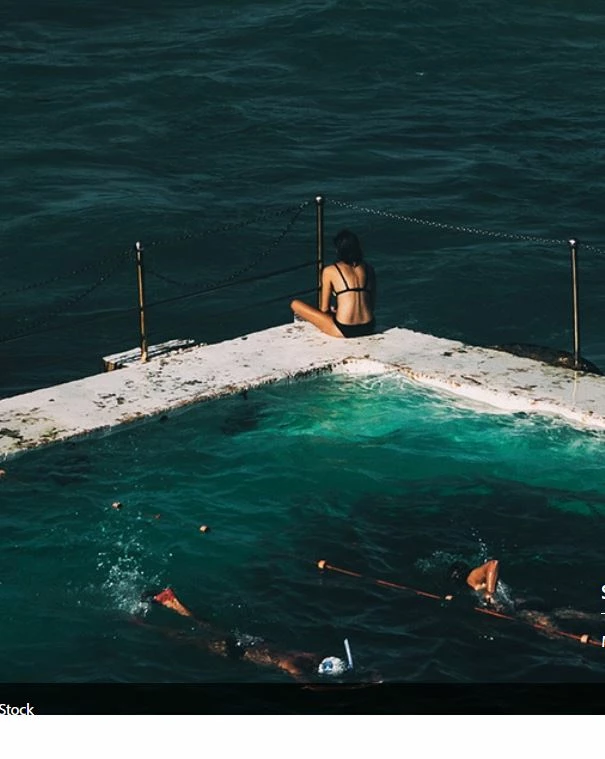
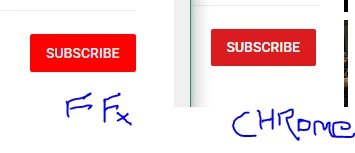
Another thing I have noticed is that the colours in Firefox, which I understand is colour managed, look as I expect them to look, and they look desaturated on Chrome. I've specifically looked at the Adobe website and their hero shots, which I'm sure are supposed to look as they appear on Firefox, rather than the drab images which appear on chrome.

This is a screen capture in firefox (the image is the hero shot on www.adobe.com/au/) Neither of the below images came through Photoshop, so I have to deduce that my problem isn't with Photoshop per se, but the way my system is interacting with some programs that use colour management Software.
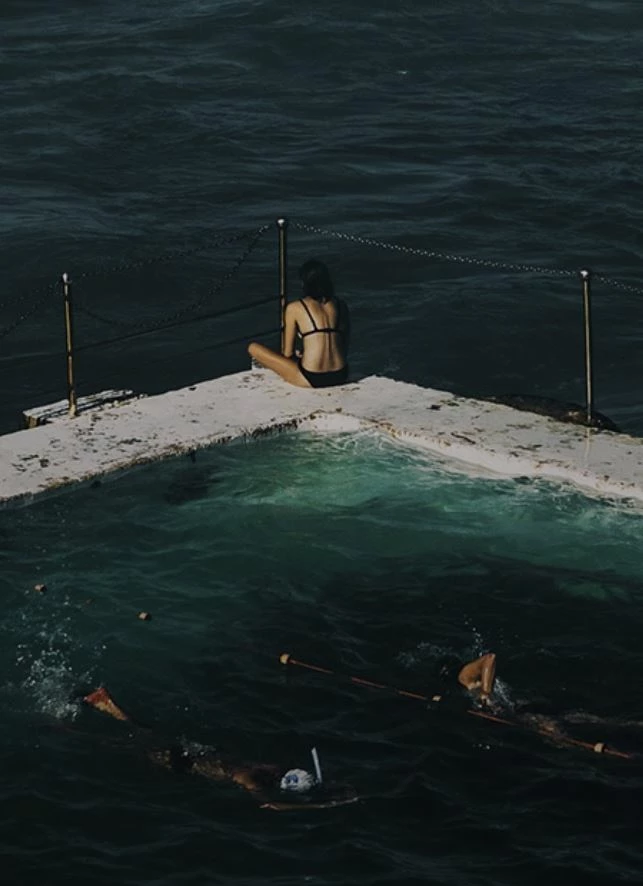
This is a shot from Chrome: (The colours are clearly dull and desaturated)
Thanks, Glen
    This topic has been closed for replies.
    Correct answer NB, colourmanagement

    Thanks for your help on this. After reverting to the X-rite software and recalibrating I've noticed

    1. ACR and Photoshop display images in the same way - still feel like they might have a very slight greenish hue, but nowhere near as bad.

    2. Firefox displays most internet images very vibrantly compared to google chrome, even icons and graphics.

    3. Windows 'Photos' displays images with the same vibrancy as Firefox - way too saturated - even icc embedded images.

    4.  most online images in chrome tend to be dimmer and less saturated

    5. BUT if I save my images as jpegs with icc profiles they look exactly the same in both firefox and chrome (which is a win, I'm pretty sure)

    6. Chrome and Firefox seem to have the same saturation on my macbook pro. Is this because even though I'm running it as an sRGB calibration my BenQ is being read as a wide gamut monitor by some programs?

    Thanks for your suggestions to date.


    Hi Glenn,

    Pleasure, I am glad I could help. [if you mean me?]

    Thanks for the “helpful”, we volunteers live on points ';~}

    The greenish hue may be something you’ll need to think about, does your room have reddish walls? That can cause a greenish appearance because your eyes grey balance to take account of the overall light in view.. If not you may be seeing a limitation of the Xrite software, why not test the basICColor display SW that I recommended.

    What you are seeing now is how some programs don’t deal well a wide gamut display ( when calibrated without any gamut restriction ) .

    Programs that do not “do” colourmanagement just throw the data at the system [not using the display profile] and that’s why you see this strong colours. Same goes for web images with no profile embedded.

    With some of your applications showing the issue (e.g. web browsers) you may be able to set up the colour management - google will be your friend here. AFAIK Firefox CAN do colourmanagement.

    So Chrome looks similar Photoshop? That would indicate colour management in action.

    Yep “5” [embed profiles]

    is the way to do it, web images should have ICC profiles embedded. In the past it was thought it bloated file size but faster connection has made that opinion obsolete.

    However, have you considered this?

    Almost all users with high gamut displays do not calibrate the restrict the gamut. It’s not always even possible.

    This means that those users see just what you are seeing now when looking at their non-colourmanaged application’s image display. Of course if web material has profiles embedded AND the web browsers have colour management activated by default, then they should experience the correct appearance.

    I have discussed the concept of gamut reduced calibrations with the guys art basICColor and whereas Eizo (a hardware calibration screen manufacturer) offer to restrict the gamut during calibration using their colornavigator SW, basICColor do not.

    Their opinion is that virtually everyone viewing a wide gamut display is NOT restricting gamut, as I mentioned above.

    Until ALL web browsers are colour managed [by default] and all web material has icc profiles embedded, this will continue to be an issue.

    Some web content providers I work with will use a wide gamut screen for print work etc. And also have a second screen (standard gamut) so they can see their web work on both screen types.

    Complicated isn’t it. And really there’s no way round it because you can’t control how people view your material on screen. Of course they get used to it, like somemusers with very saturated TV settings. Everything they see that’s not colour managed is rather vivid.

    So:

    Some people viewing your content will see it on sRGB gamut screens,

    some on [approximately] Adobe RGB gamut screens - the latter, like your benQ will display non colourmanaged content rather vividly unlaces gamut is restricted during calibration. And virtually no one would do that having purchased a wide gamut screen.

    I hope this helps

    if so, please do mark my reply as "helpful" and if you're OK now, please mark it as "correct" below, so others who have similar issues can see the solution

    Long answer, sorry. Takes some understanding this

    thanks

    neil barstow, colourmanagement

    4 replies

    NB, colourmanagement
    Community Expert
    Community Expert
    January 2, 2018

    Hi gmenm,

    non colormanaged applications don't use the display profile (generally) so maybe your calibration is good but the ICC profile is wacked.

    I see you're using the benQ palletmaster SW.

    you'd not be the only person to have issues with this

    I'll make a 'free to try' suggestion which as worked in the past

    download basICColor display SW (free 14 day demo)

    https://www.basiccolor.de/basiccolor-display-5-en/

    register / download / install / activate demo and calibrate & profile your screen with that software and your iOne colorimeter

    that SW does a great job with those screens in my experience.

    if it looks good maybe its worth buying a copy

    [full disclosure. I'm a basICColor reseller and a big supporter of their wares]

    I hope this helps

    if so, please do mark my reply as "helpful" and if you're OK now, please mark it as "correct" below, so others who have similar issues can see the solution

    thanks

    neil barstow, colourmanagement

    rayek.elfin
    Legend
    January 2, 2018

    If you'd be mentioning alternative colour management software, it's only fair to consider DisplayCAL - open source and free. I had issues with my Spyder's software, and switching to DisplayCAL solved it all. More options too.

    DisplayCAL (formerly known as dispcalGUI)—Open Source Display Calibration and Characterization powered by ArgyllCMS

    NB, colourmanagement
    Community Expert
    Community Expert
    January 3, 2018

    Hi

    I agree, free software is nice to have and it may work for him, but I have not tried this with the benQ - and basICColor display I have tried and it worked well each time.

    basICColor display's a very simple application to try out.

    Down the line, as it offers a very wide range of calibration options users do tend to experiment to arrange the best match to a properly illuminated reference proof.

    I hope this helps the OP

    if so, please do mark my reply as "helpful"

    thanks

    neil barstow, colourmanagement

    D Fosse
    Community Expert
    Community Expert
    January 1, 2018

    OK. But it has to be something covered in my three bullet-point checklist. You might want to try to break it further down. There's never any magic in these things - if colors aren't displayed correctly, that means one thing: the color management chain is breaking down at a specific point. The job is to locate that point. If color management is working properly, these things can't happen.

    But there is one thing I forgot to mention above. There is a rather obscure bug in ACR that sometimes bites people with dual monitor setups. What happens is that ACR uses the wrong profile. It uses the profile for the primary display, when the ACR application itself is on the secondary display. The only fix/workaround I know of is to switch primary/secondary display assignment in the OS. (BTW, this falls under bullet point three).

    Neox99
    Legend
    January 1, 2018

    Your comment confirms the need for calibrated monitors (hardware, not software type) each with their own .icc profile assigned.

    The 'muted' samples given remind me of pro photo color space being incorrectly used/assigned.

    D Fosse
    Community Expert
    Community Expert
    January 1, 2018

    Turn off proof! That only complicates things unnecessarily.

    This looks like Adobe RGB files, but with the color profile stripped - and then viewed with sRGB as working space.

    How are you saving your jpegs? If Save For Web or Export, those two strip the profile by default. You need to check "embed profile".

    The color space for raw files is set in the ACR workflow options. The camera setting only applies to camera-processed jpegs. And the Photoshop working space is just a default. The embedded profile will always override it, unless there is no profile, then the working space is assigned.

    D Fosse
    Community Expert
    Community Expert
    January 1, 2018

    If that's not it, a couple of other things:

    Make a new profile, and make sure i1Profiler is set to make version 2, matrix-based profiles. Version 4 and/or table-based profiles are known to be problematic in some configurations.

    Once you've run the calibration/profiling, don't change any settings in the monitor! The profile needs to describe actual, current behavior. If you calibrate with the unit at full gamut, and then switch to the sRGB emulation, the profile is invalidated and you need to make a new one.

    Whenever you switch monitor profile at system level, relaunch Photoshop. It needs to load the profile at application startup, and it loads whatever profile it gets from the OS.

    With GPU enabled in Photoshop, that's where display color management is executed. This is known to be bug-prone. If you set GPU to "Basic", display color management is shifted back to the CPU, which is much more robust and reliable.

    To test the display profile, try to replace it with a known good profile, sRGB or Adobe RGB (according to monitor gamut set in the monitor OSD). Relaunch Photoshop. This is just a diagnostic test, these profiles are not entirely accurate, only ballpark.

    ---

    General color management troubleshooting. This is generic, but actually covers every possible scenario. If you can confidently check these three points, it will reproduce correctly on screen:

    • Does the file have an embedded icc profile, and is it the correct one?
    • Do you have a valid display profile at system level, one that accurately describes the monitor's current/actual response?
    • Are you viewing the file in a color managed application, that will correctly read and interpret both these profiles, and convert from one into the other?
    Participating Frequently
    January 1, 2018

    I hadn't been saving them at all. The problem isn't with the saved files, but rather with the way images are being brought into Photoshop. I'm beginning to think the problem isn't photoshop specific and is some strange interplay between my graphics card, Operating System, monitor and the way my colour profiles are being handled.

    I've been testing everything I can think of to fix the problem, and last night I noticed something very strange.

    I'm running a dual display setup. My primary display is the BenQ SW2700PT, and my secondary display a cheap Dell, which I don't colour manage. The Dell has been running with an HDMI cable (1.4). I'm using a DVI-D in the BenQ.

    I opened an image in Camera Raw on my uncalibrated display and it displayed the opposite characteristics of my colour managed display! The ACR image looks desaturated and greenish, while the photoshop image looks much more what I'd expect, but it's an uncalibrated cheap monitor so I can't actually trust it.

    On my last restart I got an error message from Radeonsettings.exe (0xc0000142). Apparently something to do with .dll files. I've just decided to reinstall windows and (re)reinstall my graphics card drivers. Then I'll follow your matrix v2 calibration instructions - thanks. I'm also switching from a DVI-D to a minidisplay port asap. (public holiday -so I'll have to wait)

    mglush
    Community Expert
    Community Expert
    January 1, 2018

    Hi Glen!

    A couple questions for you...What version of Photoshop are you working with? Did you just upgrade? And just one other thought, do you have proof colors selected under the View menu? Just wanted to check before we delve into other options.

    Thanks,

    Michelle

    Participating Frequently
    January 1, 2018

    Hi Michelle.

    Thanks for your response. The Photoshop version is cc 2018.The most recent one, newly installed a week ago. I've only just moved over to Pc from Mac, so there are no earlier versions installed on the machine. The proofs are just set to CYMK, but it doesn't matter if they're on or off - the images don't appear correct. I've tried every option here.

    The fact that Firefox and Chrome are displaying the images so differently is making me wonder if thete is done kind of colour management conflict earlier in the chain. Baffled.

    mglush
    Community Expert
    Community Expert
    January 1, 2018

    Baffled is right. The fact that you are having trouble outside of Photoshop tells me that there are computer settings involved. I am not a pc girl and I have no idea where to tell you to look. I will look forward to seeing what some of the other contributors can come up with. I wish you the best.

    Michelle