Participant
July 12, 2020
Answered

Different colors in LR/PS and web browsers

  • July 12, 2020
  • 1 reply
  • 1086 views

Hi all,

I have a problem with color profiles I guess...

So my Lightroom and Photoshop are both set to ProPhoto RGB.

I start with editing in LR first and then export to PS - so far so good - all colors look exactly the same on both applications.

Then when I'm done with editing in PS I convert to sRGB profile (Edit > Convert to Profile). After that action colors still remain the same inside PS.

However when I save the image then open it with FastStone or Windows Photo app or any web browser colors look dull and desaturated compared to what they looked inside PS and LR.

What am I missing? For years I been editing images the same way as I described above and everything was working perfect until now. Did I change anything by accident and what could it be?
This topic has been closed for replies.
Correct answer Per Berntsen

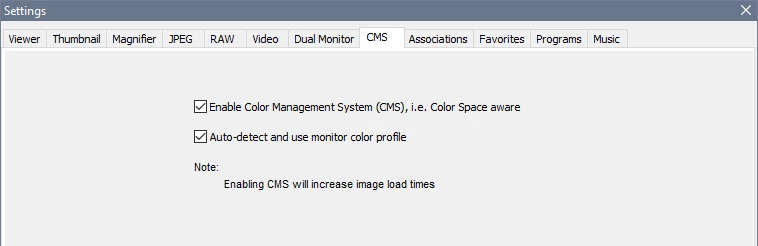
FastStone is color managed (version 7.0 and later),  but you have to turn on color management under Settings > CMS.

Both boxes must be checked. FastStone must be restarted to become aware of the new settings.


Although Chrome is fully color managed, there have been a few reports of it displaying wrong colors.

Never happened to me, but it could be a bug that is only triggered on some systems, and/or under specific conditions.

The latest version of Edge is color managed, as well as Opera and Firefox.

To have full color management in Firefox, gfx.color_management.mode must be set to 1. It will then assign sRGB to untagged images, as well as css colors.

(type about:config in the address bar and press Enter to change this setting. Then search for color)

1 reply

D Fosse
Community Expert
Community Expert
July 12, 2020

That's the difference between color management and no color management. It's perfectly normal. Photoshop is right, "Photos" and your web browser are both wrong.


In a color managed application, your monitor profile is used to correct for your display's defects and idiosyncracies, and the file correctly represented on screen. Applications without color management don't do that. They just pass the numbers straight through, and so it's down to the display characteristics how it looks.


However, for color management to work as intended, even in applications that support it, you must embed the color profile. Unfortunately, Save For Web and Export don't do that by default. You have to manually check the box.


Windows Photos does not support color management at all. Most major web browsers today do; but you must embed the profile.

bbfl1Author
Participant
July 12, 2020

Thanks but I tried it before and still get very dull and desaturated colors.

What I did was: Convert to sRGB profile then Export As > JPG (Convert to sRGB and Embed Profile are both checked) and then click Export. Then open the photo in Chrome or any browser and photo viewer and still get the desautared image.

Tried alos to Save For Web (Convert to sRGB is checked = same problem) + when I select Preview: Monitor Color I see it already there that colors are desaturated.

D Fosse
Community Expert
Community Expert
July 12, 2020

Preview > Monitor Color disables color management. It needs to be "Use Document Profile".


So that just confirms what I said.