
Participant
December 29, 2022
Question

DIGITALISING A PAINTING

  • December 29, 2022
  • 3 replies
  • 550 views

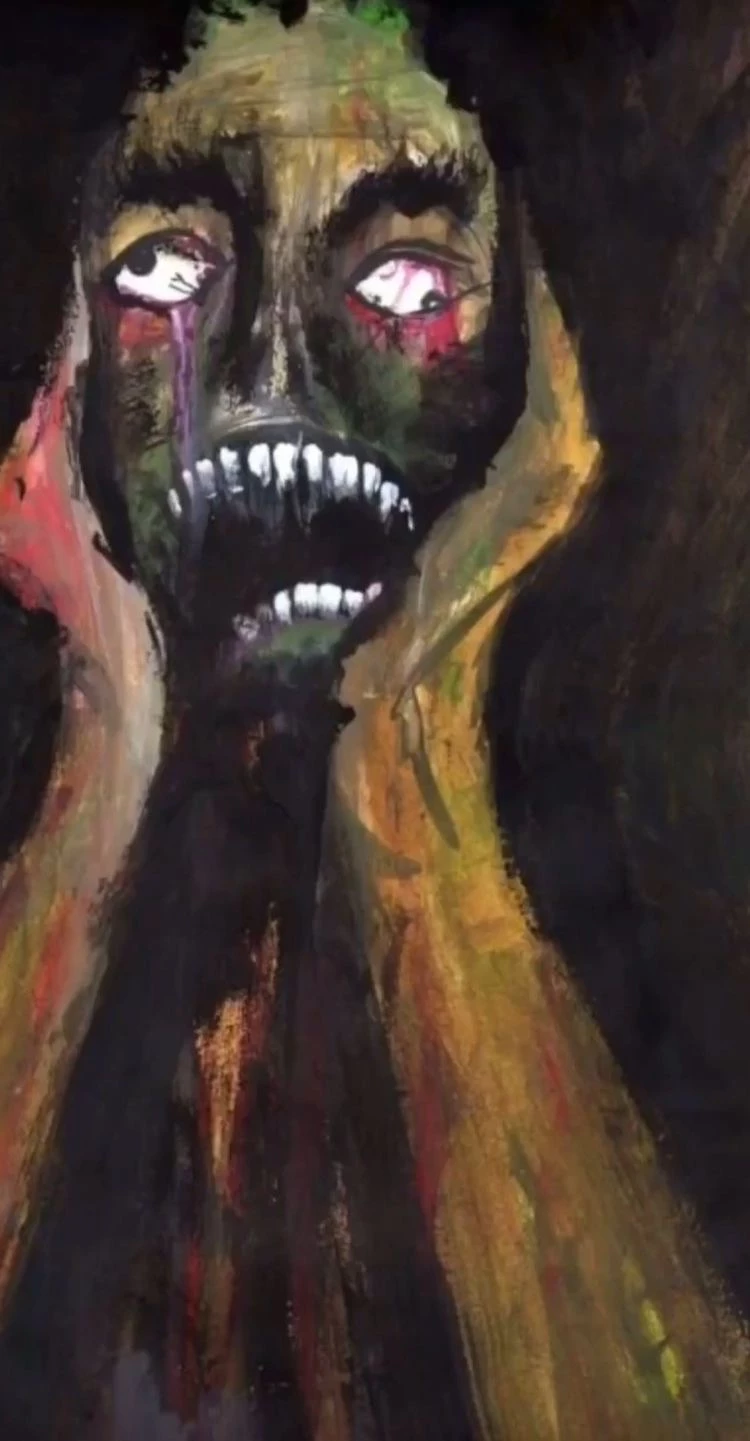
I am trying to create a graphic for my clothing brand using photoshop. I was wondering if there is a way to remove the background but keep the more faded effect around the edges as a png. Or even replicate the painting digitally to make the colours more prominent and less pixelated.
This topic has been closed for replies.

3 replies

Legend
December 30, 2022

I doubt that will screen print well. I'd run a test as-is, make separations and screens, and try it before going any further.

Kevin Stohlmeyer
Community Expert
Community Expert
December 30, 2022

@Lumigraphics This isnt screen print its DTG which is basically a glorified inkjet style printer Direct To Garment.

Legend
December 30, 2022

Ah I missed that detail. I've heard that there are cost and durability concerns compared to traditional screen printing. This would not work as a logo design, it could be printed but that's going to be limited too. Traditional screen printing is most effective with large color blocks.

Kevin Stohlmeyer
Community Expert
Community Expert
December 29, 2022

Simplest way I can think of is to add a layer mask on the image and use a brush tool to remove the areas you dont want printed.

c.pfaffenbichler
Community Expert
Community Expert
December 29, 2022

When you talk about clothing that implies actual printing, so the file format png should be a non-starter. 

Have you talked with the print shop about the data they need yet? 

Will it be silkscreem or something else? 

What will be the color of the textiles? 

Participant
December 29, 2022

It will be printed by DTG on a black tee. A high quality png of the artwork is all that is needed. However I only want the arms and head while still keeping the effect.

c.pfaffenbichler
Community Expert
Community Expert
December 30, 2022

So that process prints white? 

Who creates the white »underprint«? 


A combination of Blend Modes, Blend if-settings, Groups, … can be used for something like this. 

It does little more than Luminosity Masks but it maintains editability for the image in the Smart Object without having to redo the Layr Mask/s.