rebeccah4107999
Participant
January 23, 2022
Beantwortet

Dimensions and resolution from PS to Indesign

  • January 23, 2022
  • 4 Antworten
  • 1619 Ansichten

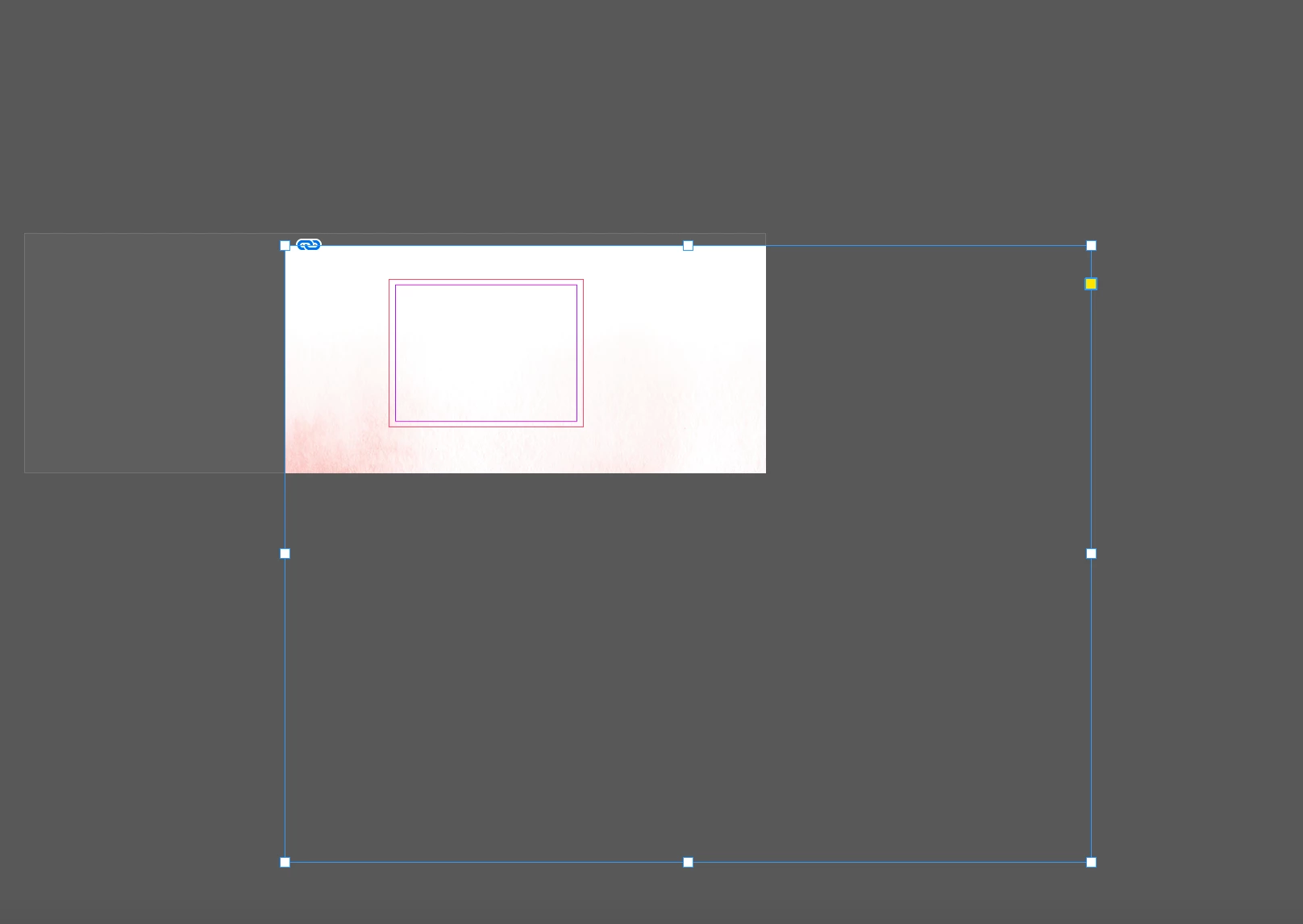
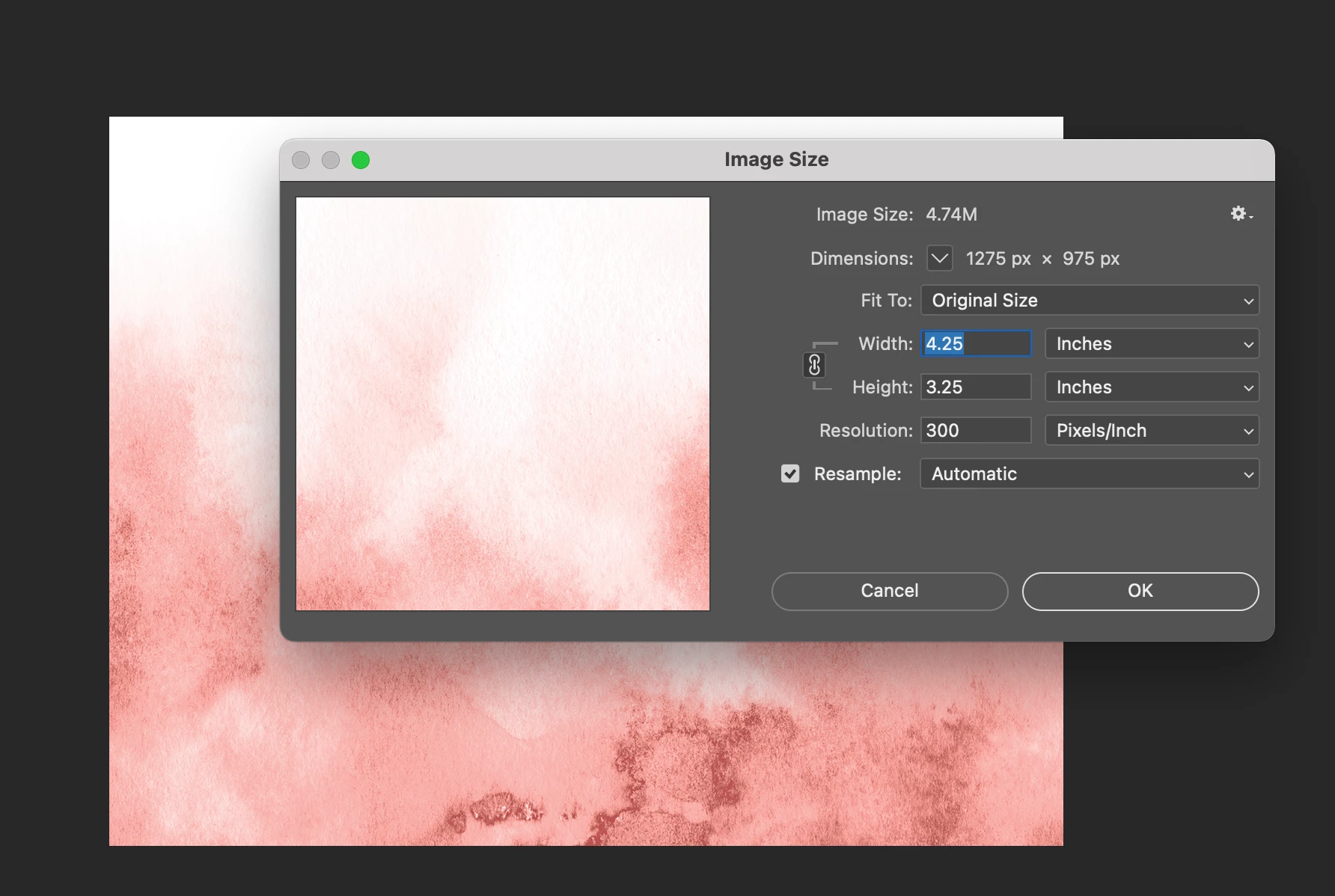
Hi there, I've been tearing my hair out recently over this a few different times. In this case, I saved a background image in photoshop to use in Indesign at the final print size with bleed, 300 dpi (used export as). Then, when I place the image into the indesign workspace with the same dimensions and dpi settings, it is massive (Attaching screenshots, photoshop size details, and how it looks placed in indesign).


I'm just returning to doing some design work after a longish break, and I don't recall ever having this issue. I'm so confused. Resolution and dimensions seem weird in the programs now, I have Adobe CC with most recent versions. For the love of god help me, and thank you!


I was told to never resize things in indesign, I know you can but I wasn't sure if it would mess with the resolution or something. makes me feel dirty. Just wanna place the file and it be the size it's supposed to be. Otherwise, I guess if someone can tell me it definitely doesn't matter to resize it in indesign, I'll live with it. But seems weird and I don't remember it doing this before. 
Dieses Thema wurde für Antworten geschlossen.
Beste Antwort von D Fosse
quote

(used export as)


By @rebeccah4107999


That's your problem. Don't use Export if you want the ppi setting to be retained. Export strips resolution metadata entirely. A file coming out of Export doesn't have a ppi at all, not 72, not 300, not anything. InDesign just assigns 72 as a default value when there is no ppi in the file.


You should use Save As for this. Export is intended for web/screen/mobile devices, where ppi is irrelevant.


Image size in print is determined by the ppi number. And that's what InDesign shows you.

4 Antworten

rob day
Community Expert
Community Expert
January 23, 2022

I was told to never resize things in indesign, 


When you scale in InDesign the image ouput dimensions and its pixels are scaled, not Resampled. It’s the same as changing the Image Size in Photoshop with Resampled unchecked.


In your example if you uncheck Resample and set the units to scale Percentage, changing the percentage to 50 will increase the resolution to 600ppi:


D Fosse
Community Expert
D FosseCommunity ExpertAntwort
Community Expert
January 23, 2022
quote

(used export as)


By @rebeccah4107999


That's your problem. Don't use Export if you want the ppi setting to be retained. Export strips resolution metadata entirely. A file coming out of Export doesn't have a ppi at all, not 72, not 300, not anything. InDesign just assigns 72 as a default value when there is no ppi in the file.


You should use Save As for this. Export is intended for web/screen/mobile devices, where ppi is irrelevant.


Image size in print is determined by the ppi number. And that's what InDesign shows you.

rebeccah4107999
Participant
January 23, 2022

This is it, THANK YOU!

Legend
January 23, 2022

Do NOT use Export As. Despite the name, it is for web use. It therefore throws away the resolution (ppi) - so it will be treated as 72 ppi and will be over 4 times the correct size. To save an image for print use, it's important to use only SAVE A COPY or SAVE AS.

rebeccah4107999
Participant
January 23, 2022

AHH this is it, thank you so much for your help!

Derek Cross
Community Expert
Community Expert
January 23, 2022

Resolutions (PPI, DPI, LPI)  can be confusing. When you Place your image in InDesign the image resolution will change, depending on whether you enlarge it (lower resolution) from the original image or reduce it (higher resolution. You need to check the Effective PPI in the InDesign Layers panel.

Re terminology:

PPI is for Pixels Per Inch and rule of thumb, 300PPI is the usual recommended average; DPI is dots per inch and is the resolution used for things like Laser printers. LPI is Lines per inch and is the resolution for a half-tone screen used for images printed commercial litho and letterpress printing presses.