Participating Frequently
December 19, 2023
Answered

Double line, parallel line

  • December 19, 2023
  • 2 replies
  • 517 views

Hi 

I have this image in PS.

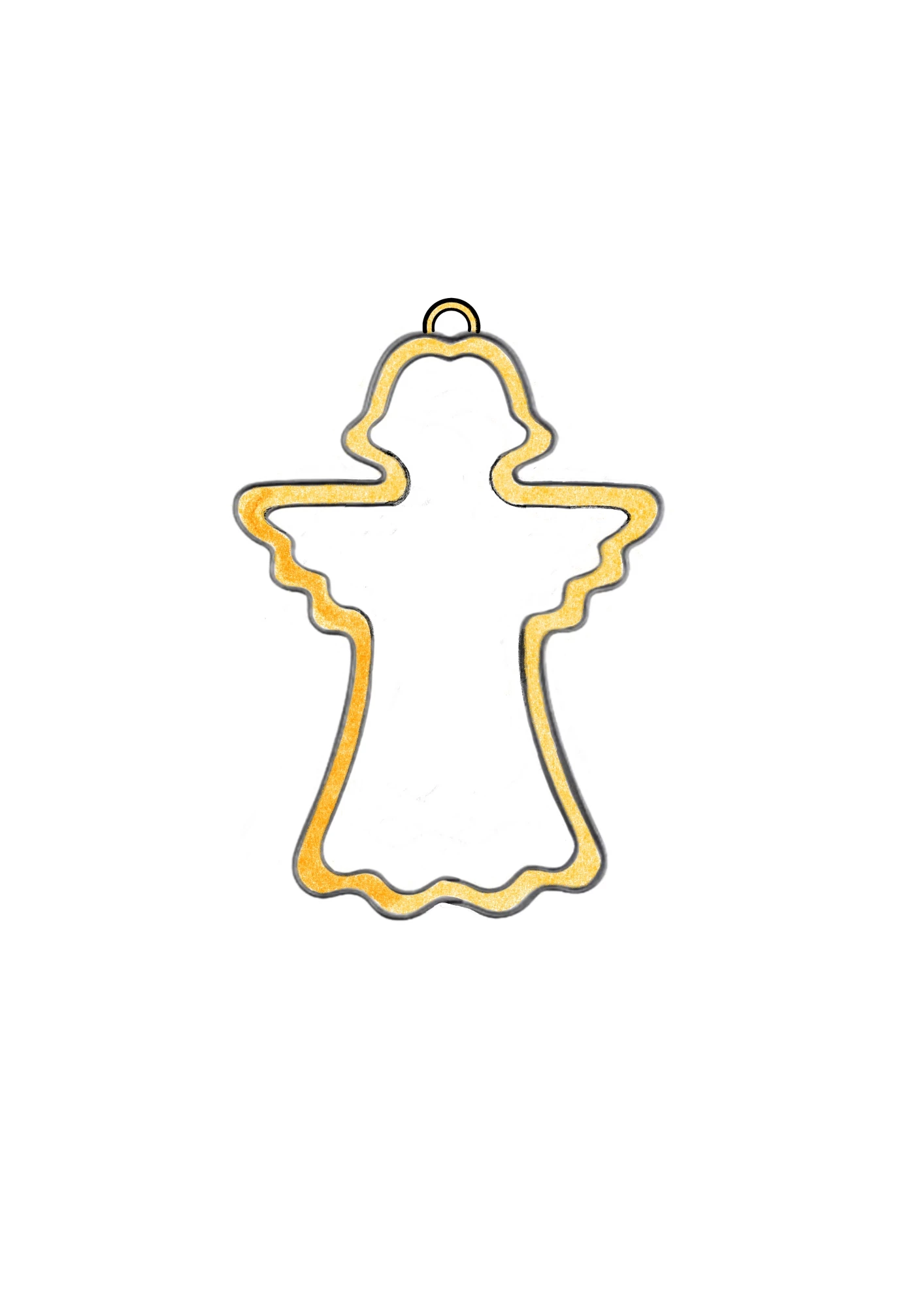
What i want to do is create a second line inside following the first line.

Initially i tried to duplicate the image and scale it down, but that didnt work.


This is a manual drawing which shows what i want to do, never mind the color:


Is there a faster way to do this in PS?

Thanks for any help!

This topic has been closed for replies.
Correct answer Trevor.Dennis

I've made the angel shape yellow so we can see what is going on.


Starting with the angel shape with transparent background, double click to open Layer Styles, and give it a thin black stroke with it set to Centre.


Layer Styles work rather like Photoshop layers.  When you have multiple Strokes, Drop Shadows etc. the higher ones cover the ones beneath them.  If you have never added more than one stroke in Layer Styles, you'll only see the one when you first open it.  So you need to click on the + to open another.

Click on the lower of the two stroke styles, make it the samer colour as the angel. Set it to Inside, and the size to whatever you want the offset to be.  Note: you won't be able to see what's happening because it will be yellow on yellow, or whatever colour you are using.

Click to make a third Stroke.  Select the lower one, and the color to black, the size to the value of the offset plus the width of the stroke.  
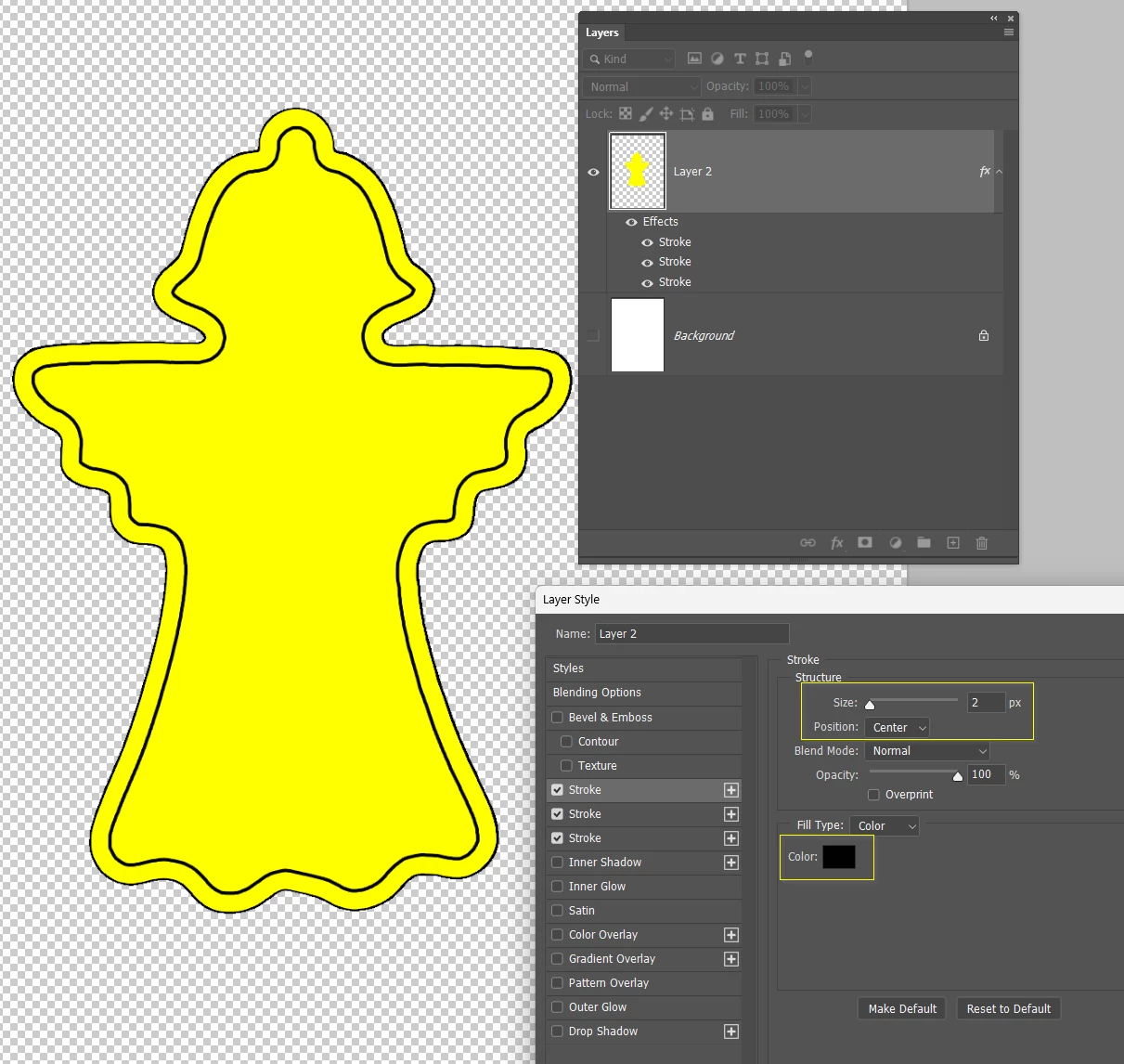


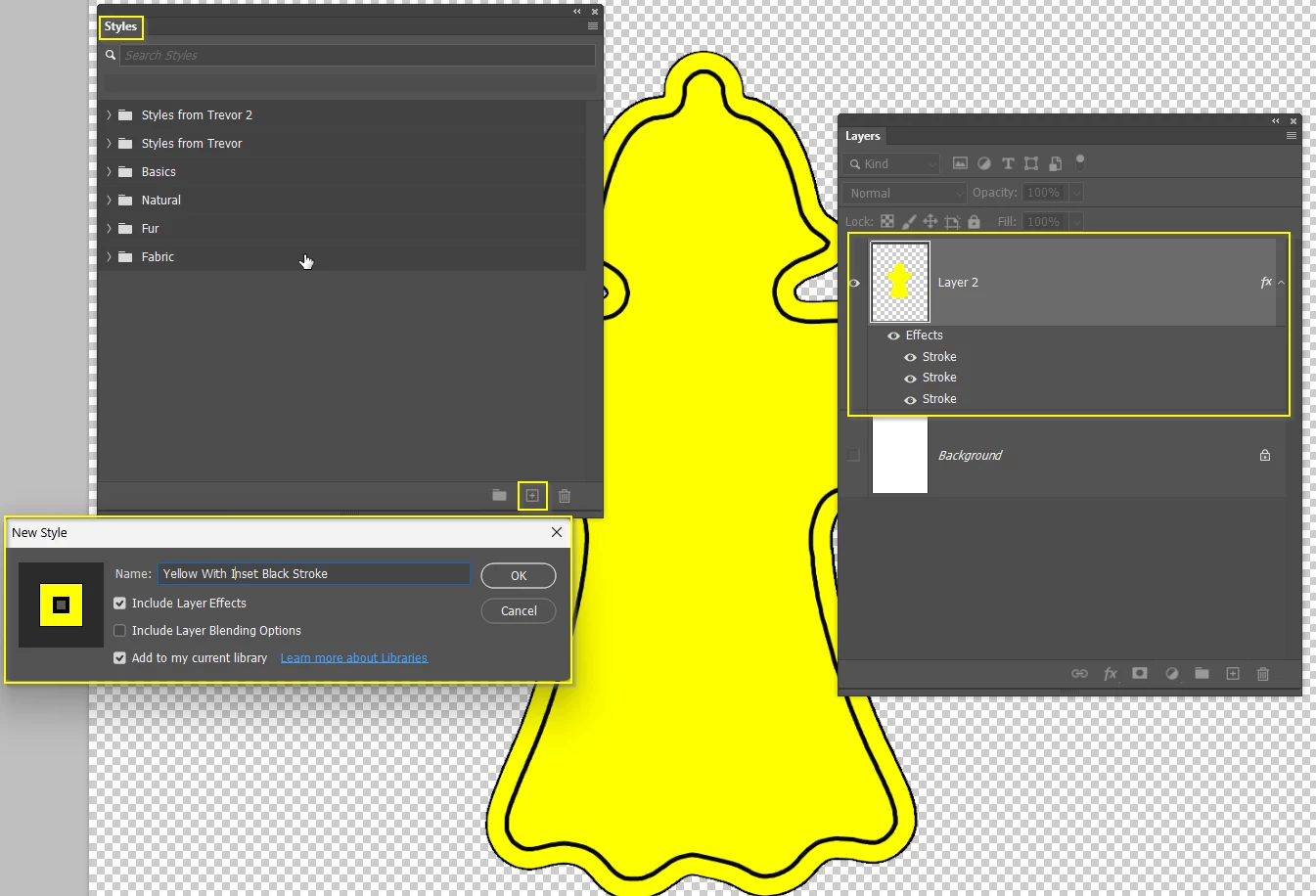
Incidentally, if you make a Layer Style that you like, and might like to use again, you can save it in the Styles panel.

With the relevant layer selected, click on the New Style at the bottom of the Styles panel, and give it a name.
 

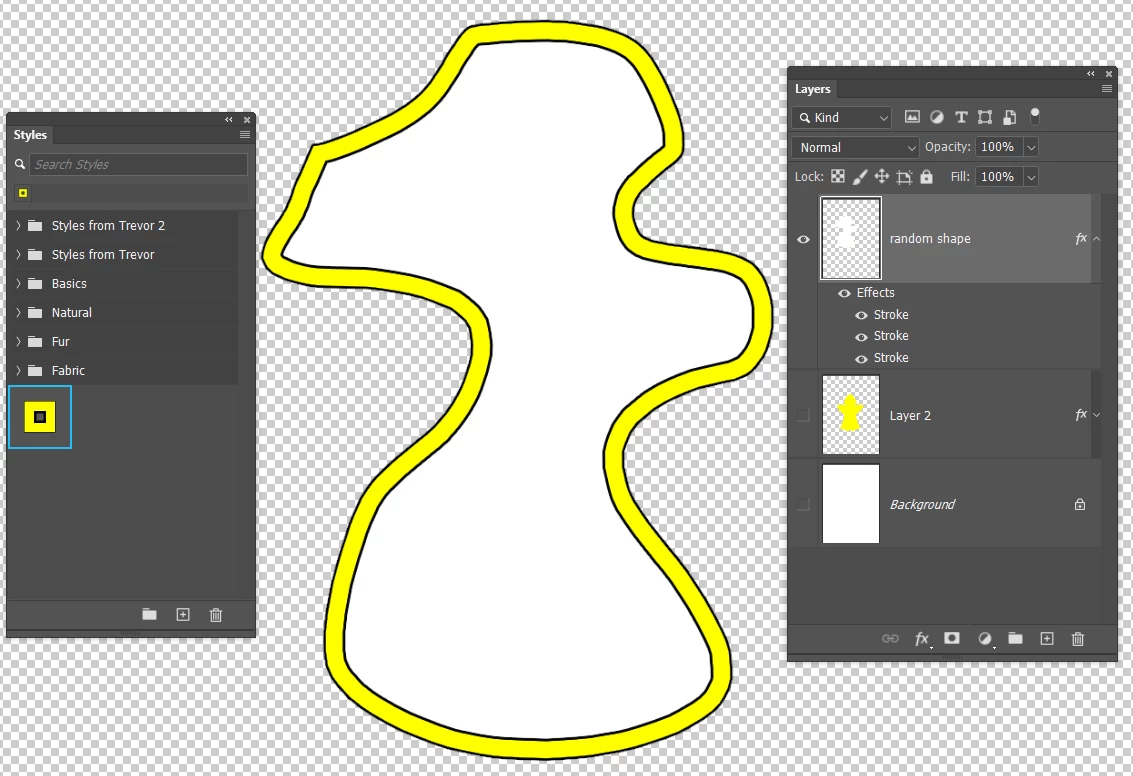
To use it again, select the layer and click on the style

Note: If you wanted the interior of the shape to be the same colour as the offset, then add a yellow Colour Overlay to the saved Layer Style.  
 

2 replies

Trevor.Dennis
Community Expert
Trevor.DennisCommunity ExpertCorrect answer
Community Expert
December 19, 2023

I've made the angel shape yellow so we can see what is going on.


Starting with the angel shape with transparent background, double click to open Layer Styles, and give it a thin black stroke with it set to Centre.


Layer Styles work rather like Photoshop layers.  When you have multiple Strokes, Drop Shadows etc. the higher ones cover the ones beneath them.  If you have never added more than one stroke in Layer Styles, you'll only see the one when you first open it.  So you need to click on the + to open another.

Click on the lower of the two stroke styles, make it the samer colour as the angel. Set it to Inside, and the size to whatever you want the offset to be.  Note: you won't be able to see what's happening because it will be yellow on yellow, or whatever colour you are using.

Click to make a third Stroke.  Select the lower one, and the color to black, the size to the value of the offset plus the width of the stroke.  


Incidentally, if you make a Layer Style that you like, and might like to use again, you can save it in the Styles panel.

With the relevant layer selected, click on the New Style at the bottom of the Styles panel, and give it a name.


To use it again, select the layer and click on the style

Note: If you wanted the interior of the shape to be the same colour as the offset, then add a yellow Colour Overlay to the saved Layer Style.  

 

Stephen Marsh
Community Expert
Community Expert
December 19, 2023

Create a selection in the interior of the shape (such as magic wand), then use Selection > Modify > Contract. On a new layer, you can also stroke the selection with a brush and or use layer style effects.

Participating Frequently
December 22, 2023

Hi and thanks for helping.

What do i do next after select-modify - contract so i can give that selection a stroke?

--------------------Art is Life is Art