OutDamnSpot
Known Participant
March 17, 2020
Answered

Draw a simple circle

  • March 17, 2020
  • 1 reply
  • 1627 views

Ok, This is an opportunity to tell me I'm thick.


I have a map of Antarctica.  But the Antarctic Circle is missing.  I just want to draw a simple circle where it should be, preferably with a dot dash line to distinguish it from the latitude and longitude lines on the map.  I know where it should be, but for the life of me, the only way I can think of is:

Create a new layer

Use the ellipse tool, constrained to a circle

Draw a circle

But...

I get a filled blot obscuring the rest of my map

So

Duplicate the layer

Use Edit>Transform to shrink just one of my circular blots

Use Select>SelectAndMask to turn it into a Mask

Mask the slightly larger circle

I've omitted at least one Invert, but that is unimportant.

But...

I now have a solid circle, and getting it the right thickness isn't easy.


Please tell me there is a better way.


I won't be at all upset if you tell me I'm thick.


This topic has been closed for replies.
Correct answer gener7

"The only dumb questions around here are the ones you don't ask."


So let's set this up with the Shape Tool:

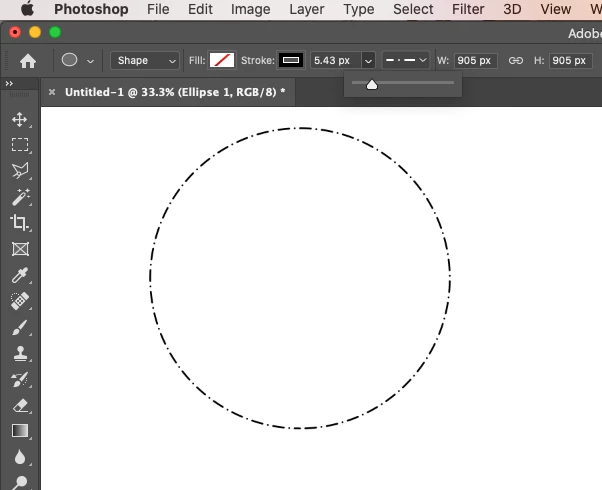
Select "Shape", set Fill to none as shown by the diagonal red line. Then you set up your stroke.

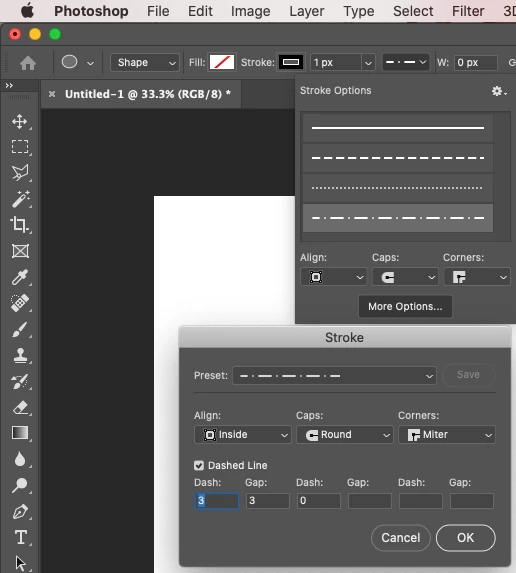
Since the dot-dash stroke is not a standard preset, click on Stroke in the Options bar, and More Options to set up your stroke pattern.

Try those numbers as shown below and click "OK" so you can add it to the list.


Select your custom stroke and if you want a perfect circle, hold down the Shift key while dragging out the Ellipse.

Use the Direct Select tool along with the keyboard arrow keys to nudge it where you want it. This ellipse will be on a separate layer, so you won't harm

your graphics. You just delete the Layer the dotted line is on.

.

1 reply

gener7
Community Expert
gener7Community ExpertCorrect answer
Community Expert
March 17, 2020

"The only dumb questions around here are the ones you don't ask."


So let's set this up with the Shape Tool:

Select "Shape", set Fill to none as shown by the diagonal red line. Then you set up your stroke.

Since the dot-dash stroke is not a standard preset, click on Stroke in the Options bar, and More Options to set up your stroke pattern.

Try those numbers as shown below and click "OK" so you can add it to the list.


Select your custom stroke and if you want a perfect circle, hold down the Shift key while dragging out the Ellipse.

Use the Direct Select tool along with the keyboard arrow keys to nudge it where you want it. This ellipse will be on a separate layer, so you won't harm

your graphics. You just delete the Layer the dotted line is on.

.

OutDamnSpot
Known Participant
March 18, 2020

Hello gener7,


So many thanks.  I tinkered with Shape, but didn't persevere.


I'll have lots of fun drawing lots of circles. 


Thanks too for the screen shots and the example of exactly what I want to achieve.

gener7
Community Expert
Community Expert
March 18, 2020

Ok, glad to hear that got you off on the right track. I don't really use the shape tools all that much, but know enough to help out.


Gene