Personally I believe it comes down to some kind of anti-aliasing specifically with the drop shadow.
I tried every anti-aliasing option with the text (Which is CandyScript btw)...crisp, smooth, strong, etc. Those didn't change anything.
Also tried ticking on and off the aliasing for the drop shadow effect. Nothing. Tried deleting one of the drop shadow layer styles so there is just one. Nothing. Tried messing with my GPU performance options. Nothing. :\
sidianmsjones wrote Personally I believe it comes down to some kind of anti-aliasing specifically with the drop shadow. |
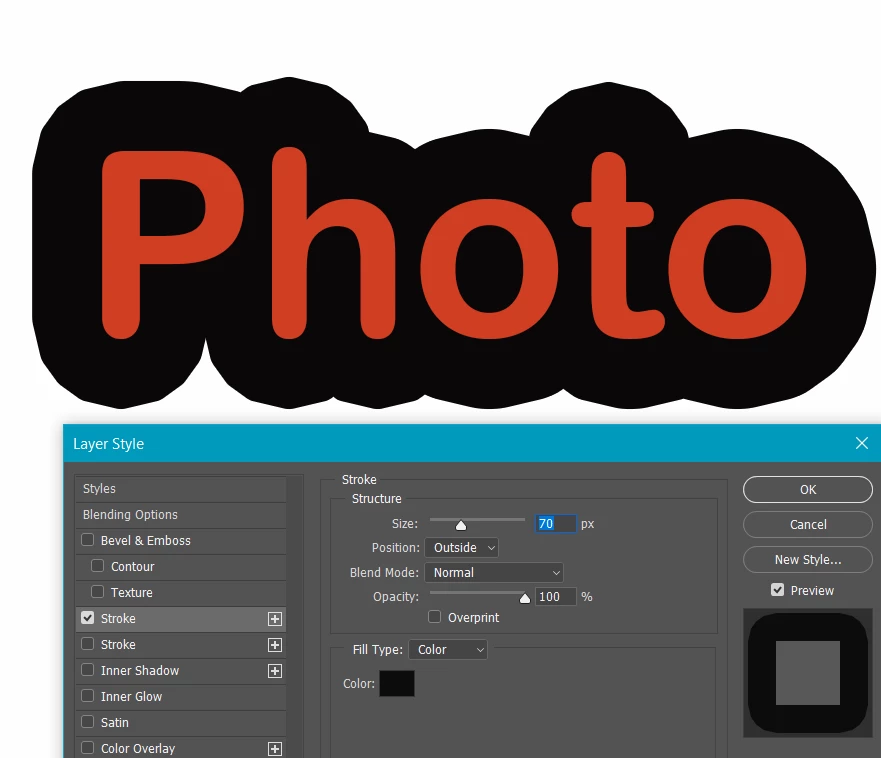
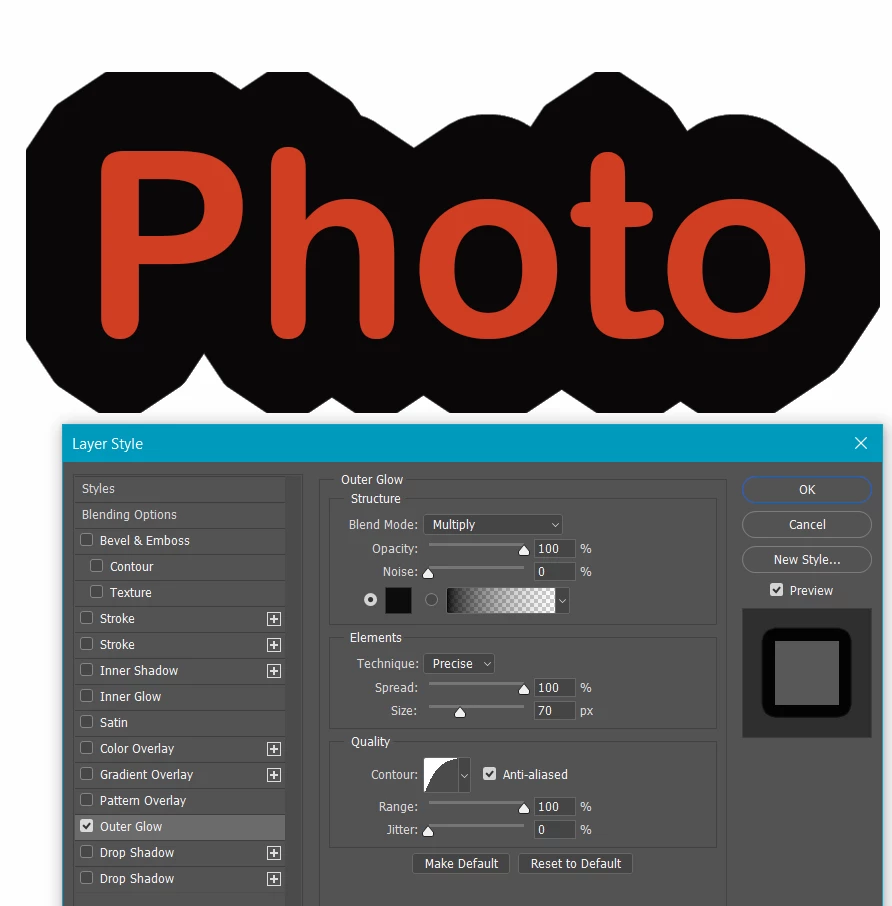
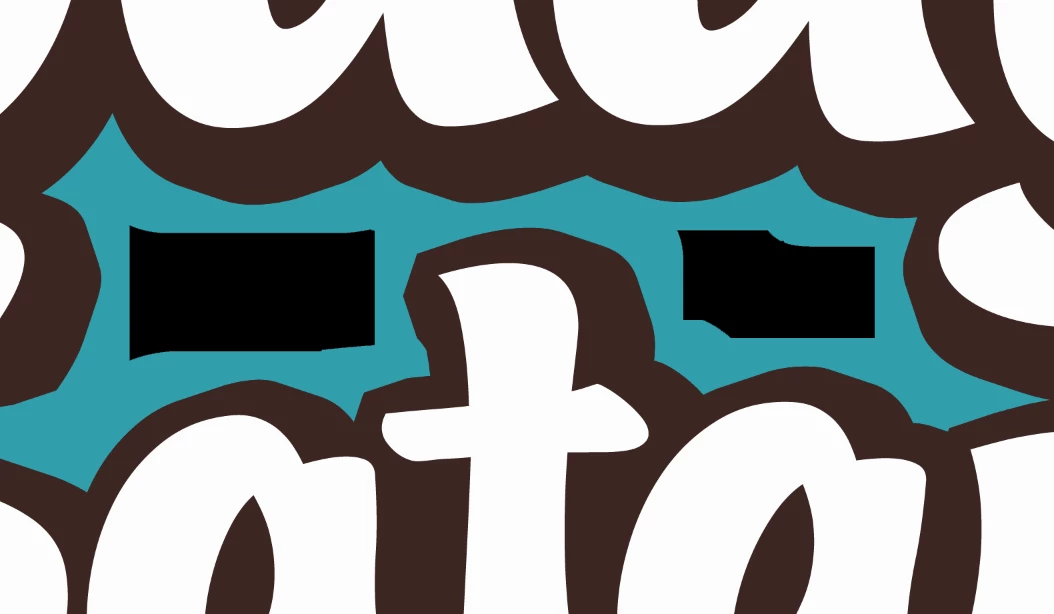
It is true of all of the Layer Styles that are applied outside the layer contents.
Stroke
Outer Glow
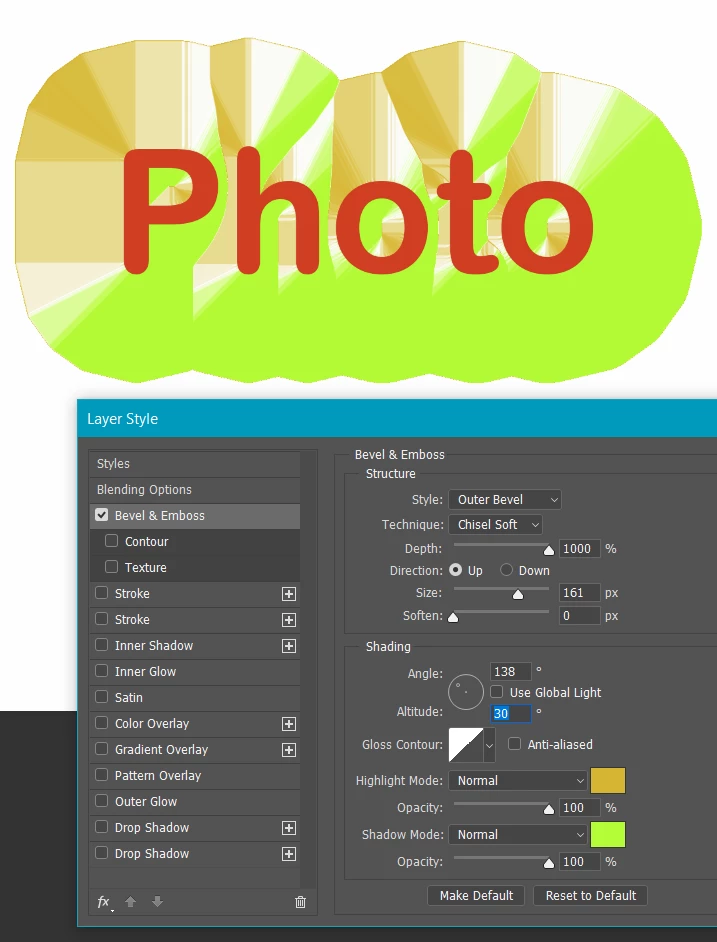
Bevel & Emboss set to Outer Bevel is interesting, because it shows the individual vertices — I have used colours that make this clearer.
I can remember Noel, and possibly Dag, getting into a discussion with Chris Cox on a related subject some years back, but I am buggered if I can remember the details. It was definitely related to effects around rounded edges being broken into a series of flats though, and it might have been 3D related. Noel and Chris no longer post, but Dag might remember.
It's difficult to decide if Layer Styles are behaving differently because we never stop learning and understanding about how to use them, but my impression is that some _might_ be more finicity than they used to be. Inner Glow is one that can play up needing precise adjustments of the settings to get a nice gradient.


 AdChoices