
Easy way to select colors to change
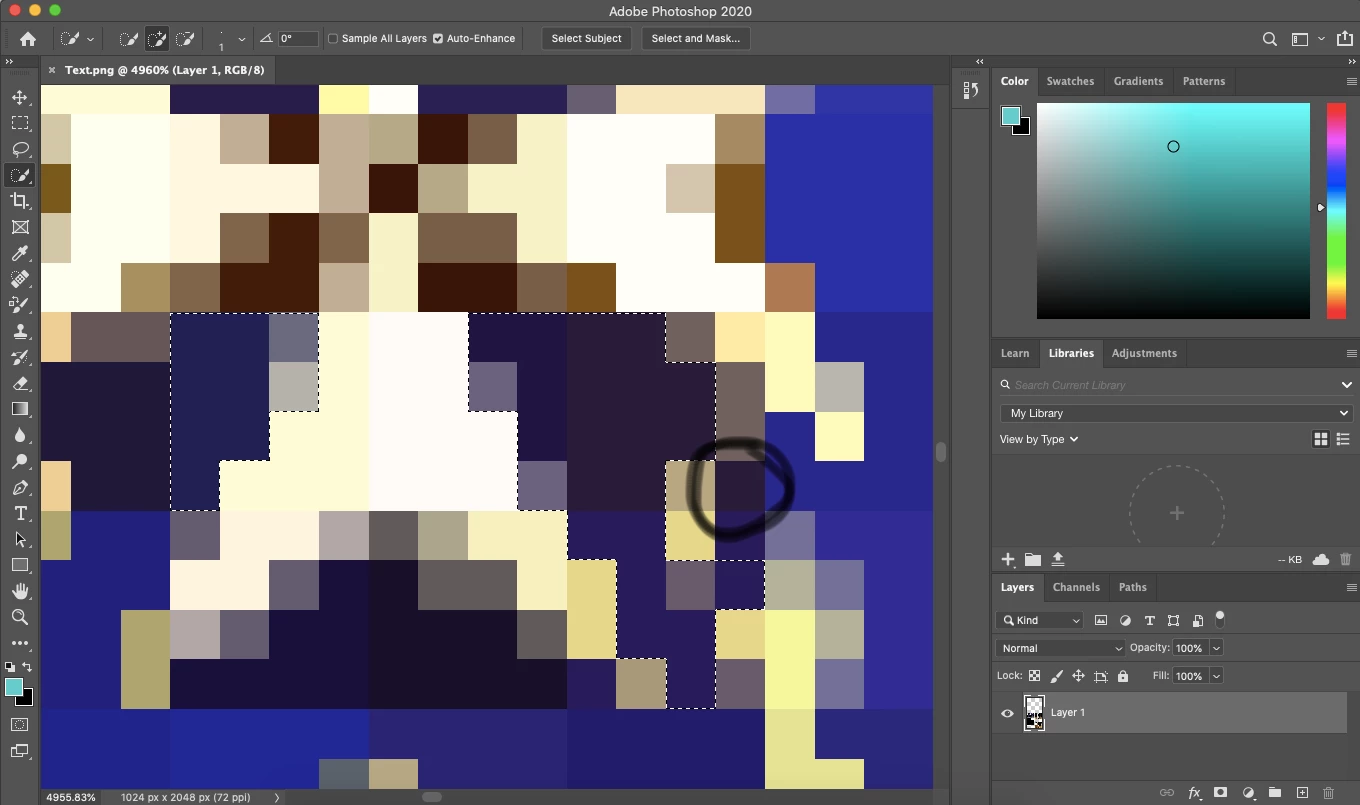
Hello all! I am really struggling with trying to recolor this sash in the this photo. As you can see, other things go over the sash. I have tried the quick selection tool to select the sash, but sometimes it overselects into the items on the sash. I used the quick selection remove tool and then it would remove to much, even if I zoom in and click pixel by pixel. For other items I have recolored, I use the quick selection tool to select what I want recolored, then use the hue/saturation adjustment layer. But with the quick selection, Sometimes it selects more than just the pixel I am selecting, or removes more than the pixel I am selecting. I have included pictures of the sash. Also there is a picture of the sash zoomed into where I am clicking the pixels. The circled pixel in the picture, when I click it no matter how many times, it WAY overselects. Then when I go to deselect the items that the quick selection tool selected that I didn't want selected, it will deselect that pixel even though I haven't manually deselected it. I hope this makes sense! I am a newbie and photoshop haha. I have also tried the color replacment tool to color over the sash in the color I want, but it comes out way to dark. And too brighten it up I would need the quick selection tool to only select the pixels I have recolored, which obviously isn't working for me. I just need to be able to select the purple and blue pixels only on the sash, without the quick selection tool selecting the brown and tan pixels too!! 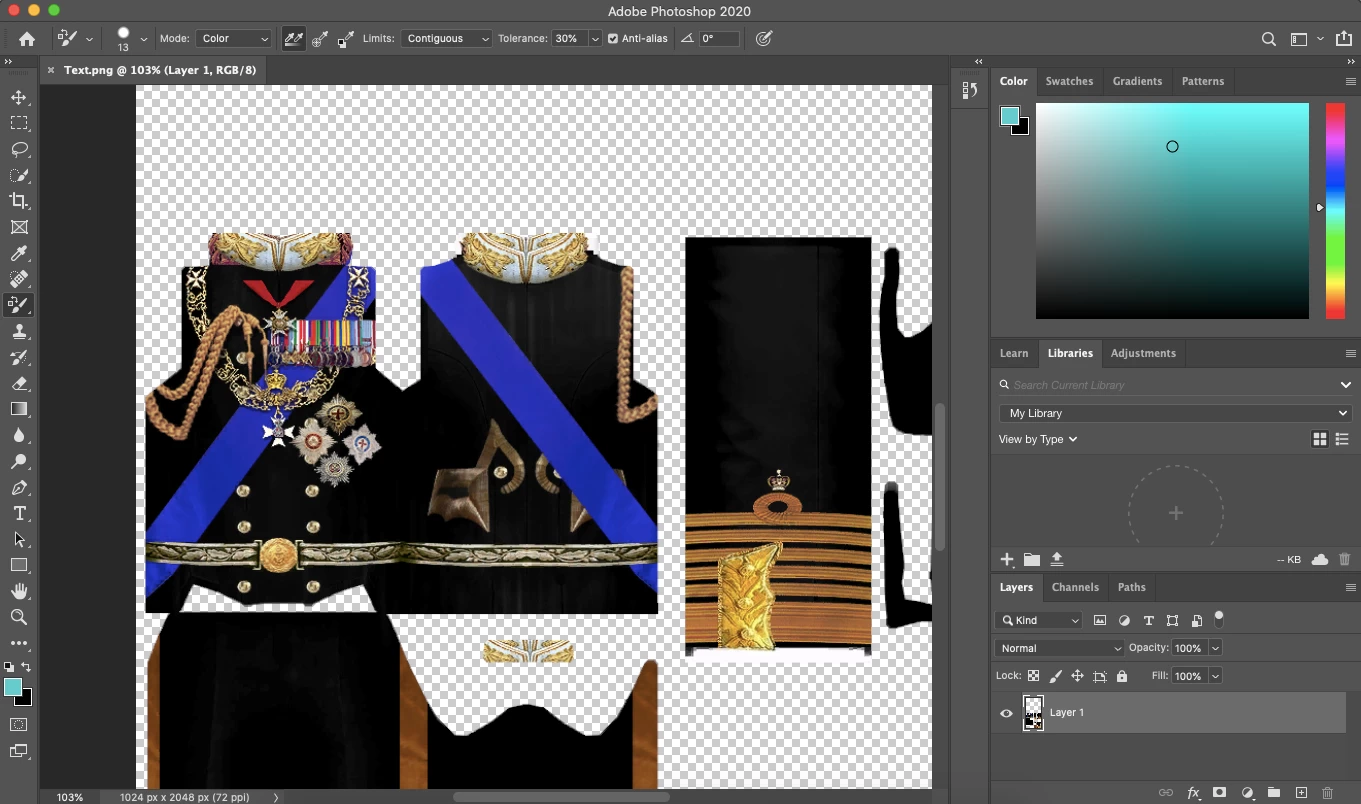
 AdChoices