

Chozami
Participant
October 15, 2021
Answered

Enlarge a tiny image and preserve pixilation? Please Help!

  • October 15, 2021
  • 4 replies
  • 468 views

I am trying to enlarge the treasure chest sprite from Breath Of Fire 3 so that I can print it out as a Fathead and stick it on my wall. The image is only about 30x30 pixels and I want to enlarge it to about 3" x 3": 
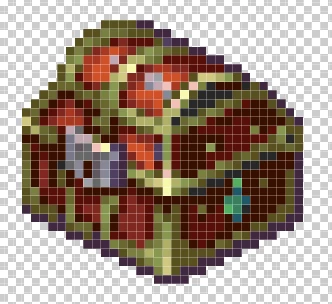
I extracted it, put it on a 3x3 canvas but when I try to enlarge it using transform at 1900%, I lose the pixilated look. It ends up looking like this: 
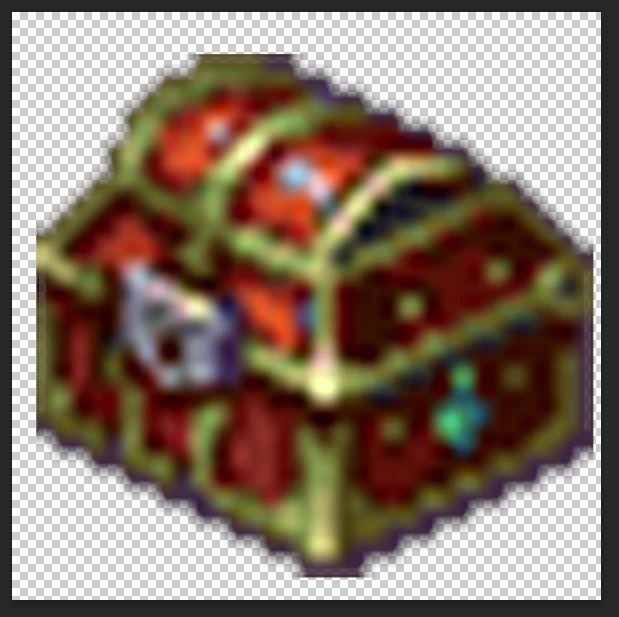
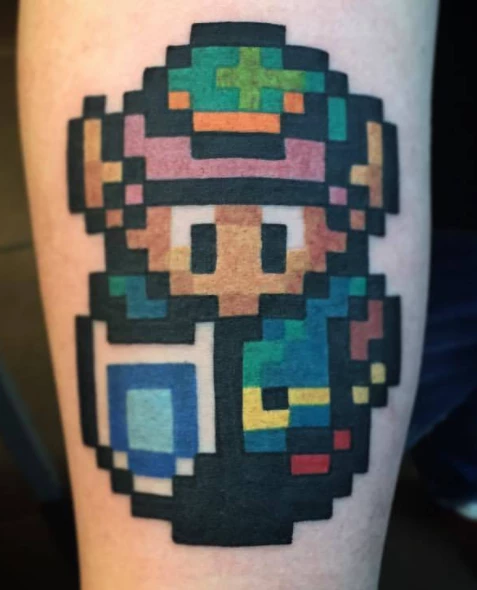
I don't know why this is happening, anti-aliasing is NOT selected. Is some other photoshop feature blending the pixels? I want to maintain the jagged look so that it looks like one of those pixelated tattoos that people like to get, like this: 
I know there's a way to do this without stretching out the treasure chest so that it blurs. I just don't know the way. Please help!

Thank you.

This topic has been closed for replies.
Correct answer Stephen Marsh

In addition to Dave's reply, only enlarge in multiples of the original resolution with nearest neighbour interpolation to maintain the original appearance.

4 replies

rayek.elfin
Legend
October 16, 2021

Scale up by 30 times (30x30 = 900px) and as @davescm explained use nearest neighbout as the resampling method.

A 3" by 3" multi-tone print @300dpi is 900px. 


Bojan Živković11378569
Community Expert
Community Expert
October 16, 2021
quote

I don't know why this is happening, anti-aliasing is NOT selected. Is some other photoshop feature blending the pixels? 


By @Chozami


In general it is not Photoshop feature but rather some algorithm to enlarge image or to introduce new pixels. There are multiple algorithms (interpolation methods) as explained above. New pixels are mix of neighbor pixels or pixels where new one is introduced when using default interpolation method. For example, if you have 2 pixel wide image and you want to enlarge it to 3 pixels then new pixel will be introduced in between and it will be grey color. This is not official how things work, it was my curiosity and testing but algorithm works similarly or exactly the same. I think that algorithm works on 4 pixel sample but that is my opinion based on what I read about topic.

Stephen Marsh
Community Expert
Stephen MarshCommunity ExpertCorrect answer
Community Expert
October 16, 2021

In addition to Dave's reply, only enlarge in multiples of the original resolution with nearest neighbour interpolation to maintain the original appearance.

davescm
Community Expert
Community Expert
October 15, 2021

Change the interpolation method to nearest neighbour to preserve hard edges


Dave