Participant
April 18, 2021
Question

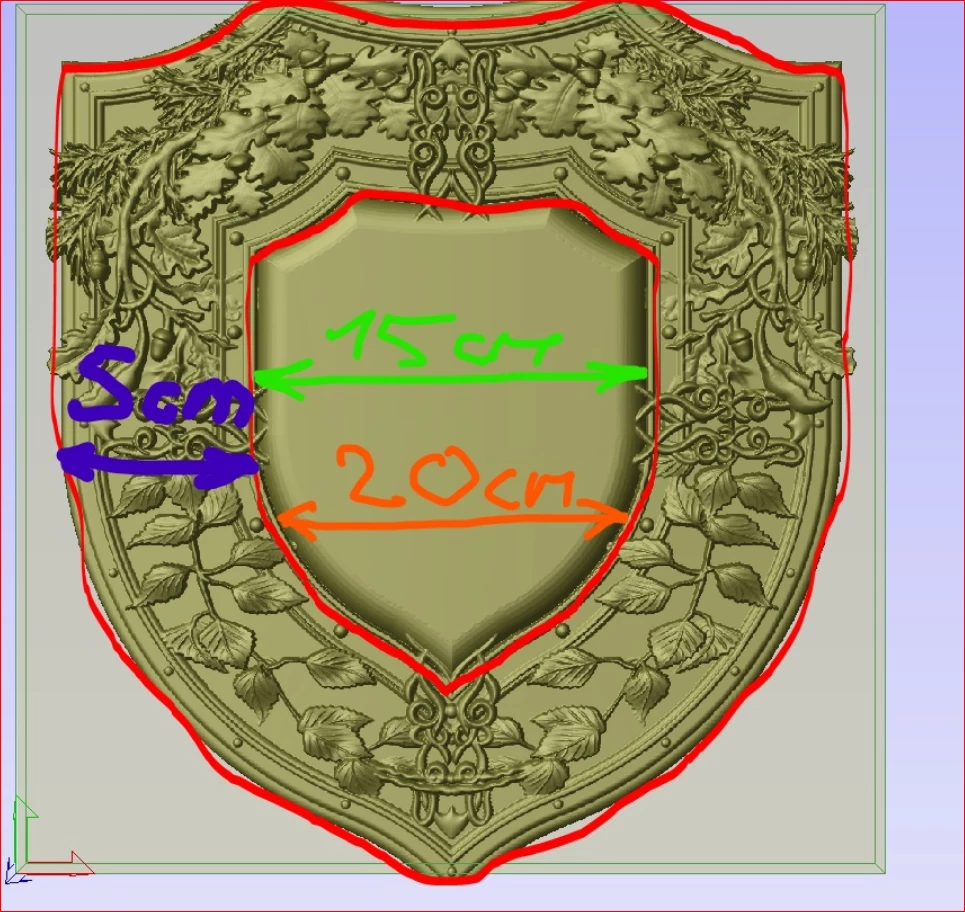
enlarge the part that is between the red marks
  • April 18, 2021
  • 4 replies
  • 451 views

I need help. I have an image that I need to edit, that is, enlarge the part that is between the red marks and that the spacing between the marks remains the same. is there any solution? the green dimension is the current one I want to increase to orange while the blue stays the same


This topic has been closed for replies.

4 replies

c.pfaffenbichler
Community Expert
Community Expert
April 19, 2021

Displace does not seem great in this case, but might be worth checking out nonetheless. 

JJMack
Community Expert
Community Expert
April 18, 2021

To me it look like all you want to do is replace the center object not actualy resize the image. So isolate it and replace it


It is not possible to resize that image the way you want to without introducing sever distortion.  What you described will change all the objects in the image shapes you are changing all the objects in the image aspect ratio.  You seem to want to just change shape of images center object by changing the width of its content.  That is is easy but it will effect the Image composition.  The image will not be reformed the way you want.  What you want is not possible without introducing distortion.


You can change the image's center object shape change its aspect ratio just distort the center object. However that will effect the contents of the rest of the image for some part of its content will be  replaced or delete  by the center object's area size change.   You can select the center object and transform  it to distort it the want you want. That is easy to do. 


If  you select the full image and warp the center to the shape you want the outer  image area will also be warped it will be distorted and not the ways you want.


If you select each object and make then a layer you will not be able to create the composite you want without distorting each objects layer object shape  to conform the more center object changed shape. Each object shape layer must be adjusted to conform to previous center object shape change.


JJMack
Trevor.Dennis
Community Expert
Community Expert
April 18, 2021

That's not an easy thing to do, but there is a workaround that might get you close.  It's also not easy for me to demonstrate because of the red lines, but you need to select the central shield area and save the selection. Give it a meaningful name like Center

Now release the select (Ctrl d) and go Edit > Content Aware Scale 

In the Options Bar use the dropdown for Protect and chose the selection you saved.

You can now hold down the ALt (Opt) key and drag any of the corner handles to expand the shield, and the central area will remain unchanged.

It would be a good idea to lay down some Guides before you use CAS to indicate the original size, and how much you need to expand it like this

c.pfaffenbichler
Community Expert
Community Expert
April 18, 2021

I doubt you actually want to go there but the two options that seem at least halfway plausible to would be creating a Displacement Map (for using with the Filter Displace) or clipping the Frame and using Puppet Warp on the Smart Object. 

Both are probably problematic. 


Please post the actual image. 

Participant
April 18, 2021

here is the real picture.

Trevor.Dennis
Community Expert
Community Expert
April 18, 2021

.bmp is not a good choice to post to the forum.  Just copy the image to the clipboard, and paste to the thread by clicking on the Add image icon.