
Eraser and Brush tools not smooth
Hello!
So I've ran into what I think is a bug and has only recently started to affect my work flow.
I'm on Adobe Photoshop Version: 23.5.1 which is the current version.
My Hardware is all fairly new and Highend and hasn't had any issues with anything in other adobe programs or in this program until recently with this issue.
The images I'm working with for product shots are 5464 x 8192 directly from Canon Camera Raw Images ".CR3" File.
After I make a selection with the Lasso Tool it seems like Photoshop isn't smoothing when I Erase, Brush, or Create a new layer from the selection. This doesn't consistently happen every time I make a selection but it seems to occur more when I zoom in to make a selection in detail.
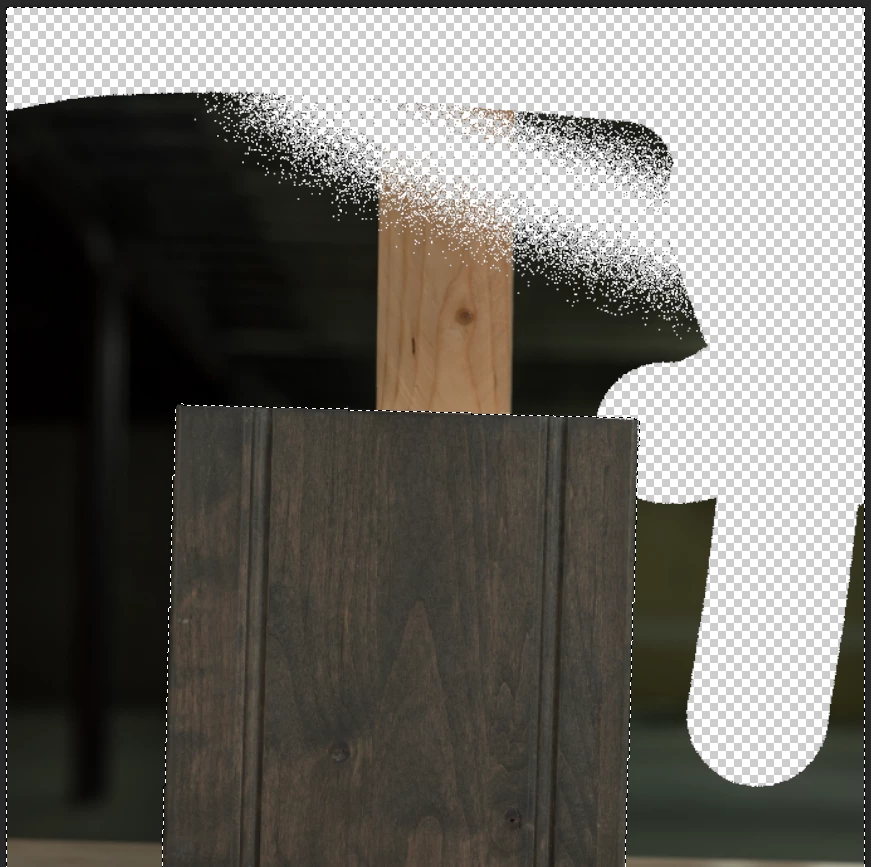
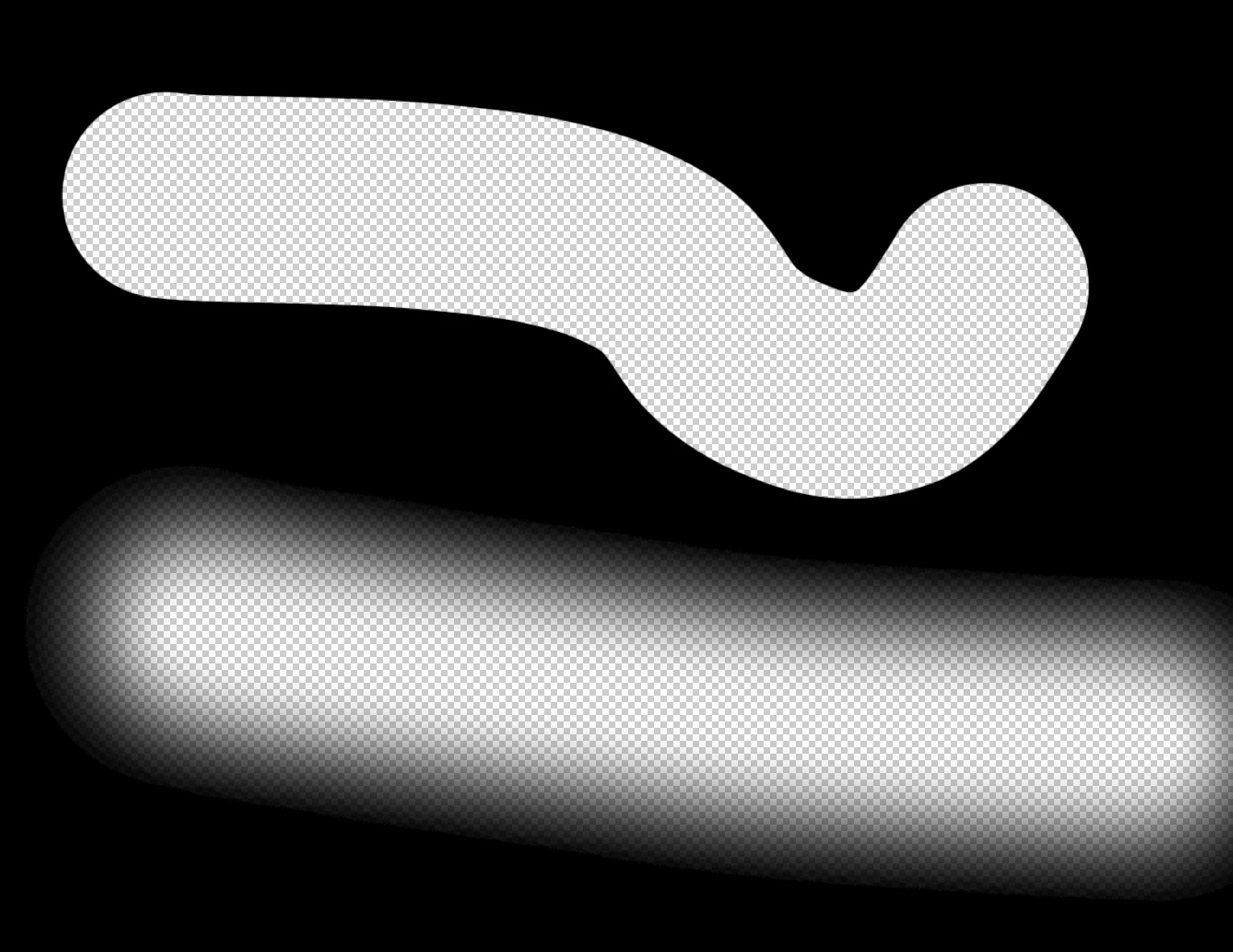
In this image you can see this wierd non smooth pixelating affect when I used the Eraser Tool. The cloud of missing pixels in the upper middle is what happens when I try to use the Soft Round Brush.
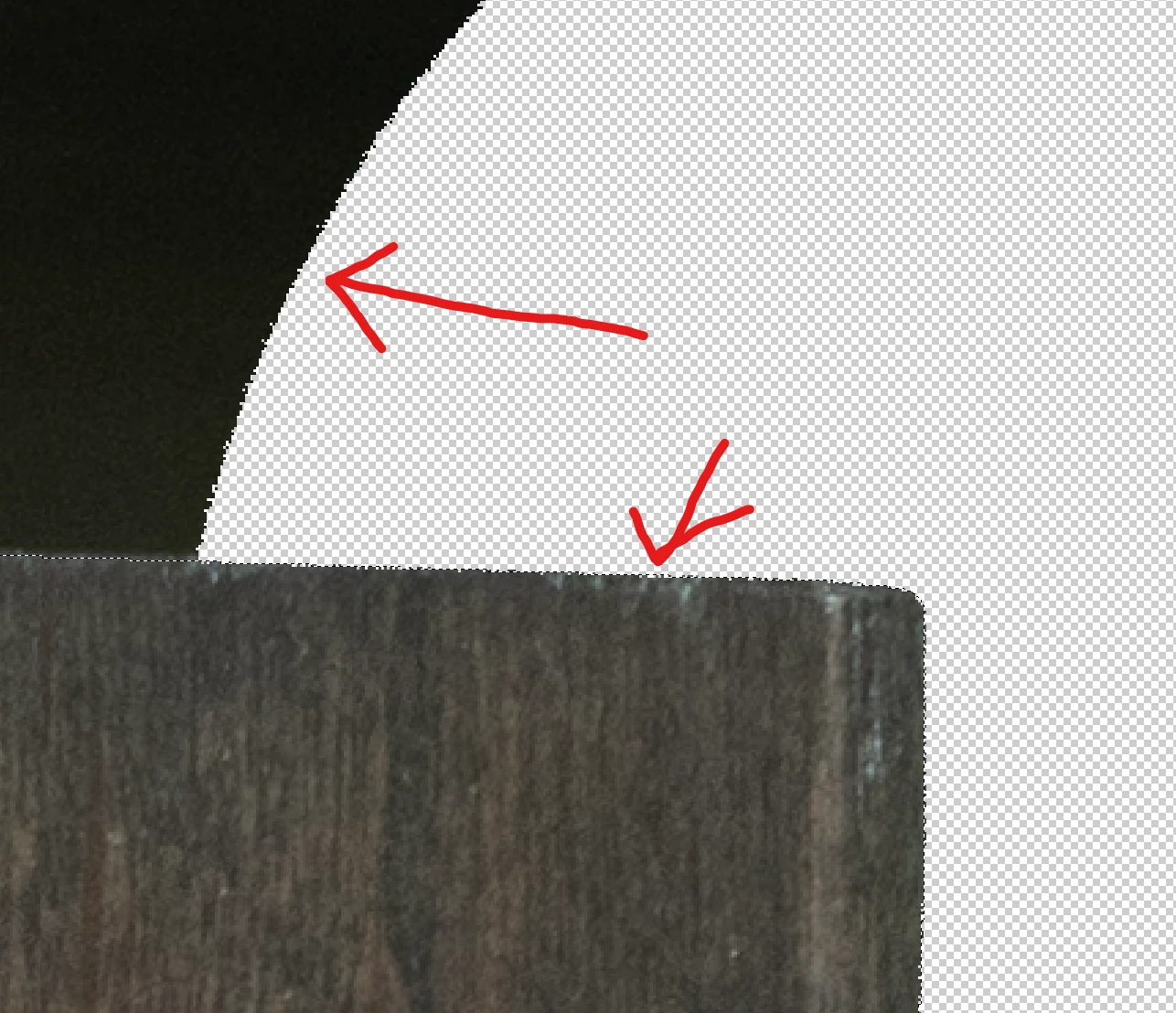
In this close up you can see the edges are also not smooth around the selection and in fact bleed into the selection.
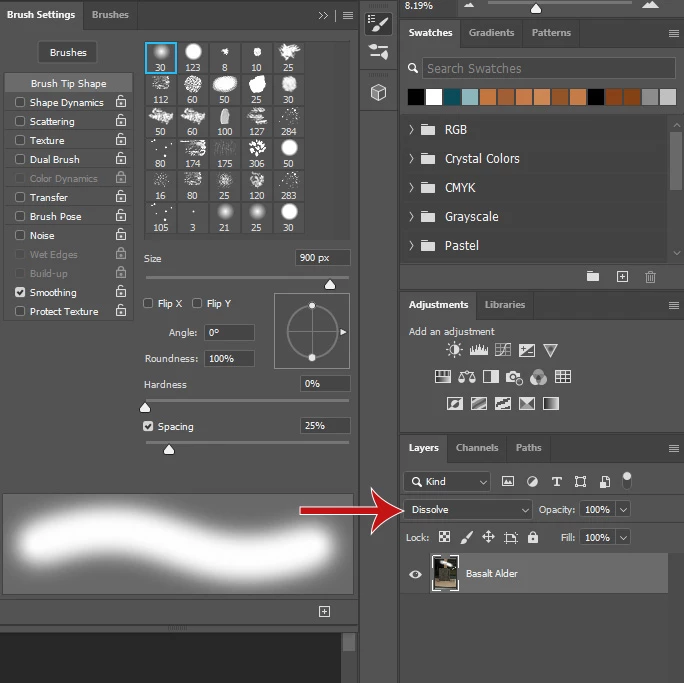
I've checked my settings and I know it's not that.
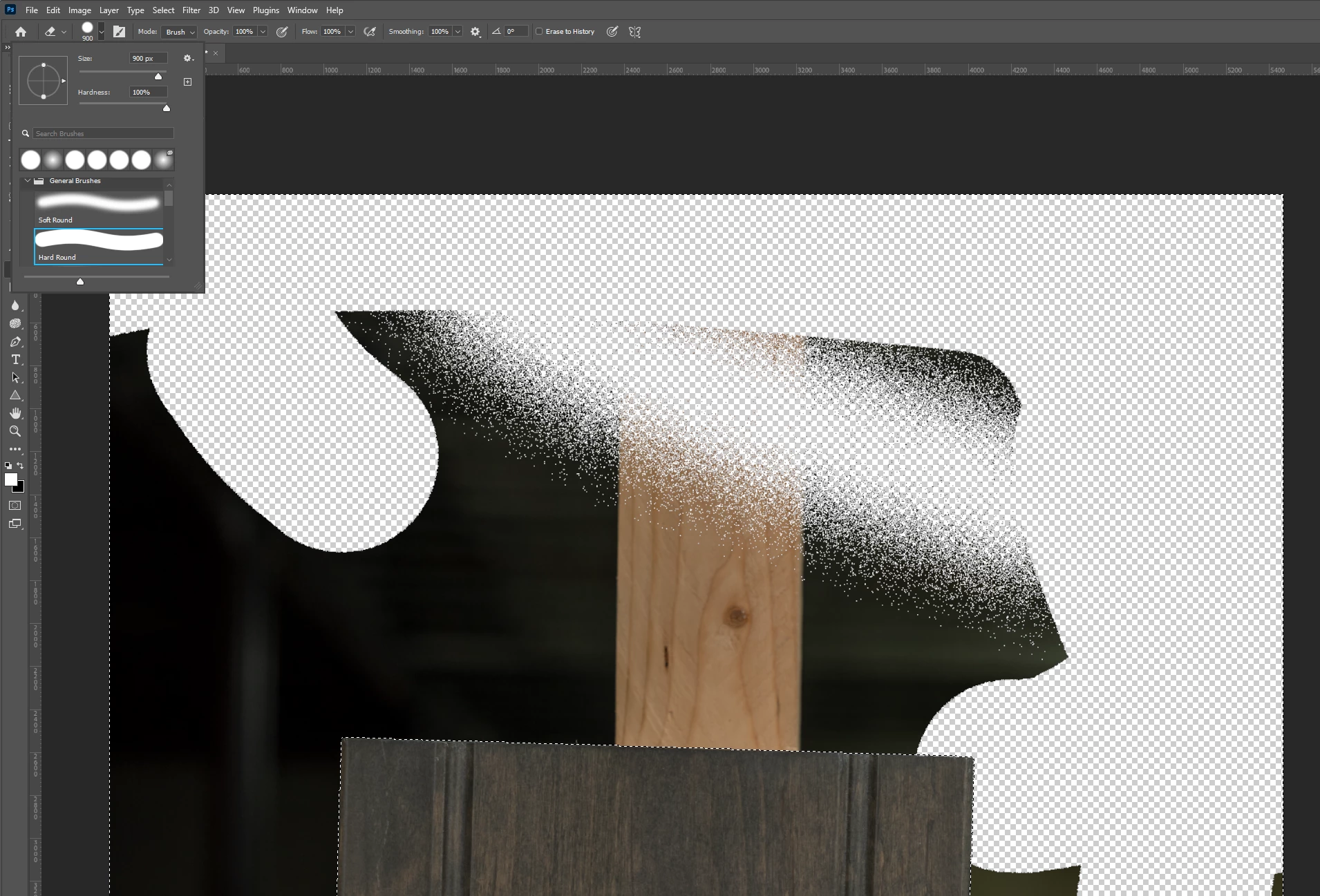
As an example this is what the brush is supposed to look like.
I'm kind of stumped as I've tried looking up if anyone has had any similar problems on other forums but my searches typically bring up unrelated or different issues that I'm not looking for.
Maybe this is a known issue but this is my first time seeing it so if there's any other information you might need just let me know.
Thanks for your time!
 AdChoices