Participant
July 11, 2021
Answered

excess on canvas when using camera raw filter

  • July 11, 2021
  • 2 replies
  • 1755 views

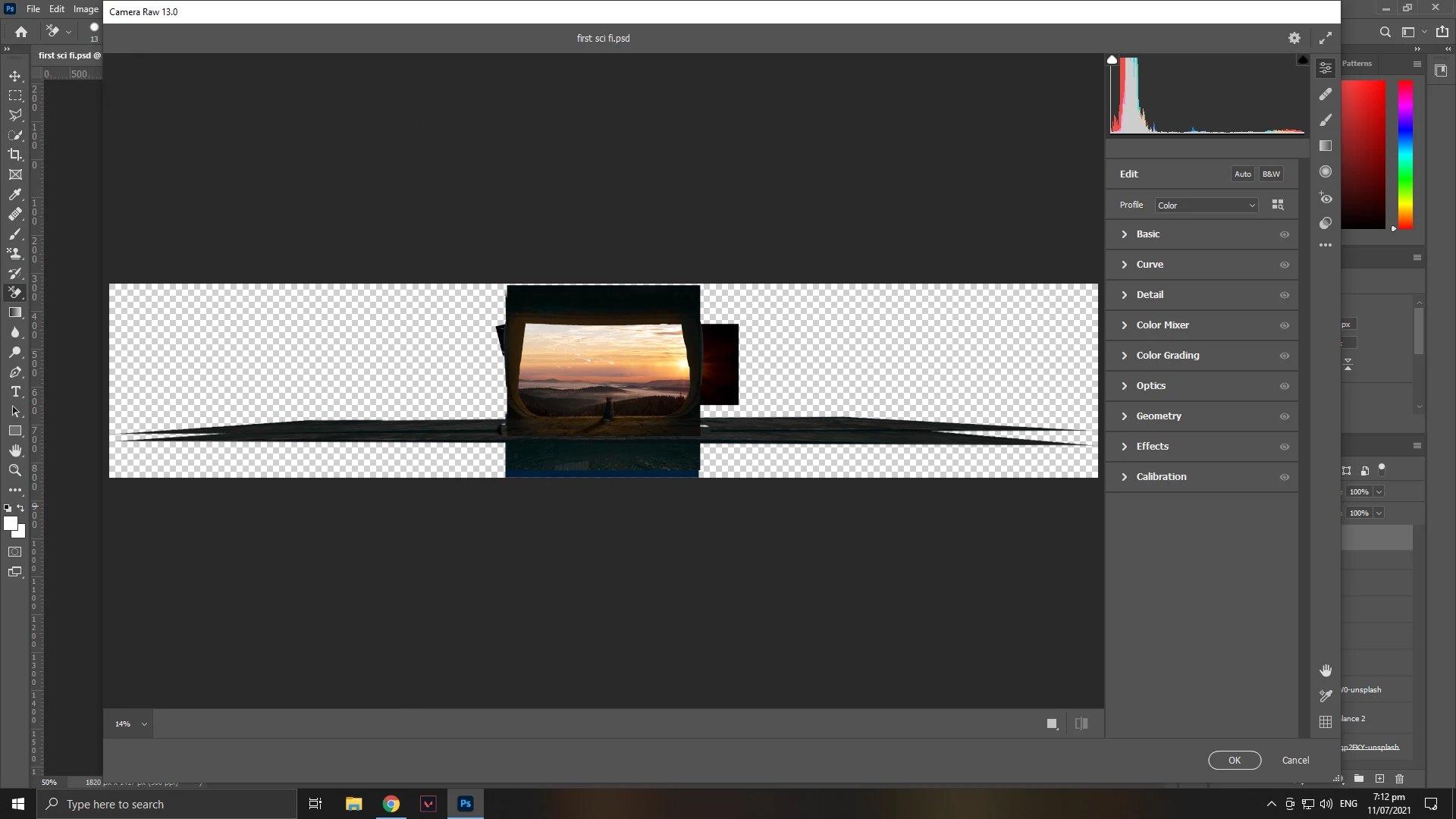
help fix/remove this, remove the excess on canvas my canvas is just that small square in the middle pls hlp me fix it

 

This topic has been closed for replies.
Correct answer Chuck Uebele

It looks like you had cropped your original image in Photoshop, but since it's a smart object it's showing the entire content. You can either go into your smart object and delete the pixels that you don't want, or just zoom into your subject in Camera Raw.

2 replies

Chuck Uebele
Community Expert
Chuck UebeleCommunity ExpertCorrect answer
Community Expert
July 11, 2021

It looks like you had cropped your original image in Photoshop, but since it's a smart object it's showing the entire content. You can either go into your smart object and delete the pixels that you don't want, or just zoom into your subject in Camera Raw.

Participant
July 12, 2021

tyy very veryy much

JJMack
Community Expert
Community Expert
July 11, 2021

It look like you are using ACR as a layer filter where the layer image content is a composite of several layers. ACR UI Window is covering the Layers Palette  Layer's  Content Thumbnail so we can not see the it,  However the Images in the Filter reflects the layer's content. Layers can be any size can be larger than the  document canvas size. The center portion may be all that is visibly in the document.  The excess you see may not be visible it may be clipped by the documents canvas size.

Only her Eyes and Nose were visible in this document the rest of her portrait was outside the document canvas when I dragged her portrait in.. The Layer was much larger than the documents  canvas.  So I transform the Layer size so it fits on canvas like Place would do if you have resize during place checked in your preferences.

JJMack
Participant
July 11, 2021

..