Known Participant
April 17, 2018
Question

Expand the Info Window

  • April 17, 2018
  • 2 replies
  • 789 views

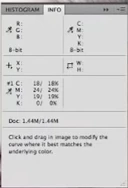
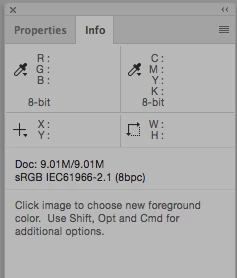
I need to know how to expand my Info Widow so it will display before and after info. I cannot find the option and it does not appear after I make adjustments.

My window    Before and after
    This topic has been closed for replies.

    2 replies

    JJMack
    Community Expert
    Community Expert
    April 17, 2018

    Its most likely your windows display scaling setting It scaling your high-resolution display 100%. so Photoshop UI displays small in CC 2018 19.1+.  Try setting your high-resolution display's scaling setting to 125% or 150% or 200% see which one you prefer.

    JJMack
    Known Participant
    April 17, 2018

    I went to preferences>Interface>UI Font Size. The size was original set to small. I tried medium and large sizes restarting PS each time, but there was no change to the info window. The Mac high-resolution display scaling setting in Preferences>Display do not offer percentage sizes (see screen grab). Plus changing display scale will have unwanted effects on other apps

    JJMack
    Community Expert
    Community Expert
    April 17, 2018

    I did not know you are on a Mac. I'm sure that Photoshop UI scaling works differently on a Mac

    JJMack
    c.pfaffenbichler
    Community Expert
    Community Expert
    April 17, 2018

    Please post meaningful screenshots (including all pertinent Panels) instead of these unnecessarily clipped ones.

    Do you even have a Colour Sampler in the image?

    Is an Adjustment Layer selected?

    Known Participant
    April 17, 2018

    I posted the before and after window to show what I was attempting to achieve. Does the attached better show where I am starting. Adjustment layer is Curves and yes I am using a color sampler but it disappears when I make the screen grab.

    c.pfaffenbichler
    Community Expert
    Community Expert
    April 17, 2018

    The Color Sampler Before-after values would only be visible when an Adjustment Layer is selected.

    Why they disappear in your screenshot I don’t know frankly.

    Is »Color Samplers« checked in the Info Panel’s fly-out menu?