Participant
September 28, 2018
Question

Export As Not Respecting Crop Size

  • September 28, 2018
  • 1 reply
  • 762 views

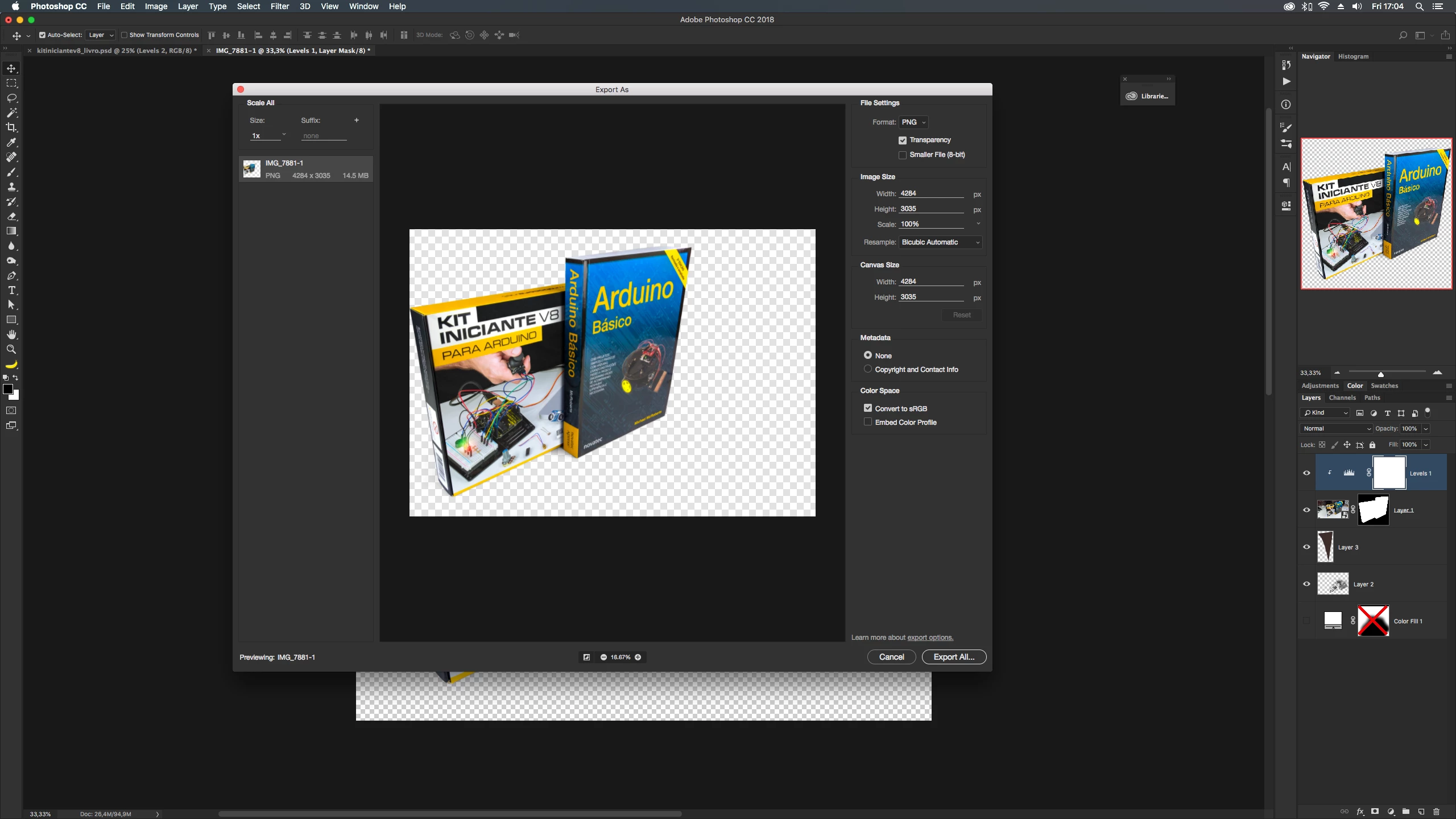
I've been dealing with Photoshop moving my transparent images from it's position when I use Export As for a while (totally random behavior, sometimes it works normal, most of the times, it shifts my image from the center to the bottom of the canvas in the preview and exported image), and not I got this mess: as you can see by the navigator in the right, my picture is at 1:1 ratio, and Export As simply said "well, screw that, I'ma use whatever ratio I like".

Does anybody know a fix to this? (Not in Mojave yet, just the top bar is black in High Sierra, in case anyone supposes this might be a Mojave issue)
This topic has been closed for replies.

1 reply

Sahil.Chawla
Adobe Employee
Adobe Employee
September 28, 2018

Hi Luke,

This shouldn't be happening, could you please let us know which exact version of Photoshop you're working on?

Also, could you try using the crop tool on the image and select "Delete cropped pixels" while cropping, then try using Export As and let us know if the issue persist?

Regards,
Sahil

Participant
September 28, 2018

Hello Sahil,

I'm using Photoshop 19.1.6.

I'm unable to recreate the problem right now because it auto-fixed itself after entering and exiting Export As a bunch of times.

As I mentioned earlier in the post, what I experienced before this (way more frequently and still happens from time to time) is the product being displaced out of center, in those cases I did try cropping with Delete cropped pixels and still didn't fix the issue forcing me to use another saving methods.

These problems only occur when working with images I removed the background and I'm ready to export for production as transparent images, if I export then as JPG with no transparency, it conserves it's position and aspect ratio.