Participating Frequently
June 4, 2020
Answered

Export different crops from single document

  • June 4, 2020
  • 3 replies
  • 7897 views

I trying to export 3 different crops of the same file. I.e. a 3:2, 1:1, and 2:3 or 8:10 crop.


I will start with a 3:2 landscape image, edit it the way I need to. I then want to be able to export the three different crops of the image above, ideally in different groups of layers (as I have some text etc. that I position over the different crops).


I want to automate this as much as possible as I'll be processing a pretty large amount of pictures that way. So ideally something better than stamping visible layers with the smallest crop at the bottom.


Thank you! 

This topic has been closed for replies.
Correct answer Conrad_C

There are several ways this might be accomplished in Photoshop or Lightroom Classic/Lightroom, but which solution is best depends on what it is you want to do exactly.


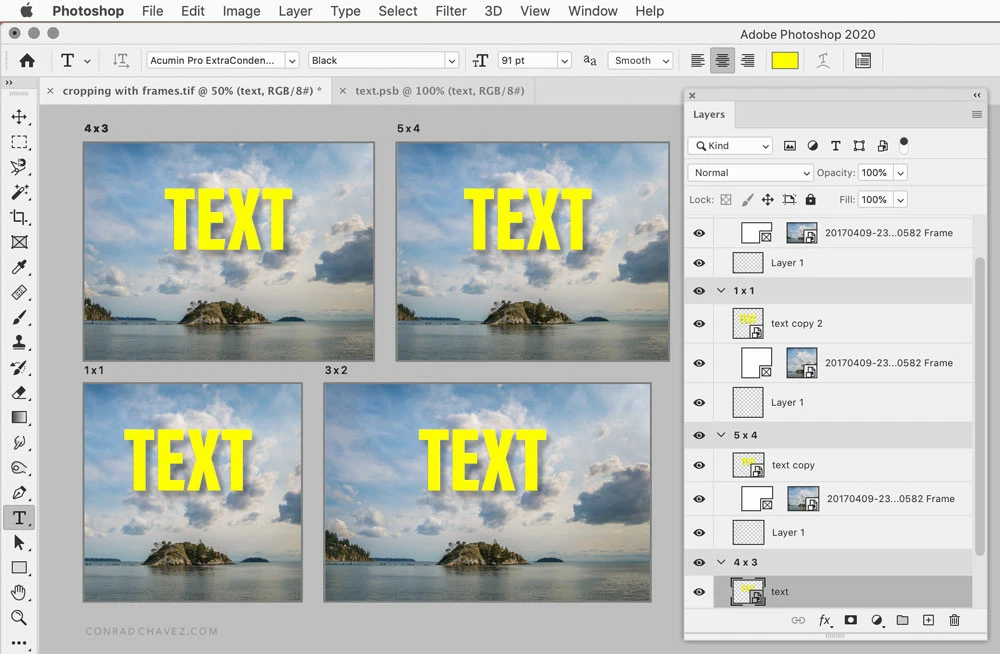
Do you want it to be automated to the point where it simply applies each aspect ratio crop from the center of the image, or do you want to customize the crop for each aspect ratio in each image? Either might be possible using some combination of artboards and frames. You would set up a template using artboards and frames in advance, with each artboard representing one aspect ratio. You would then drag or import the image into each frame and edit the text layer. If you need the text to be the same for all aspect ratios, set up the text layer as a Smart Object duplicated multiple times, so that editing just one Smart Object instances updates all of the copies of it to match. If you needed to recompose any image within its frame, you could select it and push it around.


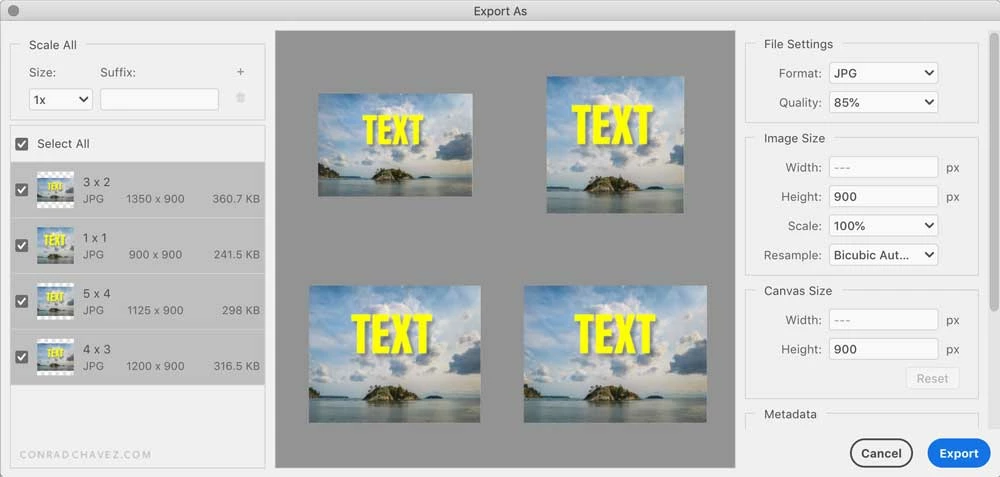
Photoshop can export all artboards at once, to separate image files, using the Export > Export As command.


Do you want it to automatically load up both the photos and the text into each aspect ratio? That might be possible using the Variables feature in Photoshop, if you have a spreadsheet listing all of the file paths and the text to go with each image. But I’m not sure how well Variables works with artboards and frames.


If that’s what you’re thinking, to tie it all together for maximum automation might require a scripting wizard on this forum, like @JJMack. If you have something different in mind, fill us in on more of the details.

3 replies

Conrad_C
Community Expert
Conrad_CCommunity ExpertCorrect answer
Community Expert
June 5, 2020

There are several ways this might be accomplished in Photoshop or Lightroom Classic/Lightroom, but which solution is best depends on what it is you want to do exactly.


Do you want it to be automated to the point where it simply applies each aspect ratio crop from the center of the image, or do you want to customize the crop for each aspect ratio in each image? Either might be possible using some combination of artboards and frames. You would set up a template using artboards and frames in advance, with each artboard representing one aspect ratio. You would then drag or import the image into each frame and edit the text layer. If you need the text to be the same for all aspect ratios, set up the text layer as a Smart Object duplicated multiple times, so that editing just one Smart Object instances updates all of the copies of it to match. If you needed to recompose any image within its frame, you could select it and push it around.


Photoshop can export all artboards at once, to separate image files, using the Export > Export As command.


Do you want it to automatically load up both the photos and the text into each aspect ratio? That might be possible using the Variables feature in Photoshop, if you have a spreadsheet listing all of the file paths and the text to go with each image. But I’m not sure how well Variables works with artboards and frames.


If that’s what you’re thinking, to tie it all together for maximum automation might require a scripting wizard on this forum, like @JJMack. If you have something different in mind, fill us in on more of the details.

Participating Frequently
June 11, 2020

Thanks Conrad. Working with artboards was the best way for me to go for the time being. 

I ended up creating three different artboards with the respective proportions for the crops I was after. I then created a layer with text on top of each of them and simply pasted the images into the three artboards.

Since I'm doing a before/after look I then ended up selecting one half of the image and using a layer < layer mask < hide selection to create the desired look: 

It's not the smoothest solution yet especially because pasting the images means I manually need to adjust them but I don't have a better solution for this. 

Thanks all who responded! 

c.pfaffenbichler
Community Expert
Community Expert
June 5, 2020

Quite frankly I find your description of the intended process inadequate – both with regards to the Layer structure and the output needs. 

And I suspect that you are not using the best application for the task anyway – if there are multiple crops with differing texts or text positions you might be better off using Indesign to create a multi-page document with the same image placed on pages of different dimensions and create/position the texts in Indesign. 


Have you considered using Artboards if you insist on doing it in Photoshop? 

The image/s could be placed in different Artboards as Smart Objects so that editing the original SO updates in all instances if necessary. 


Even Layer Comps could conceivably be of use … 

Nancy OShea
Community Expert
Community Expert
June 5, 2020

I don't know of any way to save 3 different crop ratios in one pass.  Besides, cropping requires human decision making.  Automated cropping never looks right.


Crop > SaveAs > file1.psd

Revert.

Crop > SaveAs > file2.psd

Revert.

Crop > SaveAs > file3.psd


Nancy O'Shea— Product User & Community Expert