
Participant
December 23, 2022
Answered

Export object clipping mask layers as separate files

  • December 23, 2022
  • 3 replies
  • 1667 views

Hello experts,


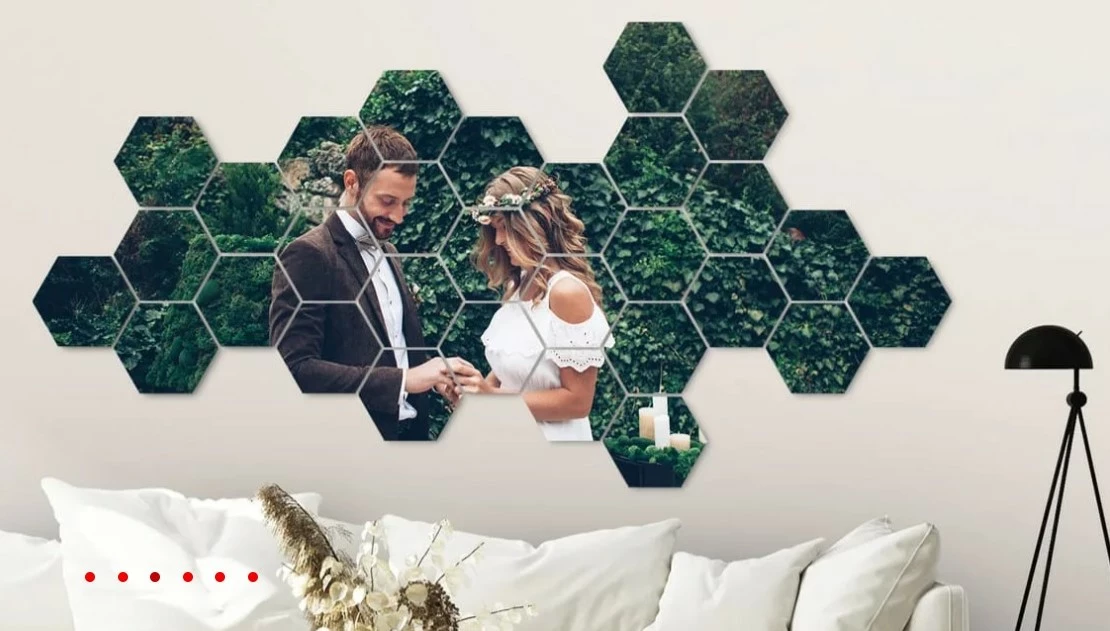
I've got a small UV printer that I want to use to print hex tiles. Because it's a small printer, I can only print 1 tile at a time. But what if I have one large photo that I want to print as a spread on multiple tiles (check the screenshot) I need to be able to export each group clipping mask layer indvidually -preferably as a PSD file-:
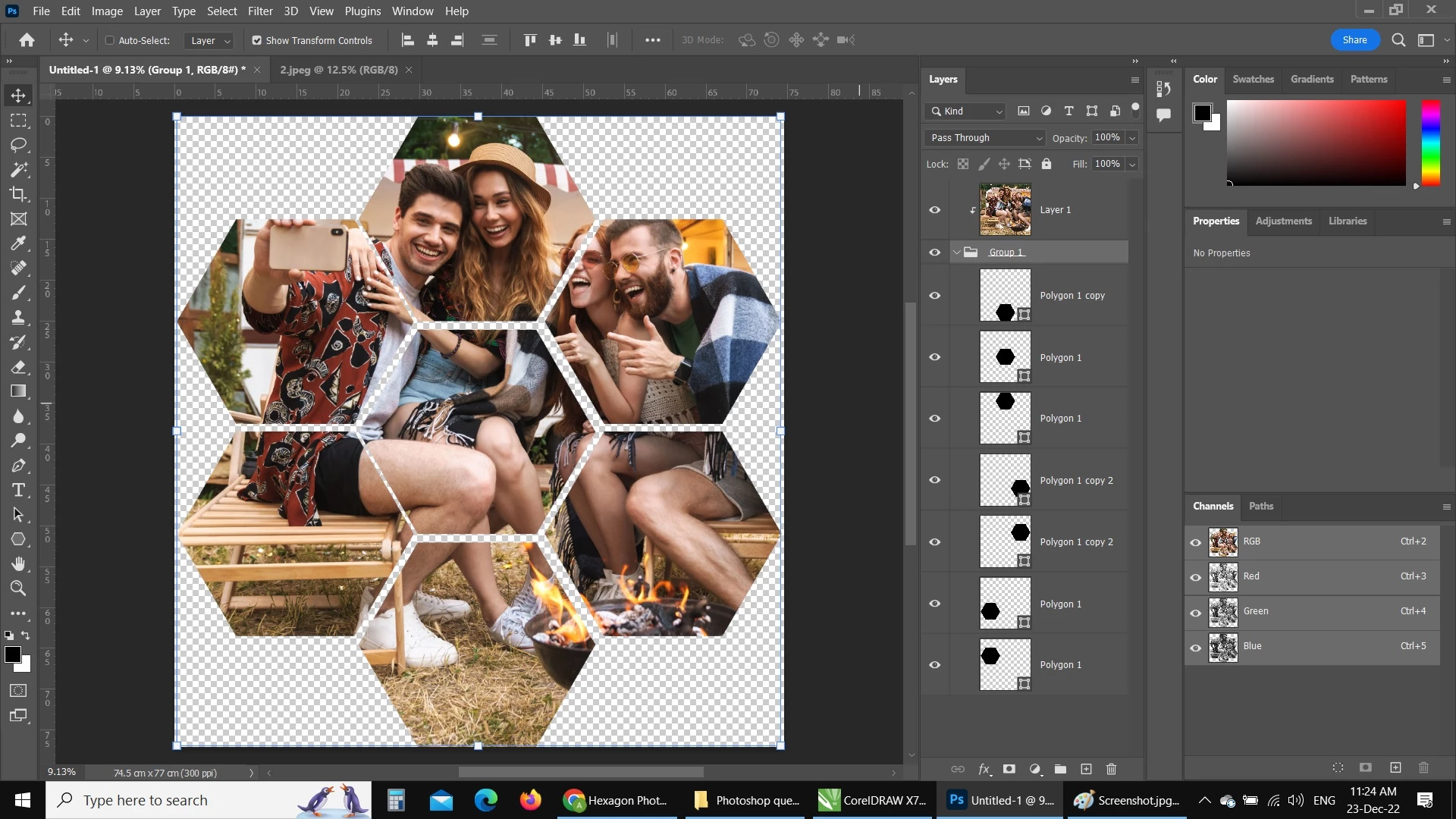
I've tried selecting the group's layers and exporting them, I got seperate files for the shapes without the clipped portion of the photo.


How can I do that? Here's a screenshot of my Photoshop screen:
 

This topic has been closed for replies.
Correct answer Stephen Marsh

One alternative approach, dupe the background image to 7 separate layers, then use layer masks on each layer rather than clipping masks. Then use the export layers to files script to save out the tiles as individual files. When saving to a format that supports transparency, you can also check the "trim" box to crop away the unwanted extra transparent pixels.


___________


Another approach using your current setup... duplicate the current document to a new document, merging layers.


Next, run the following script:


https://photoshopscripts.wordpress.com/2012/12/09/split-to-layers/


https://github.com/ES-Collection/Photoshop-Scripts/blob/master/Split%202%20Layers.jsx


https://prepression.blogspot.com/2017/11/downloading-and-installing-adobe-scripts.html


Finally, use the export layers to files script to save out the tiles as individual files. When saving to a format that supports transparency, you can also check the "trim" box to crop away the unwanted extra transparent pixels.


3 replies

Stephen Marsh
Community Expert
Stephen MarshCommunity ExpertCorrect answer
Community Expert
December 23, 2022

One alternative approach, dupe the background image to 7 separate layers, then use layer masks on each layer rather than clipping masks. Then use the export layers to files script to save out the tiles as individual files. When saving to a format that supports transparency, you can also check the "trim" box to crop away the unwanted extra transparent pixels.


___________


Another approach using your current setup... duplicate the current document to a new document, merging layers.


Next, run the following script:


https://photoshopscripts.wordpress.com/2012/12/09/split-to-layers/


https://github.com/ES-Collection/Photoshop-Scripts/blob/master/Split%202%20Layers.jsx


https://prepression.blogspot.com/2017/11/downloading-and-installing-adobe-scripts.html


Finally, use the export layers to files script to save out the tiles as individual files. When saving to a format that supports transparency, you can also check the "trim" box to crop away the unwanted extra transparent pixels.


Mylenium
Legend
December 23, 2022

Of course you'll have to duplicate the image and mask.


Mylenium

Mylenium
Legend
December 23, 2022

You will need to duplicate the groups so there's one group for each tile, including the image. There's no way around that. Even if you rasterize everything, you still need to separate it again.


Mylenium

Amin5FE1Author
Participant
December 23, 2022

Thanks,

I'm sorry, but how is duplicating the shape will create a new layer with the photo portion?