
Exporting color quirk with Photoshop 2019
Hi all,
I think I have an issue that might be specific to Photoshop 2019.
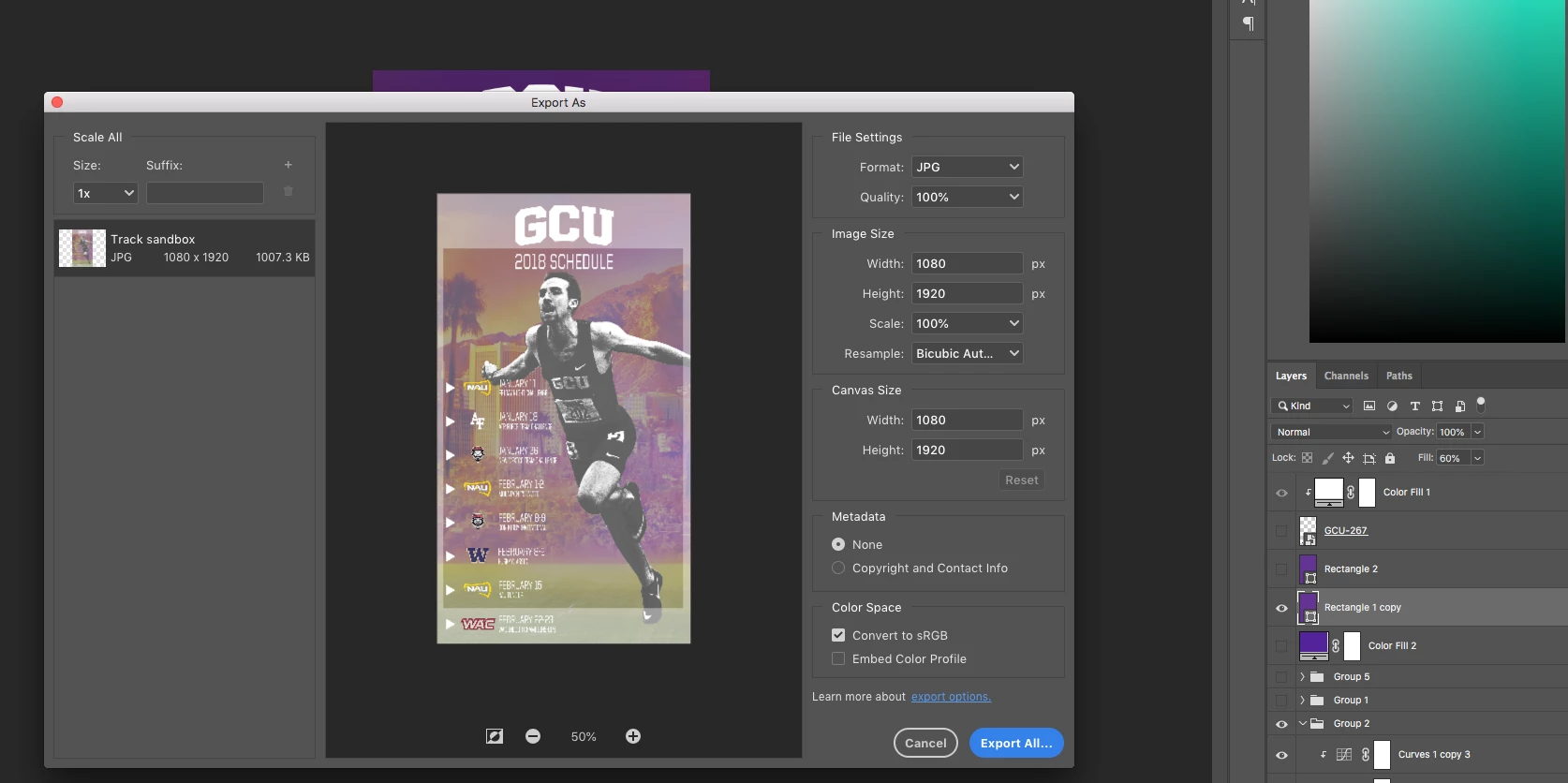
I work a lot in 1920x1080/1080x1920 sized files for my job. A lot of time I will use a rectangle over the top of my work that is the size of the workspace to give a workaround for a color overlay. Before, when I would export as JPG or as a PNG the colors would stay true to that of the color of the rectangle. Now when I export the colors move to a white/transparent hue without any color at all. Then when I export there is a boarder that I can't explain just post screenshots of.
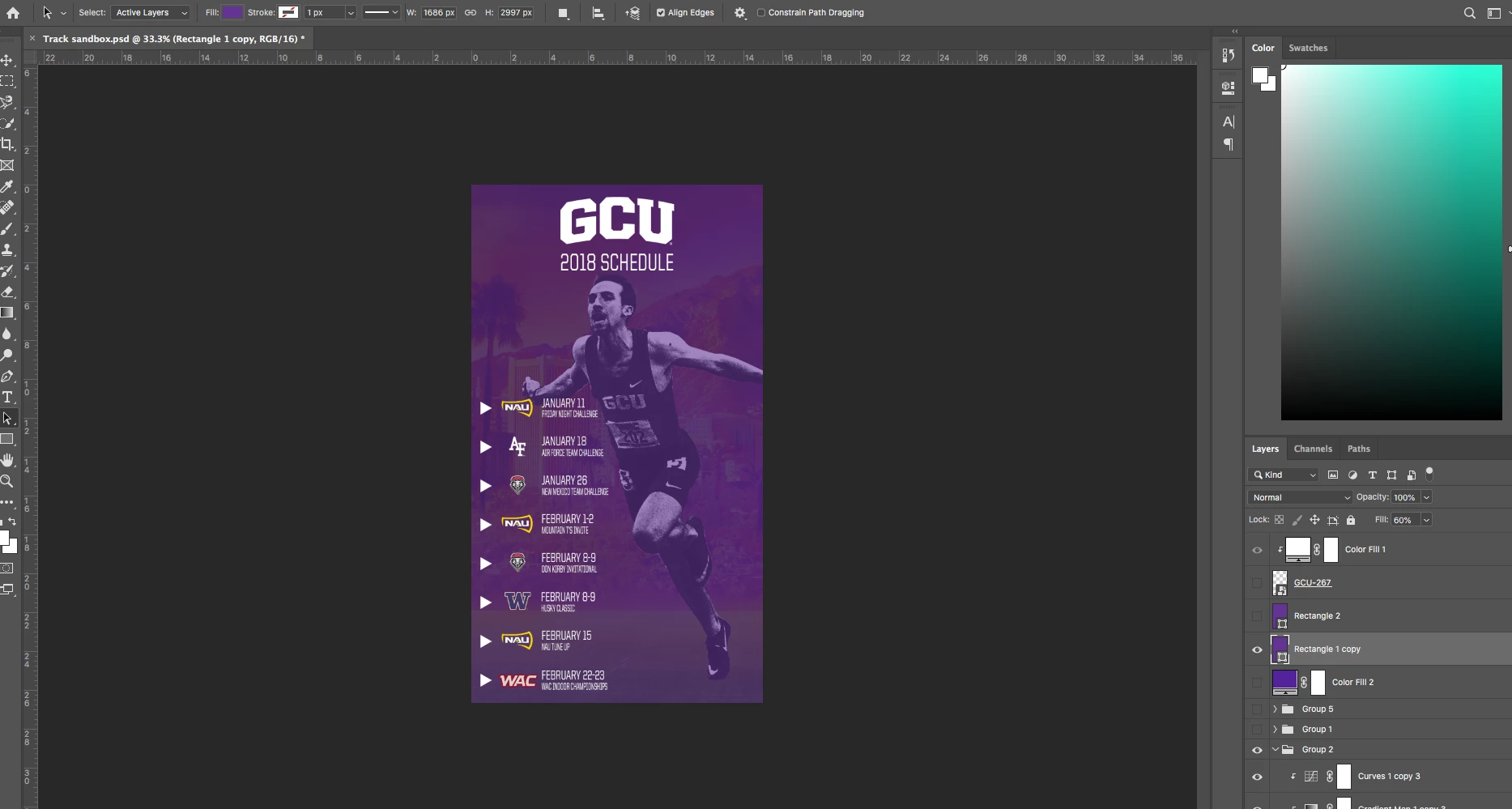
This is what my document looks like.
This is what it looks like when I go to File>Export As...> JPG
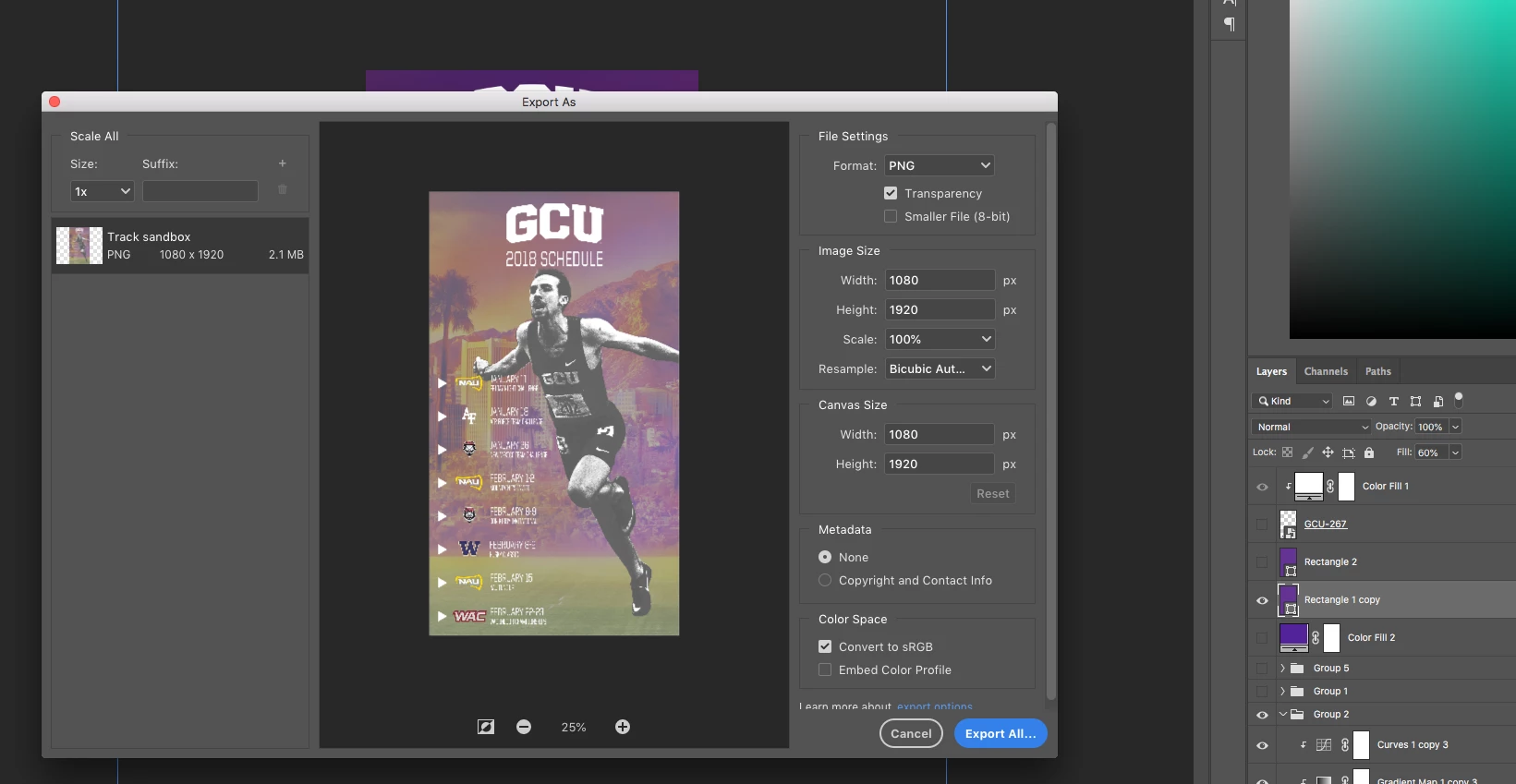
In order to get around the "boarder" I must make the rectangle bigger than the workspace 1080x1920 size, which is fine but I still lose the purple hue I desire to put over the top of the background image. I know there are probably more sophisticated design ways to do this but for my job I don't need to be very fancy.
This is what happens when I export with the rectangle being bigger.
I also tried doing a "solid color" adjustment layer and set the "fill" to 60% like I did with my rectangle, and also did it the other way by setting the opacity to 60 and fill to 100 but the same color loss occurs.
My coworker advise that instead of exporting as a jpg I SAVE AS a jpg. This worked, and the colors stayed true to what I wanted and didn't have the boarder-thingy.
If anyone has any ideas I would love to hear them.
Thanks.
 AdChoices