danted36312018
Inspiring
February 24, 2019
Answered

Exporting multiple layers as PNG but keeping artboard dimensions

  • February 24, 2019
  • 4 replies
  • 85282 views

Hey guys,

I need to export multiple layers as a PNG file with my artboard still being 1920 x 1080 but is there a way to do this in one go?

For example: I highlight all layers > Right click layers > Export As > Change 'canvas size' to 1920 x 180 > Export all.

Though the problem with this, is that;

1 - I have to do each layer manually

2 - The image is in the centre when saving

I know I can save as > png. And this will save the whole dimensions regardless where the layer is positioned in the canvas.

Is there a way to save the project as a PNG but all layers are it's own file and keeping it's artboard dimensions?
    Correct answer Bojan Živković11378569

    I am using 20.0.3

    I did both

    Export > Layer Comps to files: Exports the comp in one PNG file in the 1920x1080 dimension I wanted

    Export > Layers to Files: Exports all images to PNG but doesn't export in the 1920x1080 format.

    The reason why I want individual PNG files of the layers but keep the artboard dimensions, I have to import these PNG files in another non-adobe program, so me dragging and dropping the files would make it so much easier for me, instead of re-arranging the layers again in their position again.

    But if it can't be done, i guess i have to do each save individually.


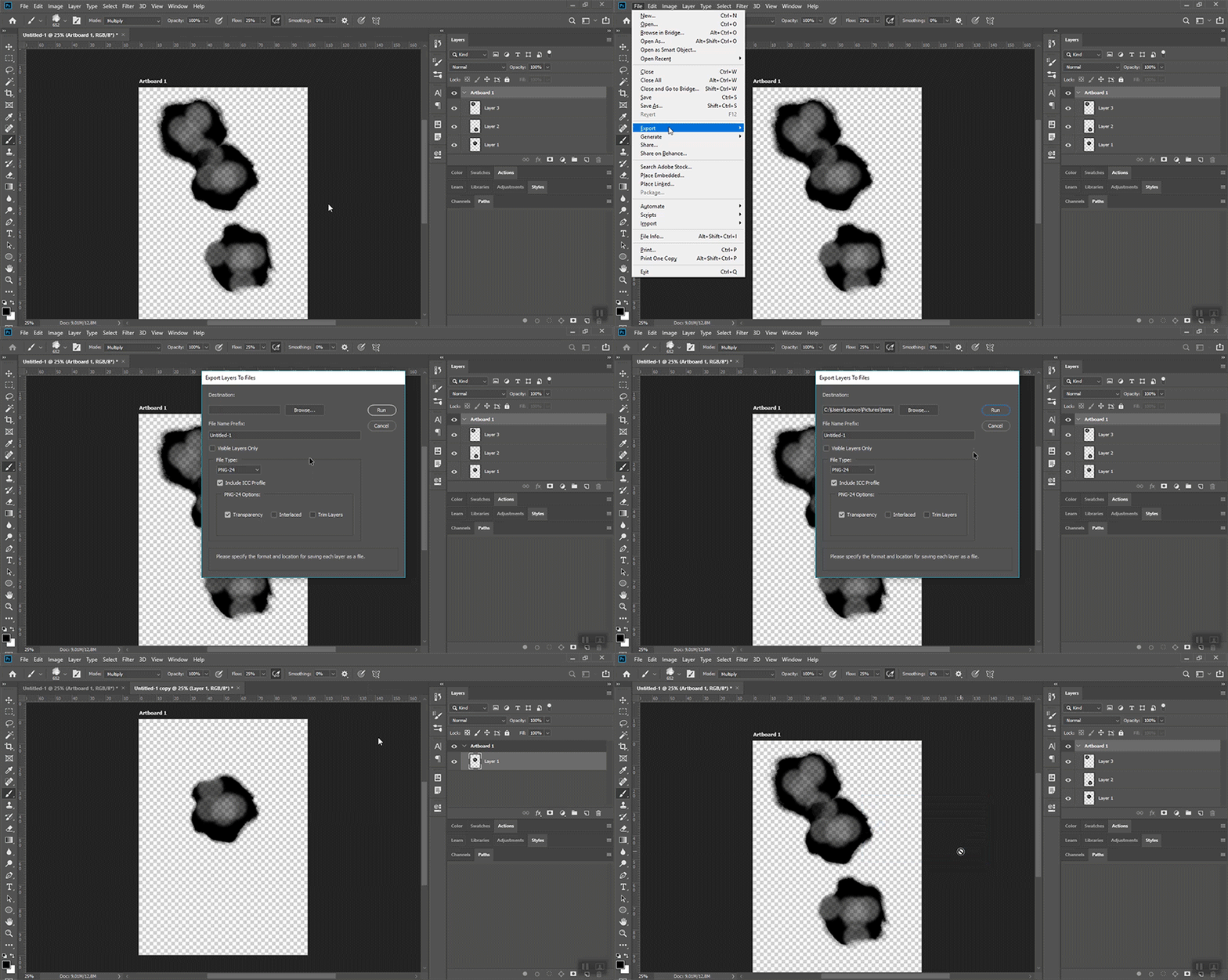
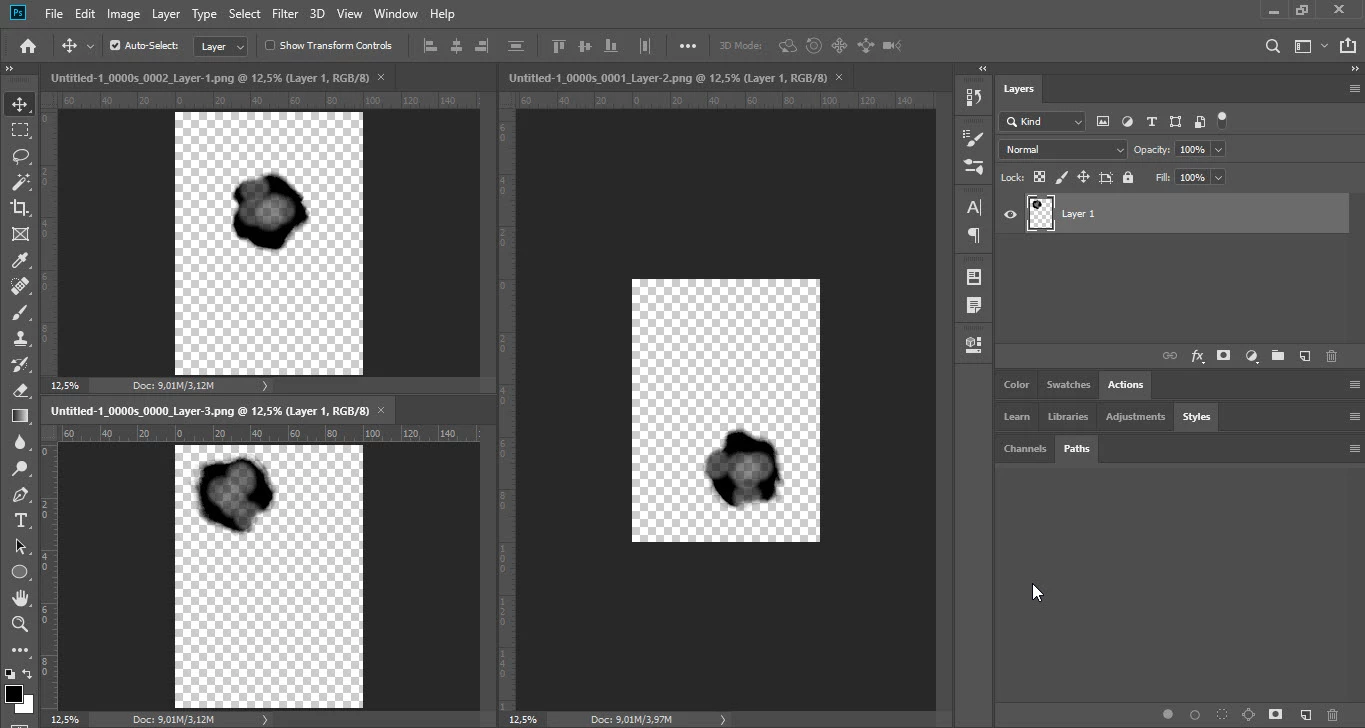
    I have tested just before writing this reply and everything works fine with Export Layers to Files. Photoshop is exporting layers with Artboard dimensions as I believe you want.

    Here are exported PNG files

    4 replies

    Participant
    August 3, 2023

    1) Highlight all of the layers and click "Export as"
    2) Once you are on the export as screen, hold shift and select all layers from top to bottom
    3) The canvas size should change to hyphens. Change the canvas size to your desired size.

    4) Click "export" and then click "Open".  

    It's a little janky if you have a large file, but it will eventually export them all using the same canvas size.

    SamuelPaulSkillington
    Participating Frequently
    June 1, 2023

    I have tried this every way suggested and regardless of whether I have trim layers selected or not I get trimmed pngs every single time. I'm completely at a loss now and just have to manually save each fecking layer.

    Stephen Marsh
    Community Expert
    Community Expert
    June 2, 2023
    quote

    I have tried this every way suggested and regardless of whether I have trim layers selected or not I get trimmed pngs every single time. I'm completely at a loss now and just have to manually save each fecking layer.


    By @SamuelPaulSkillington


    Can you please provide a step-by-step of your workflow, the source images, the expected result and the final result?

    Participant
    September 25, 2020

    Just wanted to let you both know I had an issue with and the discussion you guys had on this forum really helped me out. I have trim layers on myself. Thanks!

    Bojan Živković11378569
    Community Expert
    Community Expert
    February 24, 2019

    If I can understand what you want then try to create layer comps (Window > Layer Comps) then use File > Export > Layer Comps to Files. If you want each layer separately without background included then use Layers to Files from the same menu. Uncheck Trim Layers when setting export PNG options.

    danted36312018
    Inspiring
    February 24, 2019

    Thanks for the response.

    I did what you told me, but it doesn't save the layers as individual png files but as one png file, just like doing it as save as > png.

    I assume to get what I want, I have to save each layer individually?

    For example:

    Only make the layer visible, other layers hidden > save as > png > save > hide layer > unhide layer > save as > ..... rinse and repeat

    or

    Have each layer comp with only 1 visible layer

    For example below, its a 1920 x 1080 artboard, but it saves the whole dimensions of the artboard not just the dimensions of the layer which I want.

    If I export layer as PNG it only saves the dimensions of that layer not the artboard (picture 2). I have so many layers, doing it one by one is going to be a headache.

    What I want

    What I DONT want

    Bojan Živković11378569
    Community Expert
    Community Expert
    February 24, 2019

    Which method you are referring that does not work? Export Layer Comps or Export Layers to Files? Which version of Photoshop you are running?