


Participant
April 24, 2019
Question

Exporting PNG files with 300 pixels/inch resolution and sRGB color profile

  • April 24, 2019
  • 2 replies
  • 9166 views

I am responsible for exporting graphic images from Photoshop into high resolution PNG files for use in both digital and paper crafting. I work on a MacOS Mojave and am currently using Photoshop CC 2019.

I am sharing my process below to demonstrate the problems I am having with retaining 300 pixels/inch resolution and sRGB color profile in my exported images.

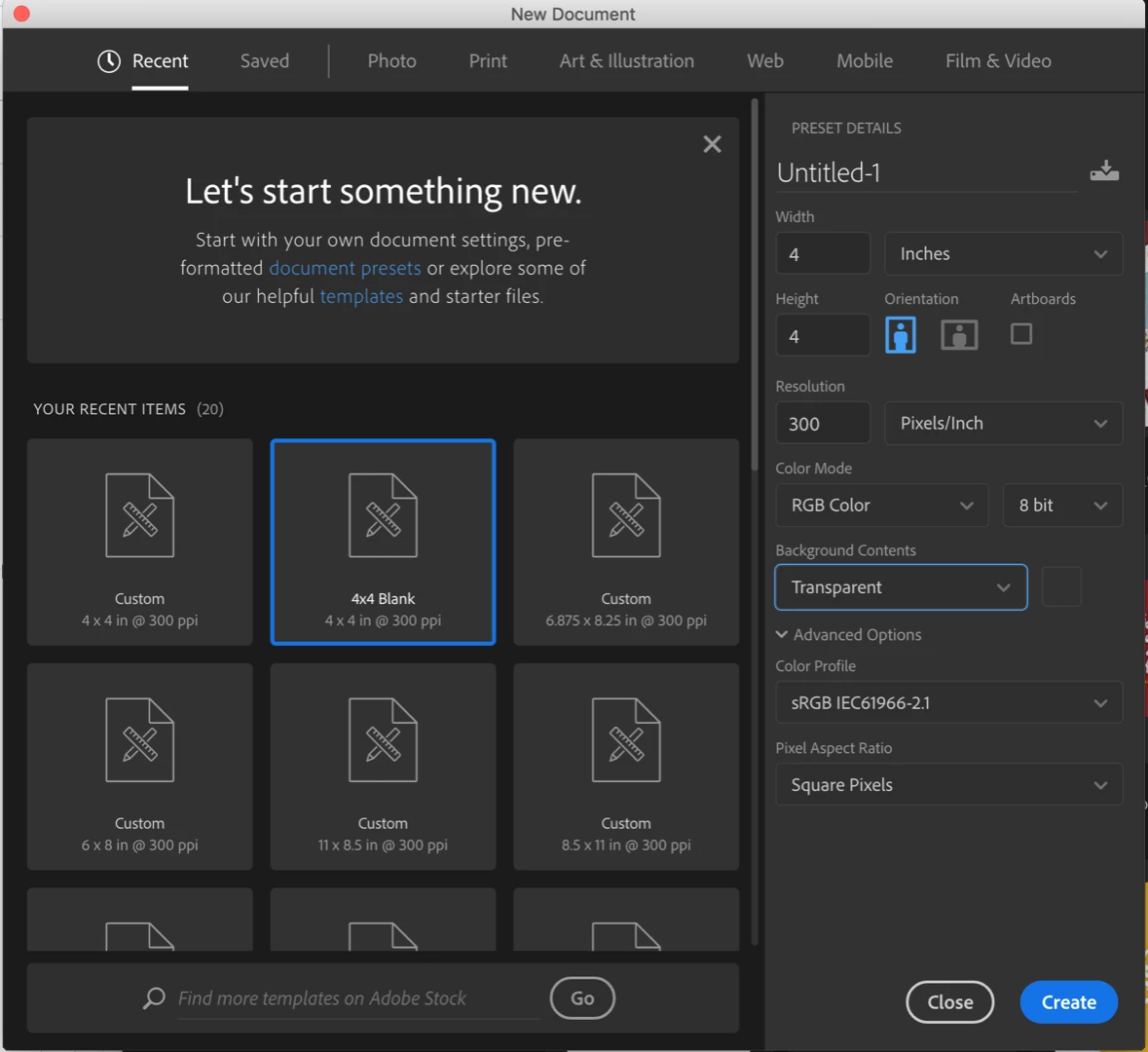
I start the process by creating a new document with a resolution of 300 pixels/inch and sRBG Color Profile.
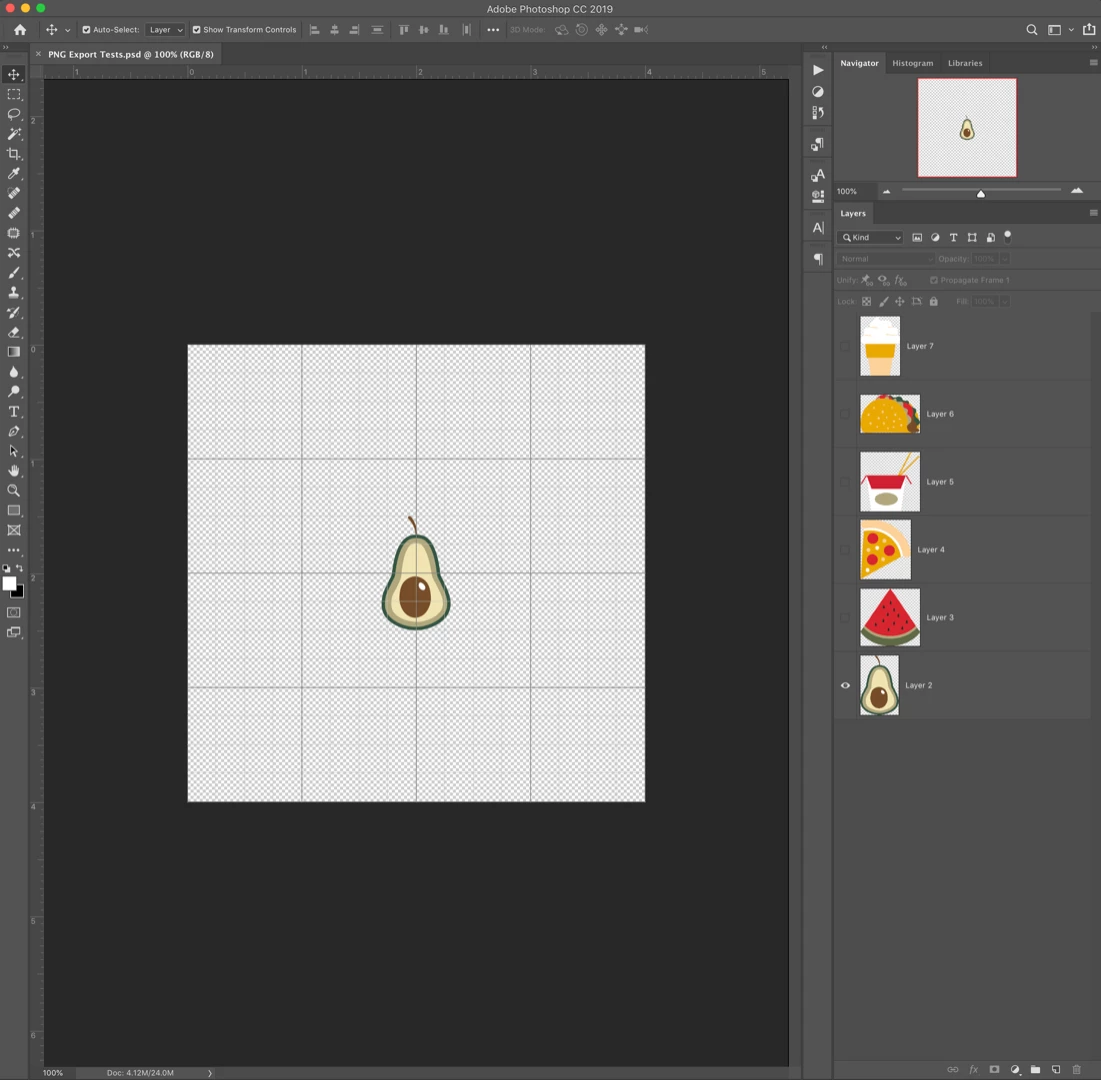
I then copy the graphic images from Illustrator into individual layers in my Photoshop document.
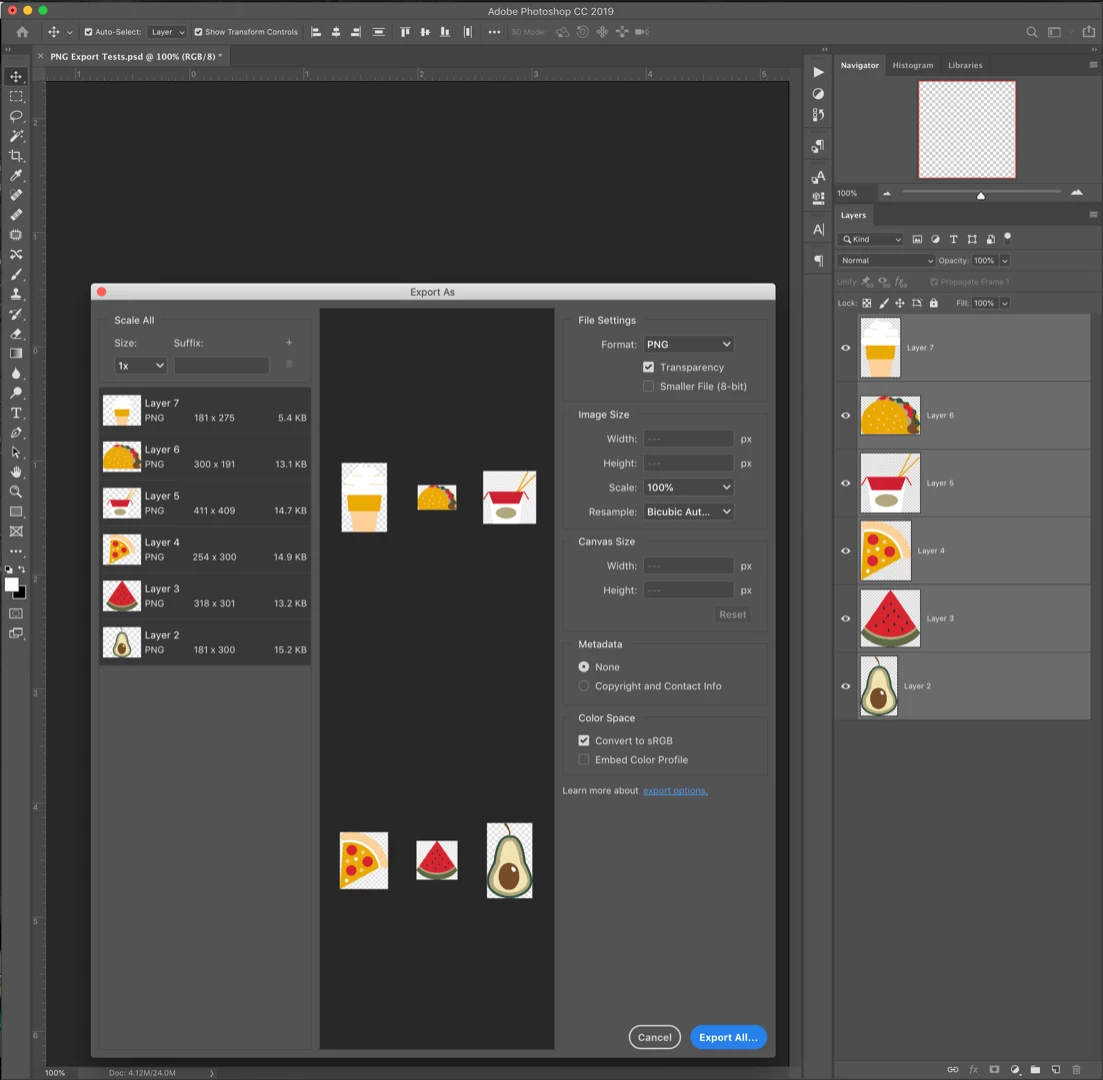
I have been using the 'Export As...' option in the layers panel as a shortcut because there are often hundreds of images to export in one kit. I select the PNG format, the 'Transparency' checkbox, and 'Convert to sRBG' checkbox.
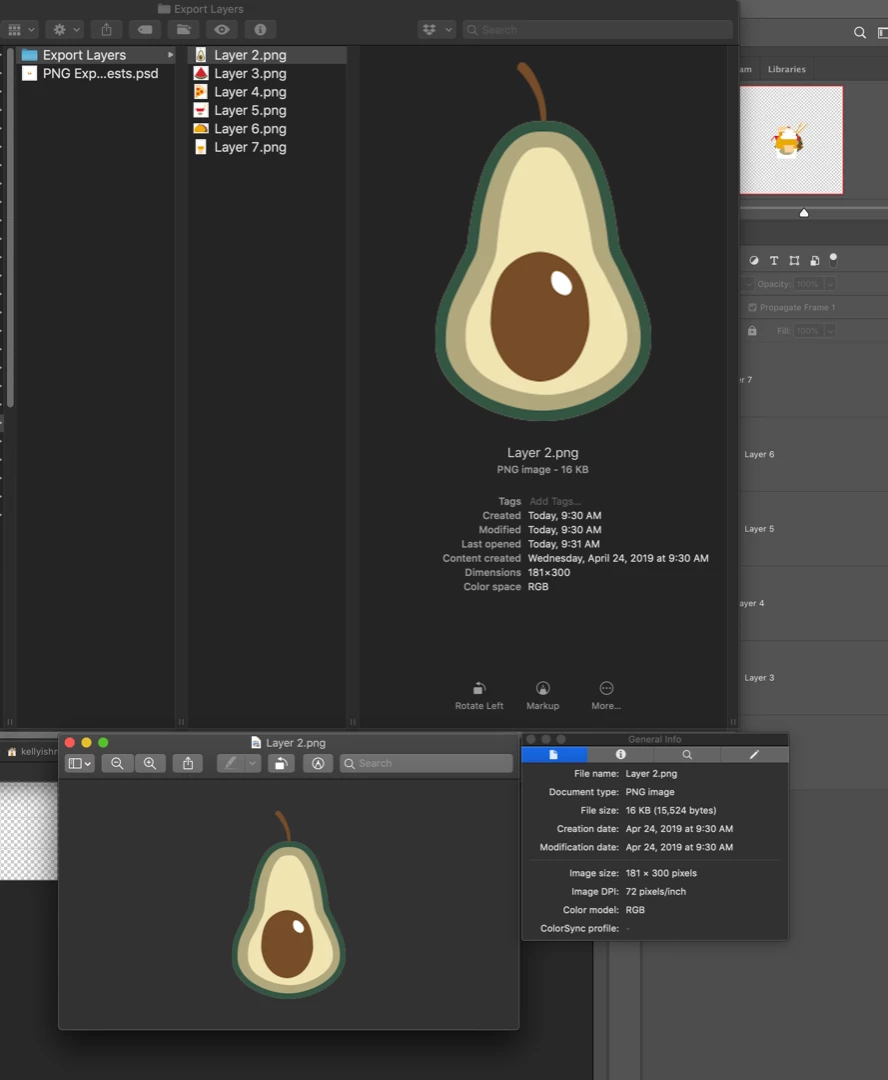
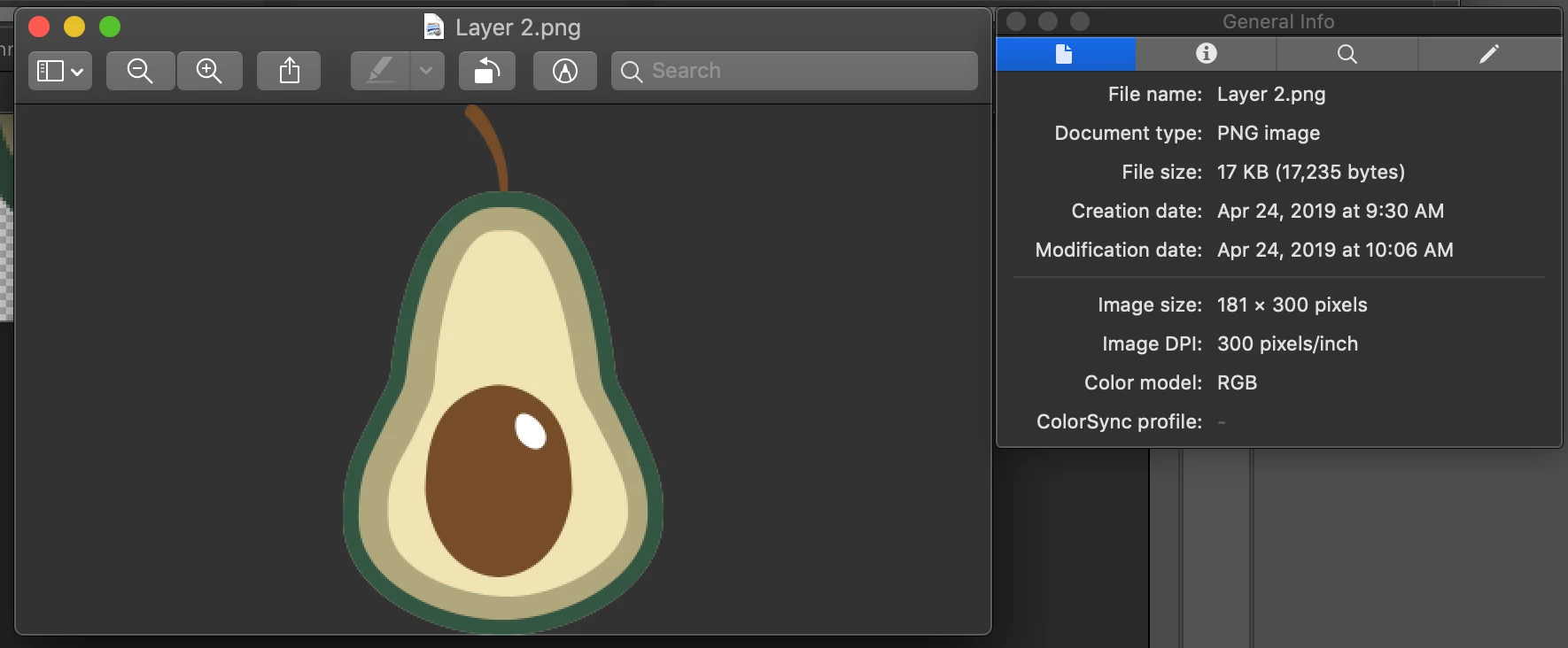
Upon viewing the image in Preview, the exported images did not appear to retain the sRGB Color Profile (according to the ColorSync profile) and the resolution is only 72 pixels/inch.
If I use the 'Save As...' option, it appears to retain both the 300 pixels/inch resolution and the sRBG color profile.
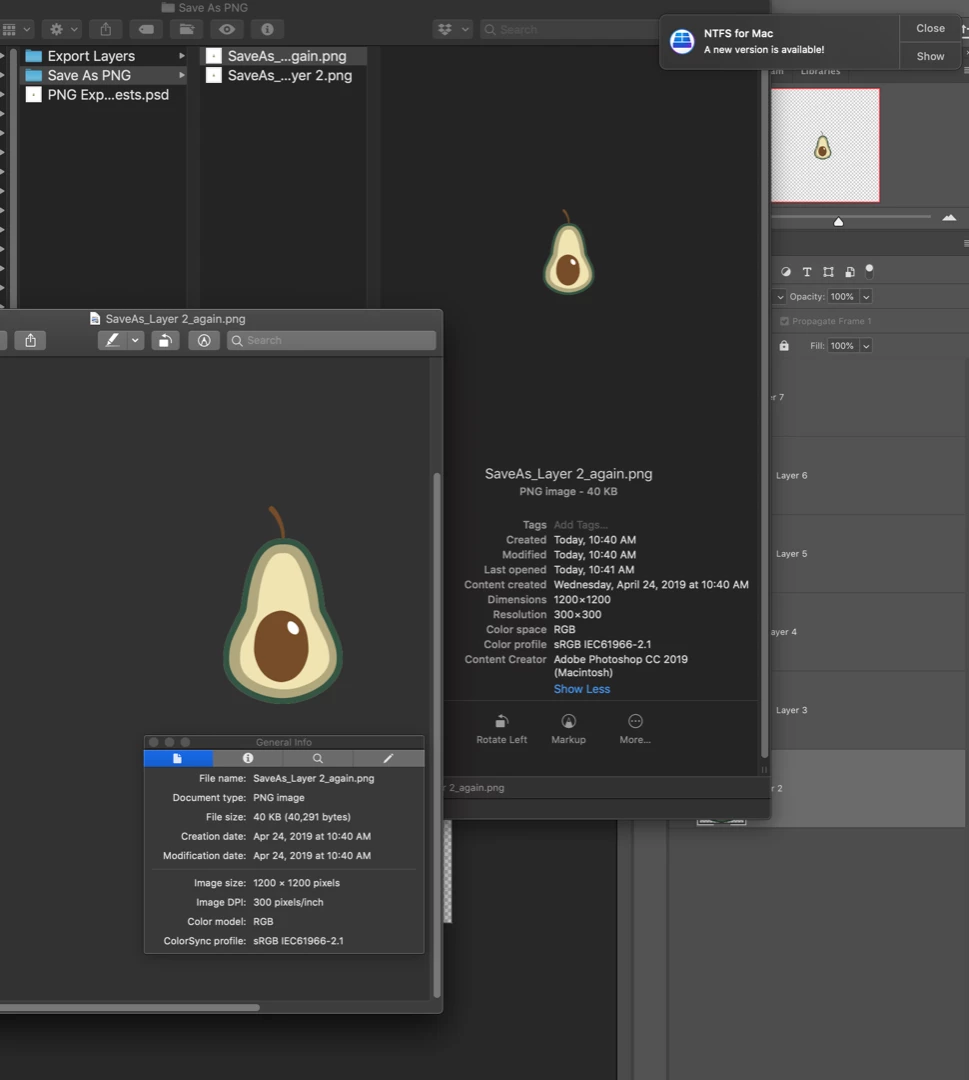
Once again, with hundreds (or even thousands) of images to export, the 'Save As...' is both extremely cumbersome and time-consuming.

I researched the problem with the resolution at length and discovered that the exported resolution of 72 pixels/inch is a known issue with the PNG layer export. In one of the other forums, I found a workaround for the resolution issue using the Batch processing tool to increase the resolution to 300 pixels/inch.
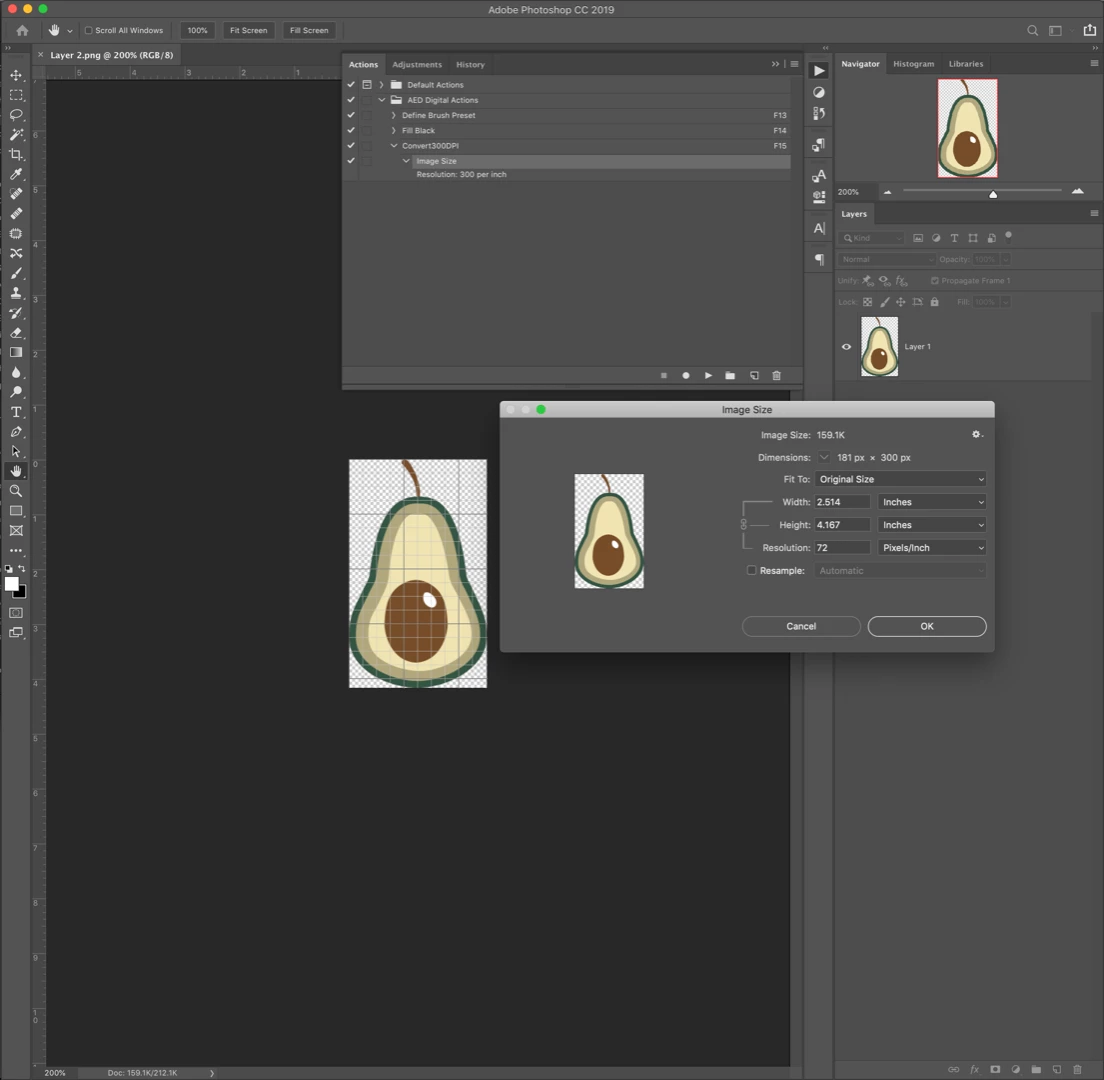
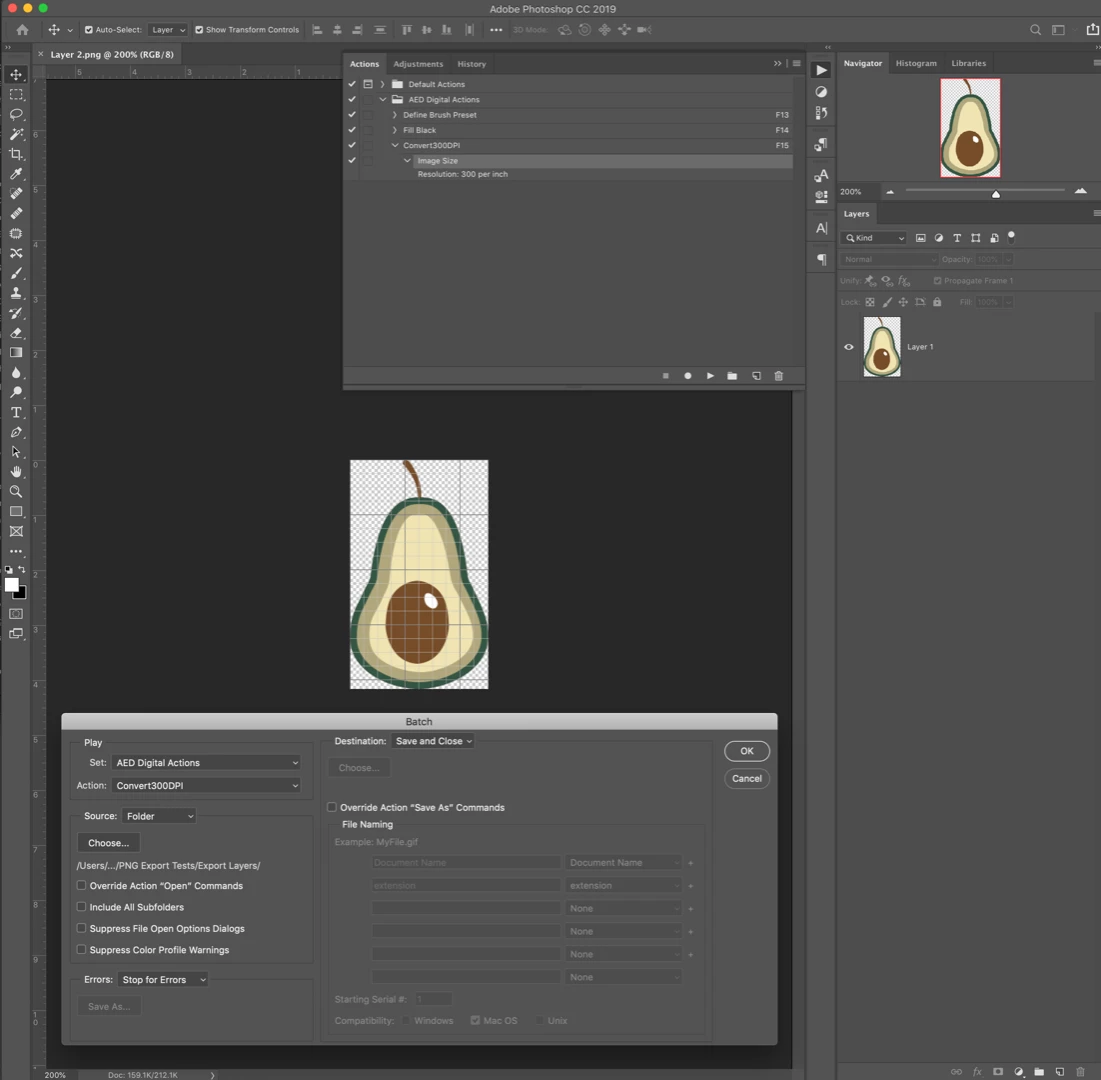
This batch action updated the resolution for all of the images in the folder as described in the workaround.
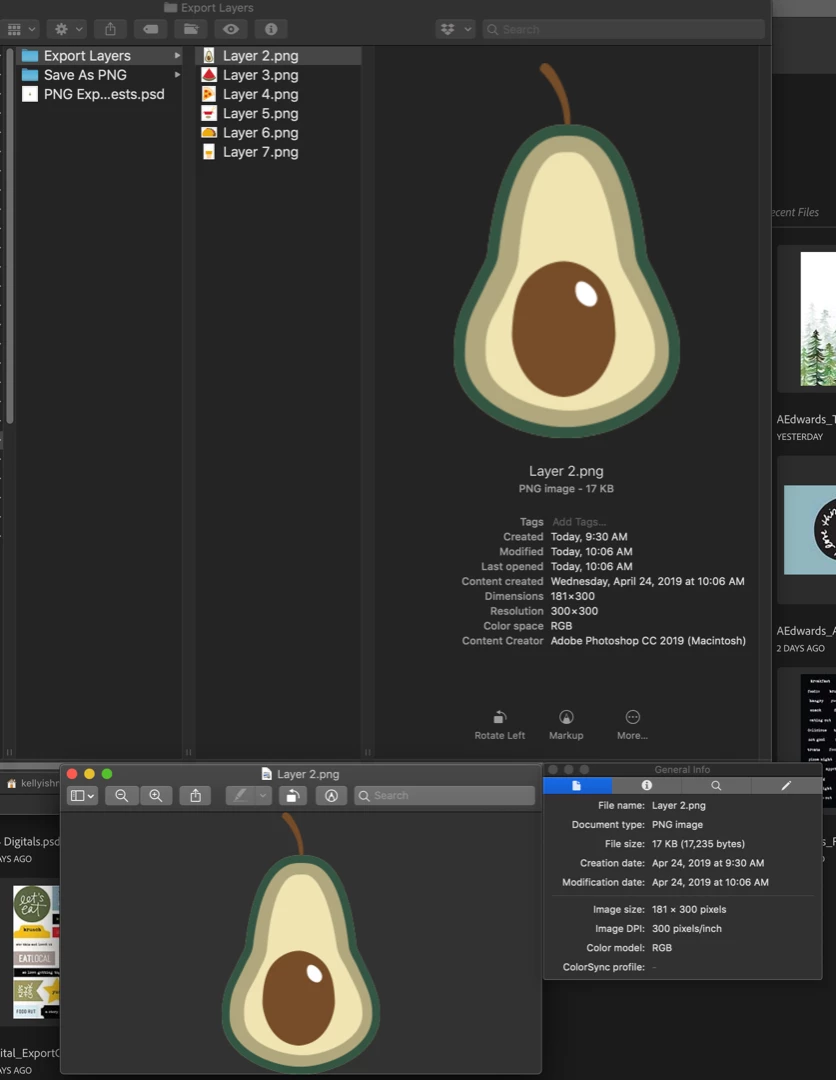
When I open the batch-processed image in Photoshop it confirms the resolution at 300 pixels/inch.
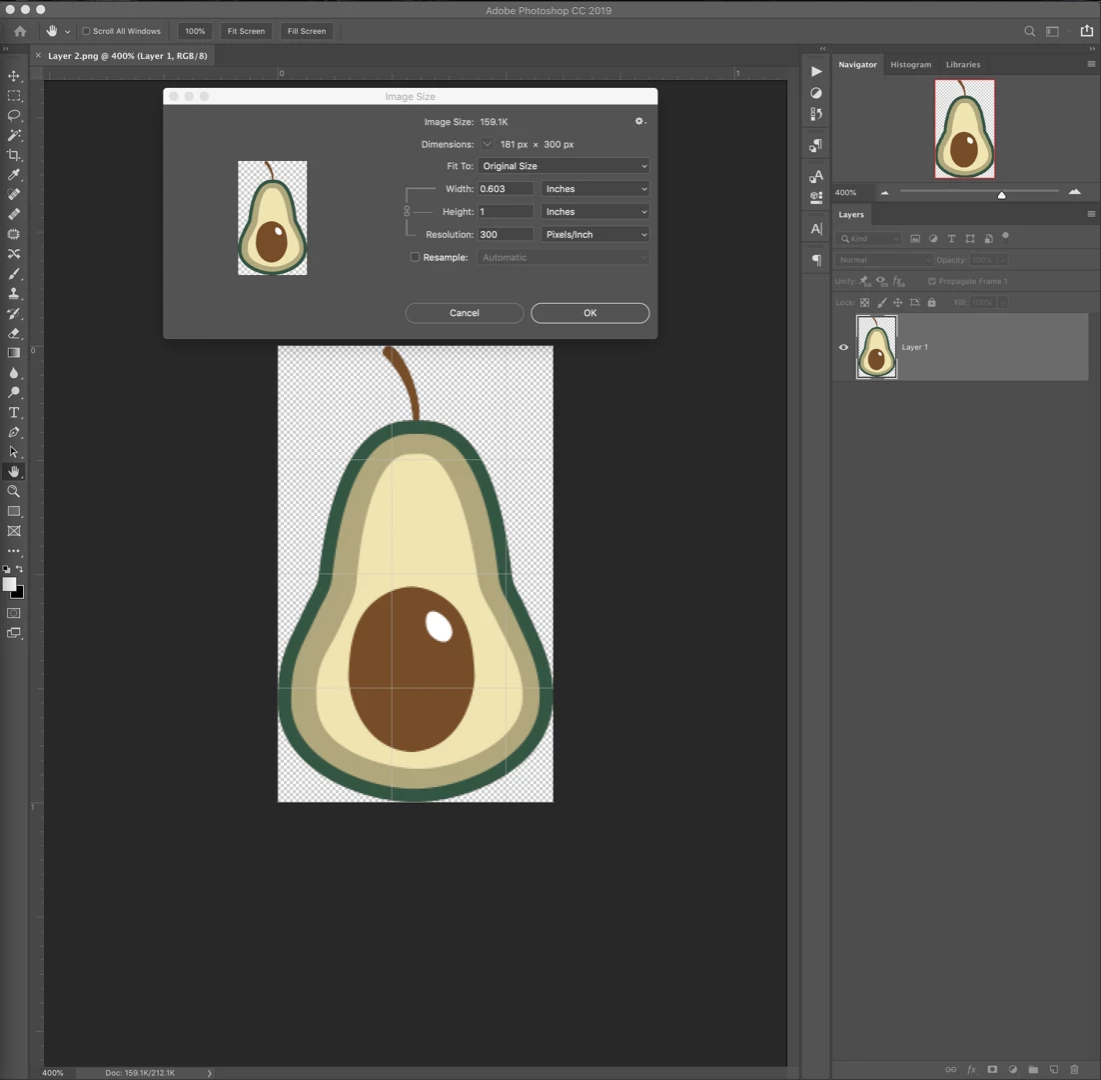
Regarding the Color Space issue, in Preview, based on the ColorSync profile, it appears that my images did not retain the sRGB profile.
But, when I check the colorspace by selecting Edit>Convert to Profile... I see that the Profile in the Source Space is sRGB.
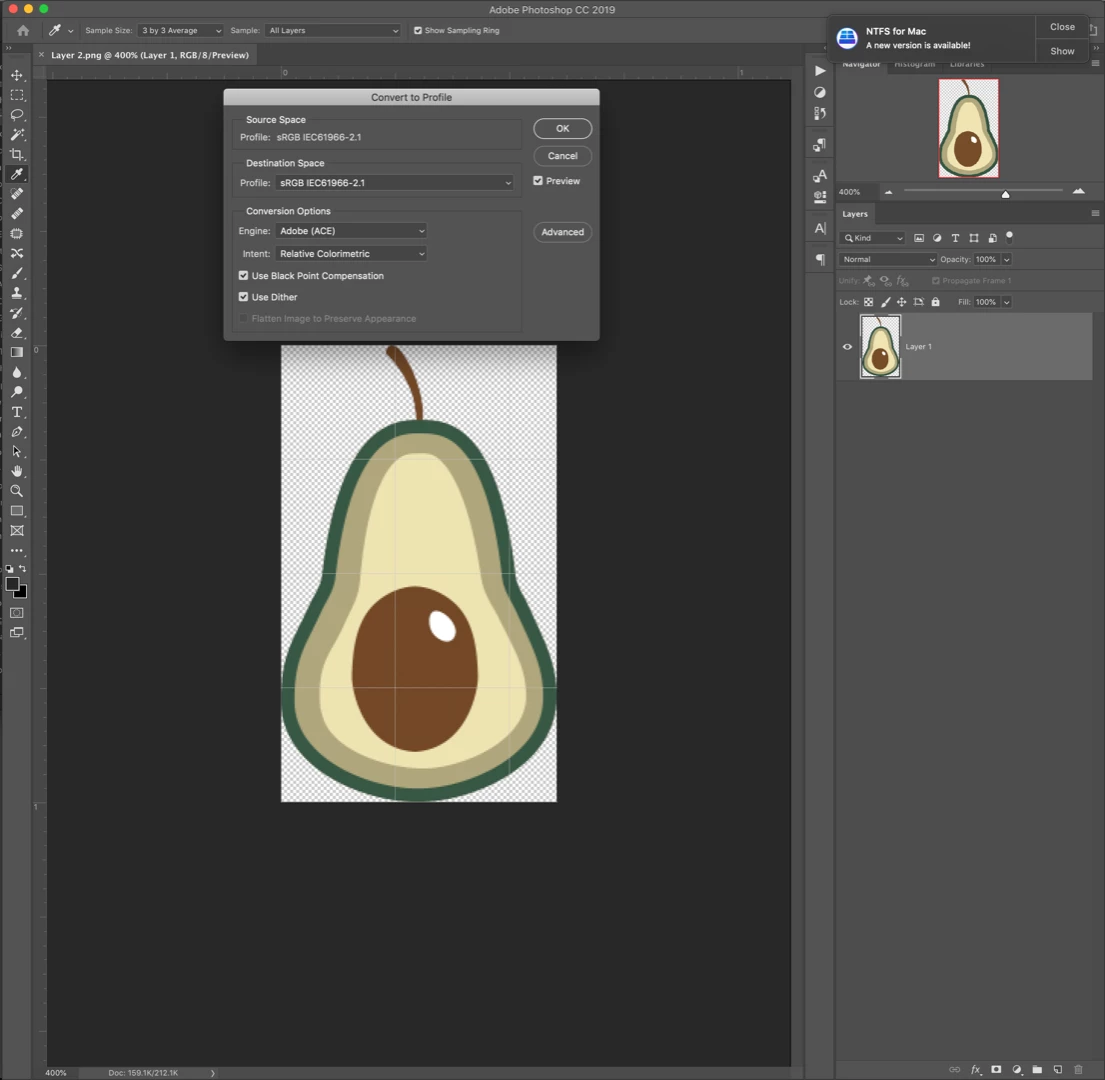
Does this mean that the sRGB color profile has been retained? Even if the ColorSync profile in the image preview information is blank?

Thank you in advance for your help. I would appreciate any insight on these issues as I am trying to making this process as efficient as possible.

Kelly Ishmael

    This topic has been closed for replies.

    2 replies

    Stephen Marsh
    Community Expert
    Community Expert
    April 25, 2019
    kellyishAuthor
    Participant
    April 25, 2019

    thank you for the suggestion. i will try that.

    Stephen Marsh
    Community Expert
    Community Expert
    April 26, 2019

    Looking over the standard options in later versions of Photoshop:

    Save/Export MethodResolution Metadata RetainedICC Profile Retained
    Save As PNGYesNo
    Export As PNGNoYes
    Export Save for Web PNGNoYes

    We can see that there is no single method that retains both the resolution and ICC profile metadata.

    Luckily there is a free tool that can bulk update images with this information: ExifTool

    It is a relatively simple task to create a drag-n-drop utility on either Mac or Windows to process your files without having to use the command line.

    Warning: Always backup your originals or work on duplicated files until you are sure that the CLI code is working correctly.

    To embed an ICC colour profile into the “Save As” PNG image, the following command line code would be used (upper Mac OS, lower Windows OS):

    exiftool -overwrite_original '-ICC_Profile<=/Library/Application Support/Adobe/Color/Profiles/Recommended/sRGB Color Space Profile.icm' 'Path to folder or file'

    exiftool -overwrite_original "-ICC_Profile<=C:\Windows\System32\spool\drivers\color\sRGB Color Space Profile.icm" "Path to folder or file"

    _______

    To write resolution metadata into the “Export As” or “Export Save for Web” PNG image, the following command line code would be used (upper Mac OS, lower Windows OS):

    exiftool -overwrite_original -PNG-pHYs:PixelsPerUnitX=11811 -PNG-pHYs:PixelsPerUnitY=11811 -PixelUnits=meters 'Path to folder or file'

    exiftool -overwrite_original -PNG-pHYs:PixelsPerUnitX=11811 -PNG-pHYs:PixelsPerUnitY=11811 -PixelUnits=meters "Path to folder or file"

    (Note: The PNG specification uses pixels per metre, with 11811 ppm the rounded equivalent of 300 ppi)

    D Fosse
    Community Expert
    Community Expert
    April 24, 2019

    Export strips the profile at default settings. Check "Embed Profile".

    The resolution is also stripped, because Export is intended for screen, web and mobile devices, where ppi doesn't apply - it's not relevant and not needed. The exported file doesn't have a ppi, not 72, not 300, nothing. The 72 figure appears as a default when the file is reopened into another application. It may be 72, or 96, or any other arbitrary figure.

    If this is not for screen, web and/or mobile devices, use Save As.

    kellyishAuthor
    Participant
    April 24, 2019

    Thank you so much for the information.

    When I export with 'Embed Profile' the Color profile is retained.

    The problem occurs when I run the Batch process to change the resolution because it strips the previously embedded Color profile from the image information.

    The end user of the images that I export will most likely be 1) using either Photoshop or Photoshop Elements to print these elements at home for use in physical projects. Or 2) they are creating digital projects (a combination of these images and photographic elements) that will be sent to print via third-party services (i.e. Shutterfly, Artifact Uprising, Persnickety Prints). Therefore, these graphic images have to preserve the transparency, high-resolution, and color space.

    I understand that the PNG export is intended for screen/web applications where ppi is not relevant. Is there some way to record an action or employ a script that will allow me to have the resolution/colorspace preserving functionality of 'Save As...' but be able use it on multiple layers at once?

    Thank you again for your help.

    Stephen Marsh
    Community Expert
    Community Expert
    April 26, 2019

    To keep this in perspective, that avocado illustration is only 181 x 300 px – which is 1.53 x 2.54 cm @ 300 ppi… Not a very large image as raster images go, it would obviously be best as a vector graphic.