

Lynnette7
Inspiring
February 27, 2018
Question

Extracting Hair from a background when they are similar in color
  • February 27, 2018
  • 3 replies
  • 643 views

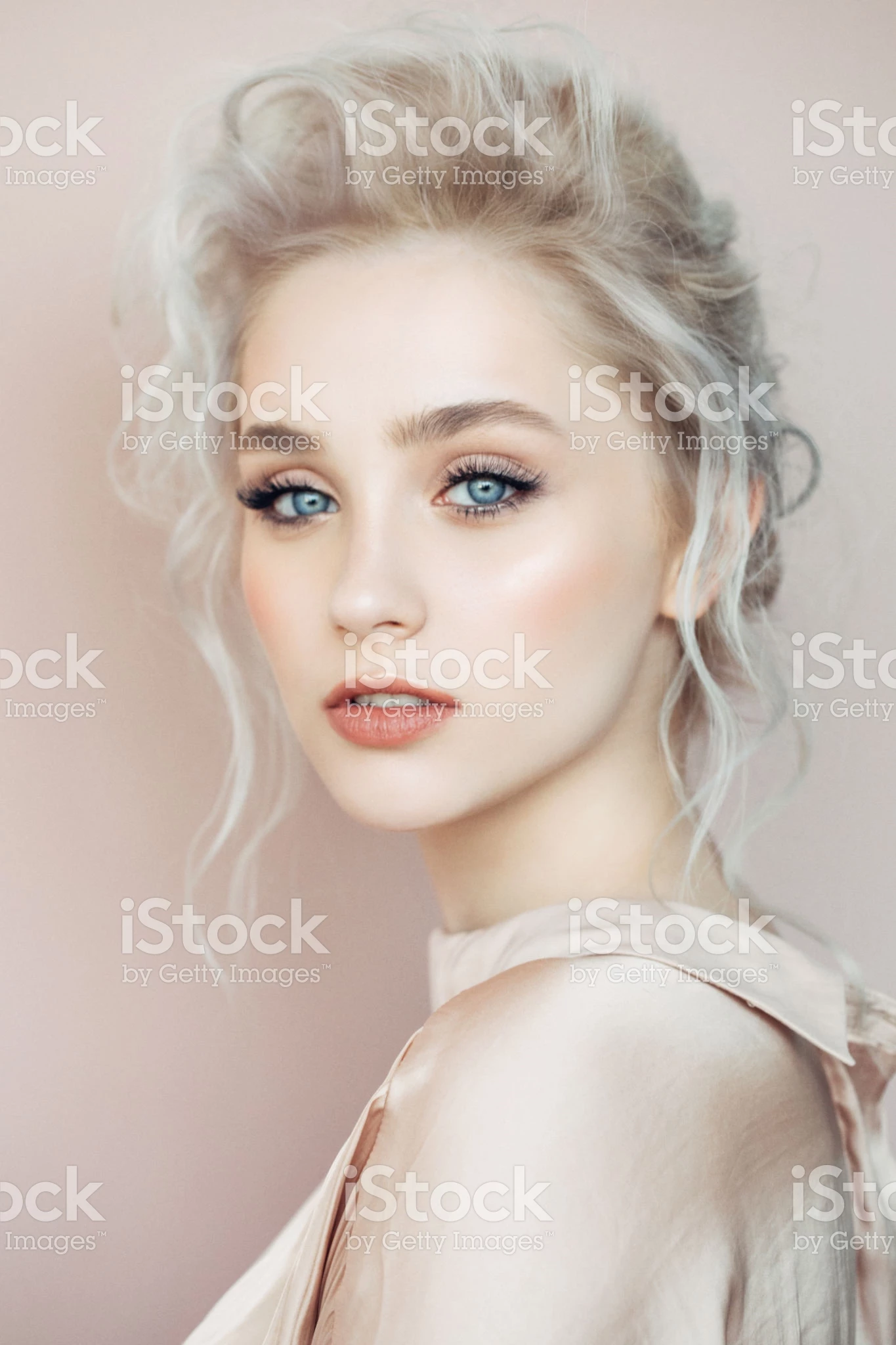
Can anyone give me some advice on how to extract the hair of this model from the background? (I have the purchased image, just not putting it here for obvious reasons.) Refine edge is making a mess of this one because the hair and background are so similar in color - plus the contrast of light to dark hair, I think. Any ideas appreciated.

This topic has been closed for replies.

3 replies

Lynnette7
Lynnette7Author
Inspiring
February 28, 2018

Thanks for all the input, everyone. In the end I couldn't get any of the above to work for me. So I've had to do a lot of painting on this one. I'm still working on it, but here's where I'm at so far. I still have a ways to go.

Norman Sanders
Legend
February 27, 2018

For this difficult job, a mask must be created to deal only with the contour of the hair, so the primary concern is the separate the hair outline from the background. To do it, you might consider Lab Color and do the work on a duplicate layer.  Thank goodness you have a large file. (Double click on the image to see a larger version)

Fig 2. Convert to Lab. Duplicate the  a. channel (Magenta/Green) and create an super-contrast curve. Move to the L channel and increase contrast.

Fig 3. Duplicate the layer and set its blending mode to Overlay.

Fig 4. Make a copy of the  a  channel

Fig 5. Choose the L channel and increase contrast

Fig 6. This is the time-consuming step (which I did not do beyond a rough outline.) Work with the Bush set Overlay Black/White. Increase the contrast. and remove the outside and a major part of the inside of the hair. The detail has been maintained but the lack of sharp focus calls for a soft edge mask silhouette. Add the easy part of the mask

Finally, switch back to RGB  and add the combined mask to a dupe layer of the background layer, invert it, turn off the background layer and place a blank layer above it.

chanaart
Community Expert
Community Expert
February 27, 2018

I usually crete an adjustment layer to a copy and change the color of the image. Than start the selection and take away the adjustment.

Another one is to look at you channels and see which channel is dominated duplicate the channel and change the level or brightness and contrast than continue with Select and mask and upload it

This tutorial does not show exactly what you need but showing you how to manipulate Channels to create a selection!

How to cut out trees quickly in Photoshop tutorial - PhotoshopCAFE

chanaart
Community Expert
Community Expert
February 27, 2018

You can also try Image: Calculation

Here is a shot from starting with it. Isolate and save selection and than load them to make the clean selection