Inspiring
March 11, 2019
Answered

EXTREMELY frustrated with arrows in CC

  • March 11, 2019
  • 2 replies
  • 757 views

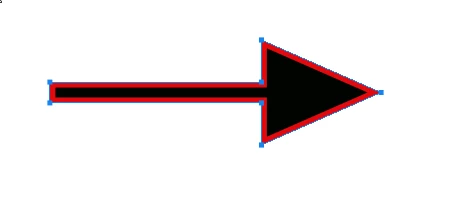
I upgrade from CS5 to CC several months ago, and until now I haven't felt like every thing is different, but even after reading this site I am EXTREMELY frustrated about creating arrows. The instructions from the Adobe website and others for CC look NOTHING like what is on my screen. No matter what my settings are, all I get is a generic blue line with squares at the end. I can't change the color. I can't make arrowheads.

I have 20.0.3 for Mac Mojave 10.14.

This topic has been closed for replies.
Correct answer davescm

Hi

a couple of options :

1. Using the line tool:

a. Select the tool


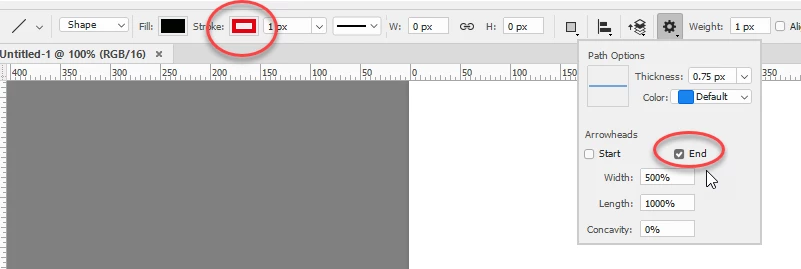
b. Choose the stroke in the options bar and click the cog and choose the arrow head

c Drag out the line (the path highlight colour will be shown while doing this)

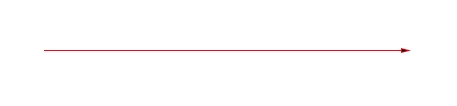
d. Click on another layer to hide the path highlight and see the actual arrow

or
2. For a chunkier line and arrow:

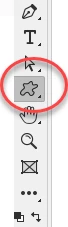
a. Choose the custom shape tool

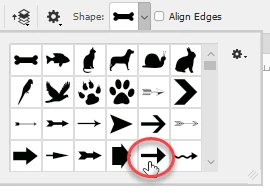
b. Choose an arrow from the drop down in the options bar

c. Choose a stroke and fill

d. Drag out the arrow (you can use Ctrl+T to  transform and rotate the arrow if required)

I hope that helps you

Dave

2 replies

Inspiring
March 12, 2019

Thanks, everyone! I would never have guessed that I needed to click away from the layer to see the finished product.

Semaphoric
Community Expert
Community Expert
March 11, 2019

Sounds like you have just a plain path. You need to use the Line tool, which draws a very skinny rectangle, with optional arrowheads, as you saw in the instructions you read.

Inspiring
March 11, 2019

I AM using the line tool. I have chosen "shape" and not "path." AND I have chosen an arrowhead at the start as the path option.

davescm
Community Expert
davescmCommunity ExpertCorrect answer
Community Expert
March 11, 2019

Hi

a couple of options :

1. Using the line tool:

a. Select the tool


b. Choose the stroke in the options bar and click the cog and choose the arrow head

c Drag out the line (the path highlight colour will be shown while doing this)

d. Click on another layer to hide the path highlight and see the actual arrow

or
2. For a chunkier line and arrow:

a. Choose the custom shape tool

b. Choose an arrow from the drop down in the options bar

c. Choose a stroke and fill

d. Drag out the arrow (you can use Ctrl+T to  transform and rotate the arrow if required)

I hope that helps you

Dave