matth48947737
Participating Frequently
March 24, 2017
Question

eye dropper selects wrong color on current layer

  • March 24, 2017
  • 4 replies
  • 2437 views

Hello.

I've had this issue for some time.  And I've had this issue on two different computers running two different versions of Photoshop. 

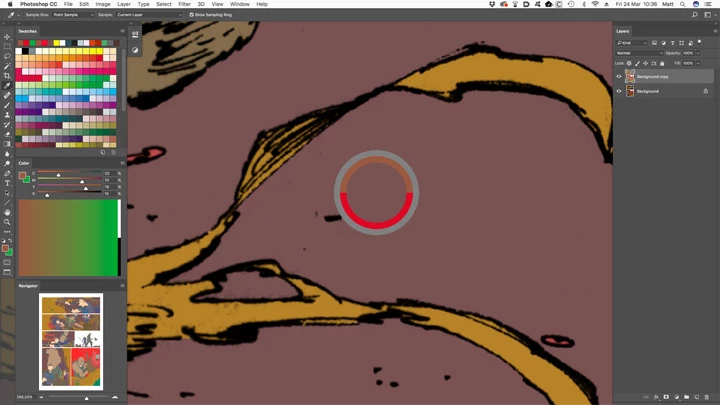
When using the eye dropper tool, if I use "current layer", it selects a completely wrong color.  Current & below and All layers returns the correct color.

No, I do not have my sample size set wrong.  It's set to point sample, but I also tried all other settings.

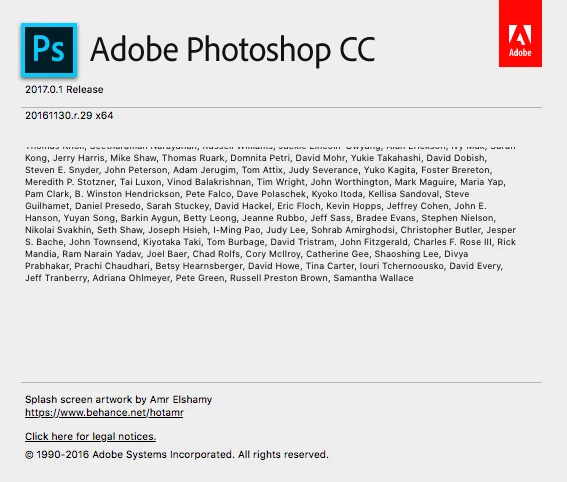
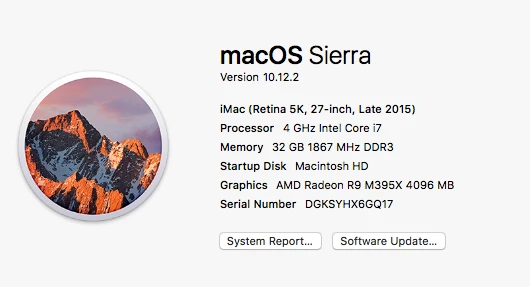
The computer is a new fully loaded iMac.  See attached for specs.  Photoshop is CC 2017.  Also see attached.

I very often use the tool and need that current layer setting quite often, so any help with figuring this out would be greatly appreciated.

Thanks for any and all help.
This topic has been closed for replies.

4 replies

Ice Cell
Participant
August 16, 2017

I've been following this bug since god knows when, and it still has no solution. Forum posts dates back to 2012, and I won't be surprised if there are older ones.

I guess me making another post about this bug won't change a thing.

davescm
Community Expert
Community Expert
August 16, 2017

Can you provide clear steps, preferably with a linked file and screenshots, that can be replicated. It is the only way any issue can be reported and, if there is a big, fixed.

Dave

SquareEyz
Inspiring
March 24, 2017

Not sure if this is helpful, but have you tried changing any of the tool settings for the eye dropper?

matth48947737
Participating Frequently
March 27, 2017

Thanks for the reply, but I already answered that in the original post.  The sample size makes no difference.  The problem exists no matter the sample size.

davescm
Community Expert
Community Expert
March 24, 2017

Hi Matt

The only way I could replicate that, with the top layer at 100% opacity,  is when the colour on the top layer being sampled (i.e. current layer) was semi-transparent i.e. brushed on with a brush set to less than 100%. This is correct as the sample picks up what the colour would look like at 100% opacity.

That way the colour being viewed ( a combination of the current layer and the layer beneath) looked different to the colour being sampled (the single layer).

Could that be the case here? Should be easy to tell by switching off the layer below and looking for a colour change.

Dave

matth48947737
Participating Frequently
March 24, 2017

Thanks for looking into it, but no.  That's not it.  The color is a solid fill on that layer which has its opacity set to 100%.  No brush strokes of any kind.

davescm
Community Expert
Community Expert
March 24, 2017

Hi

When you fill you also set an opacity and blending mode (so it's not just for brush strokes). But like I said - that should show when you switch the layer visibility for the layer below.

If it is not that - then I am a bit stumped as I could not replicate it.

Dave

krzysztofb86021230
Inspiring
March 24, 2017

Cześc

spróbowałeś użyc "wszystkie warstwy"

matth48947737
Participating Frequently
March 24, 2017

Tak. To działa dobrze. Ale "bieżąca warstwa" nie działa poprawnie.