
Answered
Eyedropper Tool Not Color Selecting Colors Correctly
- Photoshop version: 24.7.5 - 26.0
- Windows 10
Issue: Eyedropper tool does not select correct colors
Step 1: Select Eyedropper Tool
Step 2: Select color anywhere on image
Step 3: Paint with selected color (you will see the eyedroped color your using and trying tp paint with is different from what you selected).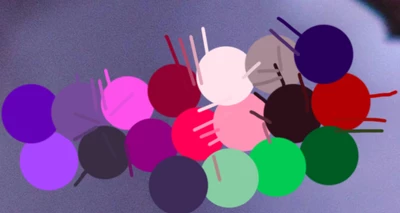
This occurs regardless of whether I’m working on the same layer, across different layers, or with rasterized images. The tool seems to select a similar hue (like 'some' color of red, green, pink, blue, etc.), but the actual color is often off. It feels as though Photoshop is prioritizing transition or blending colors rather than the precise color I'm clicking on. Unless I'm clicking in the dead center of a color (which may not always be an option depending on pixel space), it will try to pick a nearby transition color from around it.
I suggest seeing the video provided here: https://youtu.be/xKATYVdKS54
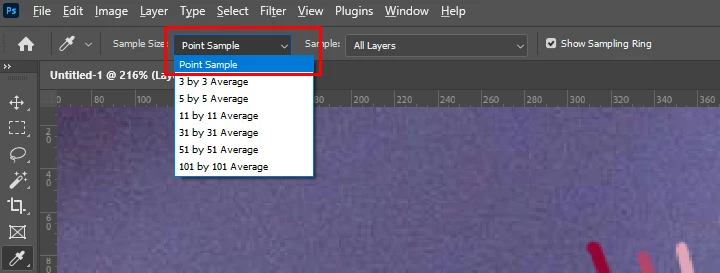
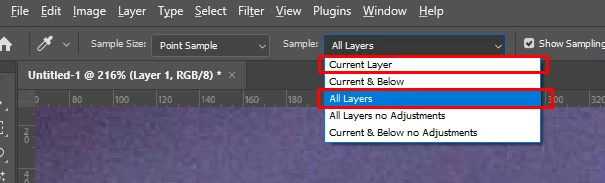
 AdChoices