michaelp62688706
Participant
February 2, 2018
Question

Find midpoint of irregular shaped area

  • February 2, 2018
  • 3 replies
  • 4689 views

Hi everyone

can anyone help me with this problem?

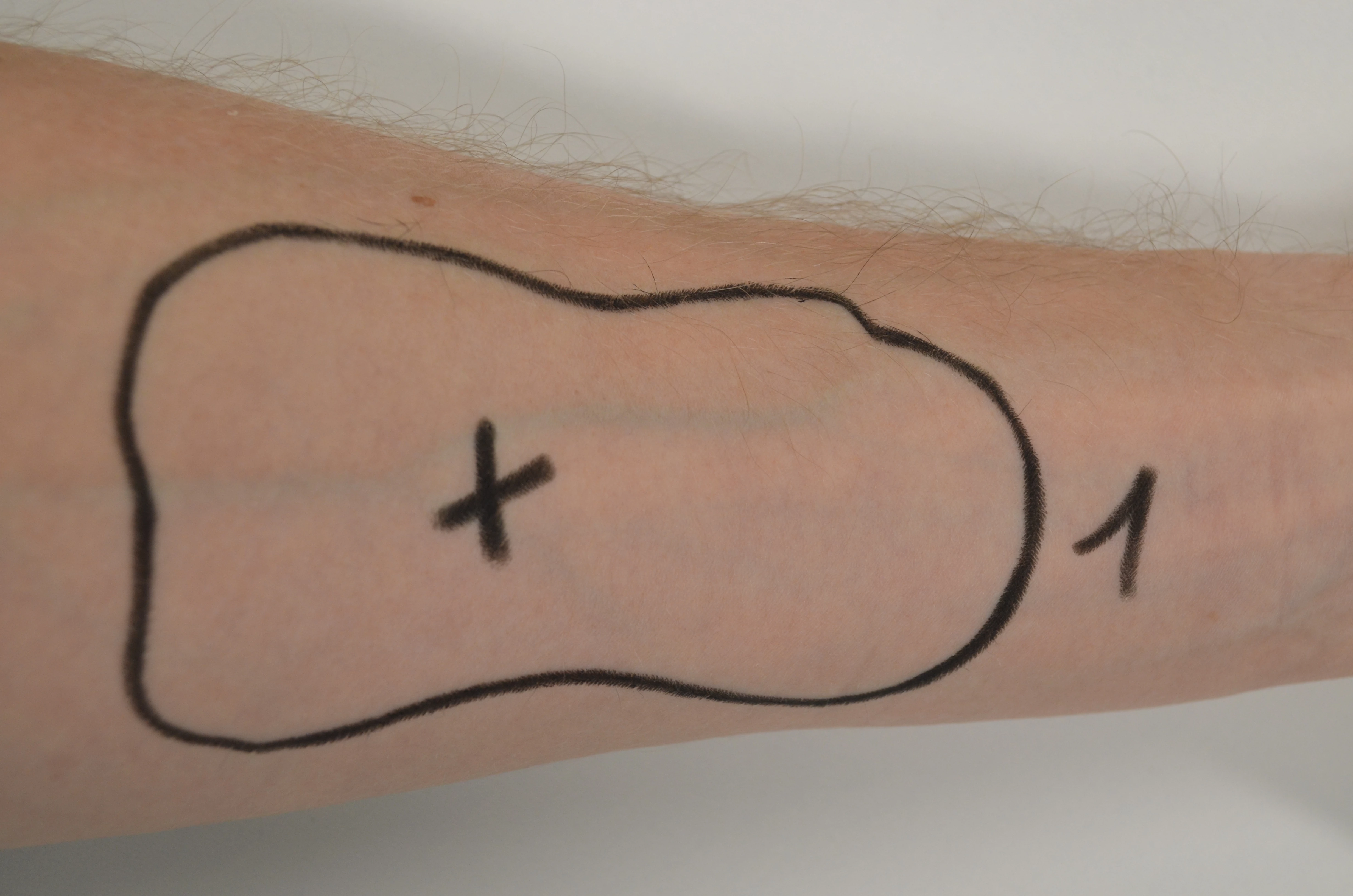
I have several of these irregular shaped areas. Now I would need to calculate the midpoint of the areas in question.

Does anyone have a tutorial or similar how I could do that?

the picture below is an example:
Thanks a lot

Cheers

This topic has been closed for replies.

3 replies

Participant
November 7, 2018

Illustrator:

1. Select Shape

2. Copy Shape

3. Paste Shape in place

4. Select copy

5. OBJECT-PATH-AVERAGE-BOTH_OK

How to Find the Center of a Star in Adobe Illustrator - YouTube

Trevor.Dennis
Community Expert
Community Expert
February 2, 2018

Hi Michael

I'm wondering what criteria you would use to decide on the midpoint?  I keep coming back to it being half way between the extremities when considering the object as a rectangle.  If you were to select the area and copy to a new layer.  Using Free Transform would place the centre handle at that half way point.  Making a copy and reducing it in size, will cause it to reduce around that same centre handle.

I don't think this can be what you are looking for, so it would help — me at least — to know what criteria you want to use.

davescm
Community Expert
Community Expert
February 2, 2018

If you want to find the centre of gravity - which would normally be considered the midpoint of an irregular shape, you can do it in Photoshop although it is a little awkward.

1. Draw around your shape with the pen tool to create a shape and fill it with a solid color. Then turn off your image layer.

2. Use Select color range to make a selection of your color and in the histogram, expanded view, ensure Cache level is 1 (if not click the triangle at the top right of the histogram). Then read the number of pixels (in my case 4836668)

3. Calculate half that number of pixels - so for me 2418334

4. Add a white rectangle shape just above the irregular shape layer and position the edge approximately halfway down.

5. Press Ctrl+D to Deselect and select color range again

6.Read the number of pixels in the histogram - remember you must be at cache level 1 so click the warning triangle if not.

7. Move the white rectangle up/down and repeat steps 5 & 6 until you have as close as possible half the pixels as calculated in 3.

8. Drag a guide from the ruler an position it on the edge

9. Move the rectangle so it's vertical edge is across the shape and repeat steps 4-8

10. Your guides are in the centre of gravity so you can now turn off the shape layers and turn the image back on

Like I said - it is a bit awkward - but it does work.

I hope that helps

Dave

c.pfaffenbichler
Community Expert
Community Expert
February 2, 2018

Good one.

It should be possible to script something on the basis of that approach bit it might not be exactly speedy.

Legend
February 2, 2018

That sounds like something for a specialist tool, not a photo editor. You also need to consider that "midpoint" is ambiguous:

* centre of gravity (if this were a solid of uniform density)

* centre of the smallest containing rectangle aligned with grid

* centre of the smallest containing circle

* point at the centre of the longest line between two points on the outside boundary

* average of a large number of x,y sample points randomly or uniformly arranged inside the shape

* or many more...