davidc1815
Legend
April 21, 2017
Answered

Fine tuning a crop with the Crop Tool

  • April 21, 2017
  • 2 replies
  • 4967 views

Is there a way to fine tune the placement of the sides of a crop?  Using the arrows just seems to shift the whole image.

Thanks

David

    This topic has been closed for replies.
    Correct answer Trevor.Dennis

    Hi David.  It's always good to see you use the forum again

    You can get fine control of the crop handles when close to the edge of the canvas by holding down the Ctrl (Cmd) key.  That stops it snapping to the edge.

    You can place guides and have the crop tool snap to the guides, or snap the rectangular Marquee tool to the guides and choose image > Crop.

    You can relocate the grid origin to help with precise placement either of guides or corner handle.

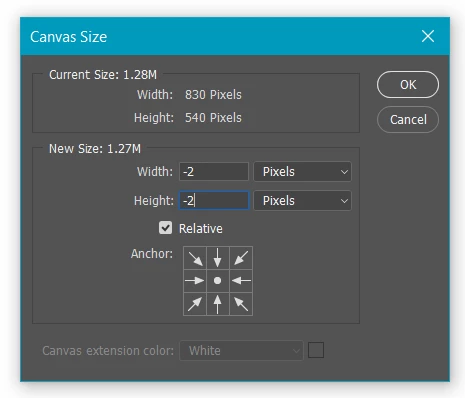
    You can use negative values with Canvas size.  i.e. the settings below would shave one pixel off all sides.
    If that doesn't help, perhaps you can be more specific about what you'd like to achieve.

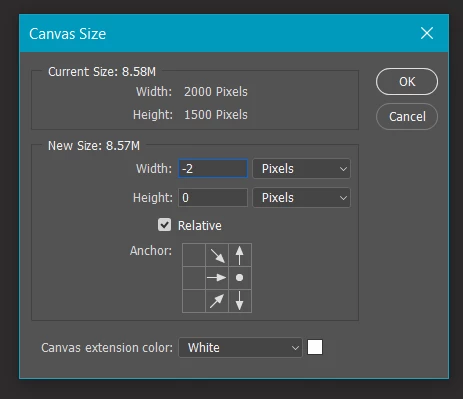
    I've just had a play with it, and I think using negative Canvas might be the easiest way. The setting below will crop two pixels off the left side of the canvas.
    2 replies

    D Fosse
    Community Expert
    Community Expert
    April 21, 2017

    FWIW, I usually hit ctrl+A and nudge the selection with the arrows. Then image > crop. Don't know if that's more or less efficient than anything mentioned above, but it works.

    The pixel distance for each nudge varies with the zoom level. I usually zoom in pretty much for things like this anyway, so then it's one pixel at a time.

    davidc1815
    Legend
    April 21, 2017

    Thanks.  That's very helpful advice.  I now have a few different ways of dealing with the problem.  Thank you.

    Trevor.Dennis
    Community Expert
    Trevor.DennisCommunity ExpertCorrect answer
    Community Expert
    April 21, 2017

    Hi David.  It's always good to see you use the forum again

    You can get fine control of the crop handles when close to the edge of the canvas by holding down the Ctrl (Cmd) key.  That stops it snapping to the edge.

    You can place guides and have the crop tool snap to the guides, or snap the rectangular Marquee tool to the guides and choose image > Crop.

    You can relocate the grid origin to help with precise placement either of guides or corner handle.

    You can use negative values with Canvas size.  i.e. the settings below would shave one pixel off all sides.

    If that doesn't help, perhaps you can be more specific about what you'd like to achieve.

    I've just had a play with it, and I think using negative Canvas might be the easiest way. The setting below will crop two pixels off the left side of the canvas.

    davidc1815
    Legend
    April 21, 2017

    As always, Trevor, you have the answer.  Thank you.  I am digitising a mass of old family photos and en route a lot of cropping of borders is necessary.  The problem is that I am having to work on a 15" laptop with a very high screen resolution (3840x2160 - Dell XPS15 9550) and the only way I can get fine manual border slicing is to magnify the image and thus the crop marks.  This allows subtle additional movement of the crop boundaries.  When I look at the whole image on screen, the slices available are coarse.  The movement is rather like the difference in the way a mechanical second hand sweeps continuously as opposed to a quartz second hand moving in jerks. I will try your solution.  I wish I could get back on my 27" screen but health problems make that impossible for the time being.

    Thanks again for your help.

    David

    Trevor.Dennis
    Community Expert
    Community Expert
    April 21, 2017

    davidc1815  wrote

    I am digitising a mass of old family photos and en route a lot of cropping of borders is necessary.

    David

    I don't envy you.  I did the same with my dad's slide collection some years ago, and despite every effort to keep the slides clean, and using ICE, it was a nightmare to clean up the images with whatever version of Photoshop I was using back then.  I used Ed Hamrick's VueScan for most of it, and an early Benq 35mm scanner, plus an Epsom flatbed for the medium format.   Talk about a labour of love — I wouldn't ever want to have to do it all again!  My family treasures those pictures though, and it was most definitely a worthwhile undertaking.

    It has just occurred to me that I now live off Hammerichs Road (Rapaura NZ) which is spookily close to the VueScan creator's name.