


Participant
November 2, 2020
Answered

First time attempting to use Photoshop, nothing works

  • November 2, 2020
  • 3 replies
  • 810 views

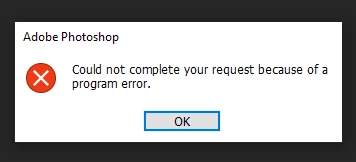
I'm attempting to get Photoshop open and use it and nothing will work - including closing Photoshop. I get an error. I have no preferences set, and Photoshop is up to date according to Creative Cloud (version 22.0.0 release).


Things I've attempted to do and have failed with the same error: 

- Make a new project

- Import a jpg and png

- Close Photoshop

- Uninstall and reinstall Photoshop through Creative Cloud

- Reset all preferences in Photoshop and restarted (through end task because I can't close Photoshop normally once it's open)


This topic has been closed for replies.
Correct answer Derek Cross

Try unticking Use Graphics Processor under the Performance tab in Photoshop preferences.


Also to reset your Photoshop prefrences, when you can't launch the application try this:

1) Close Photoshop
2) Double click on Adobe Photoshop icon to launch it
3) QUICKLY hold down Ctrl+Alt+Shift. (for Windows) or CTL+OPT+CMD+Shift (for Mac OS X)
4) When a dialog appears, ask you “Delete Photoshop Preference Files?” Click Yes.

If you don't see the question do it again.


If none of these thing work try this:

Unistall Photoshop, using the drop-down menu in the Creative Cloud app, and reinstall Photoshop again. If that doesnt solve the problem then unistall it once again and then run Adobe Cleaner before reinstalling Photoshop again.

Here's a link to Cleaner: https://helpx.adobe.com/uk/creative-cloud/kb/cc-cleaner-tool-installation-problems.html


Let us know how you get on.


3 replies

Nancy OShea
Community Expert
Community Expert
November 2, 2020
Nancy O'Shea— Product User & Community Expert
Dustin-SAuthor
Participant
November 6, 2020

Yeah I'm no where close to that. Thanks for your help Nancy 🙂

JJMack
Community Expert
Community Expert
November 2, 2020

Adobe has changed requirements and there are issues hera a link  known issues. 

JJMack
Dustin-SAuthor
Participant
November 6, 2020

This was the trick, the Use GPU was the problem. Many thanks

Derek Cross
Community Expert
Community Expert
November 2, 2020

Which OS version?

How much RAM and spare disk capacity?

Dustin-SAuthor
Participant
November 2, 2020

I was thinking about this and wondering if it could be a hardware related issue. I'm running the most recent Win10 update, have several TB of storage and 64GB of RAM but I have a super old GPU. Illustrator doesn't seem to have a problem with it but maybe Photoshop does? It would be preferable if there were more helpful error messages, if possible. 


Any idea if a GPU that doesn't work with Photoshop would present this type of problem?

Derek Cross
Community Expert
Derek CrossCommunity ExpertCorrect answer
Community Expert
November 2, 2020

Try unticking Use Graphics Processor under the Performance tab in Photoshop preferences.


Also to reset your Photoshop prefrences, when you can't launch the application try this:

1) Close Photoshop
2) Double click on Adobe Photoshop icon to launch it
3) QUICKLY hold down Ctrl+Alt+Shift. (for Windows) or CTL+OPT+CMD+Shift (for Mac OS X)
4) When a dialog appears, ask you “Delete Photoshop Preference Files?” Click Yes.

If you don't see the question do it again.


If none of these thing work try this:

Unistall Photoshop, using the drop-down menu in the Creative Cloud app, and reinstall Photoshop again. If that doesnt solve the problem then unistall it once again and then run Adobe Cleaner before reinstalling Photoshop again.

Here's a link to Cleaner: https://helpx.adobe.com/uk/creative-cloud/kb/cc-cleaner-tool-installation-problems.html


Let us know how you get on.