Participant
June 3, 2020
Question

Frame Tool Causing Photos to Appear Faded

  • June 3, 2020
  • 2 replies
  • 775 views

Hi there,

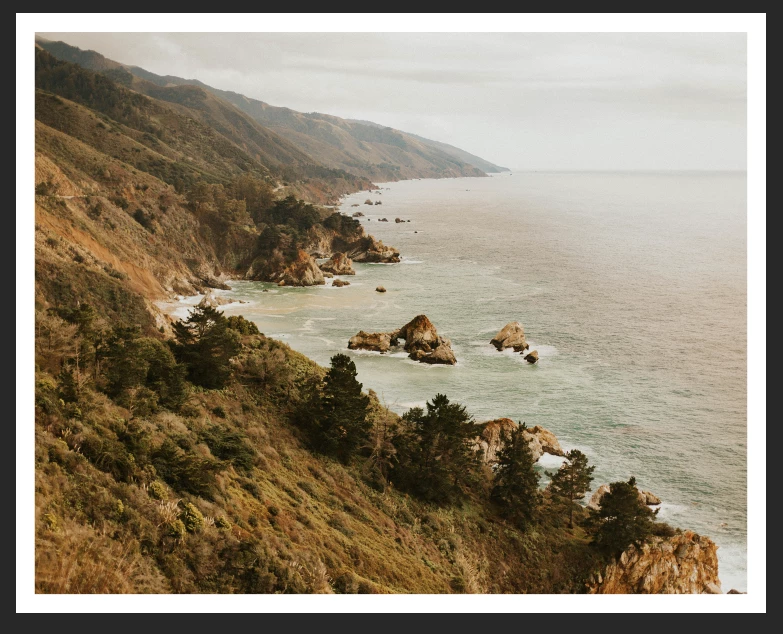
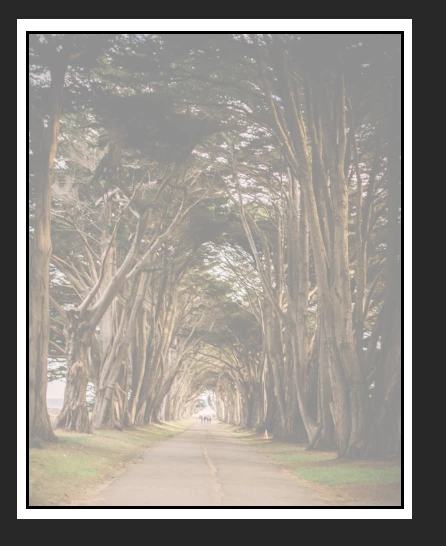
I'm working on getting some of my photos ready to be printed with a border using the frame tool. I'm not having an issue with my landscape photos, but whenever I import a portrait oriented photo into the portrait template I created, the photo appears and exports faded.  All settings are the same between my portrait and landscape templates, and I can't seem to find a solution anywhere online.  Normal and faulty images are attached for reference.


Thank you!
 

This topic has been closed for replies.

2 replies

JJMack
Community Expert
Community Expert
June 4, 2020

It is always better to post a screen capture that shows all of Photoshop UI. Particularly the layers palette so we can get an Idea of your documents structure  with  the layer you are having a problem with targeted so we can see the setting that layer has. I do not use the Frame tool for there are issues with it.  However it just creates a Smart Object layer the has a strange frame layer mask the is left of the smart object layer content thumbnail in the layers  palette,  The object should be positioned within the frame mask however it may not fill the frame opening because Place is used which will only scale object down in size the fit within the canvas. It will not scale smart object up in sized to fill a frame mask. Place has issues it will degrade images when the Placed image files print resolution settings does not match your documents resolution settings.  Place may resize your image an create a small smart object that does not fill the Frame mask.

JJMack
Conrad_C
Community Expert
Community Expert
June 4, 2020

When you select the layer of the portrait orientation frame in the Layers panel, what are its settings for blending mode and Opacity?