
Participant
August 15, 2024
Answered

frequency separation issue

  • August 15, 2024
  • 4 replies
  • 408 views

Hi. I got issues with Frequency Separation (FS) in photoshop. First of all image gets slitly brighter or darker depending on FS apllied methode. Also some color bending appers in high contrst area.
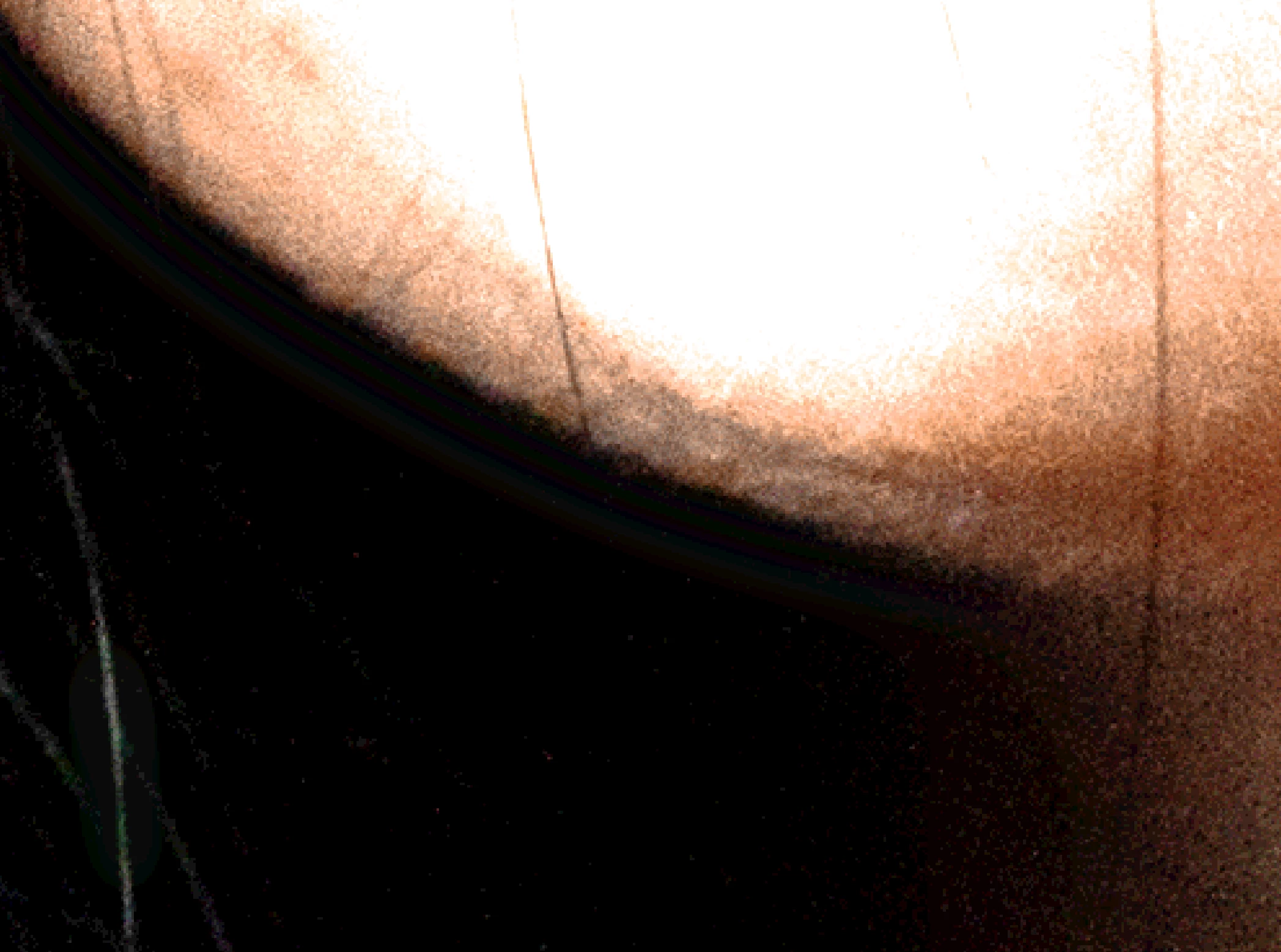
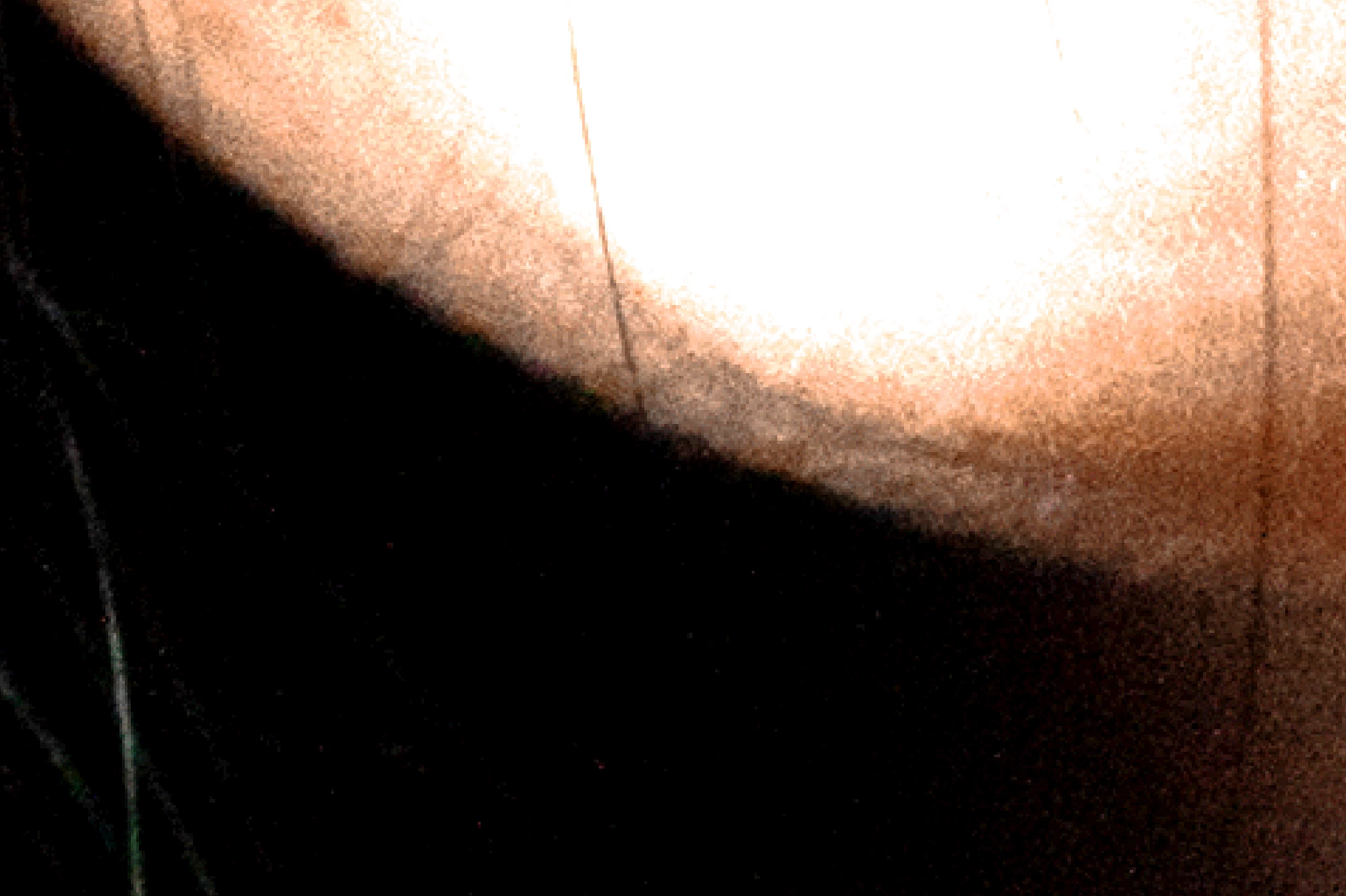
 

( Example of FS applied. There was nothing done. Just applied FS. And I have tried different methods of FS. I made picture brighter so the problem would be more visible. )

I was ussing PS 2022 then I updated to 2024 and still got the same problem. I found only one mention about this problem on internet.


https://community.adobe.com/t5/photoshop-ecosystem-discussions/image-different-after-frequency-separation-darker-or-lighter/m-p/10974515


But unfortunatly there was no "Legacy Compositing" in Preferences > Performance. In PS 2022 there was message that "Legacy Compositing" was removed. And PS 2024 got nothing about it.

This topic has been closed for replies.
Correct answer Konstantin26623437y185

I found solution. The problem was that I used PS 2022 and it used 8 bits/channel to open image. If image is opened in 8 bits/channel bending will appear. So I upgraded to PS 2024 and thought it will help. But I opened the same file that was already opened in 8 bits/channel. When you asked me to describe FS methods I tried to opened a new file to test it one more time. And appers that PS 2024 opened image in 16 bis/channel and it works perfectly. So the solution would be to try to open image in 16 bits/channel if some one would have the same problem.

4 replies

davescm
Community Expert
Community Expert
August 16, 2024

For info, Frequency separation needs a slightly different method according to whether the image document is 8 bits or 16 bits/channel. The method for both is shown below:


1. Make 2 duplicates of your image layer
Name the lower - "Low frequency"
Name the Higher - "High Frequency"

2. Select the Low frequency layer and use Filter Gaussian Blur (around 6.0)

3. Select the High frequency layer and then :
Go to menu Image > Apply Image
Set the source layer to Low Frequency
Set the blending mode to Subtract
Set Scale to 2 *
Set offset to 128 *
Click OK

4. Change the blending mode of the high frequency layer to Linear Light

5. Now you can clone out blemishes on the high frequency layer and lighten or darken areas on the low frequency layer


* Note - the above steps are for 8 bit/channel images. For 16 bit/channel step 3 changes slightly

3. Select the High frequency layer
Go to menu Image > Apply Image
Set the source layer to Low Frequency
Check "Invert" next to channel

Set the blending mode to Add
Set Scale to 2
Set Offset to 0
Click OK

Now carry on with step 4 above


Dave

Legend
August 16, 2024

That has nothing to do with being "correct" and files don't open in different bit depths because of the Photoshop version used. Bit depth is a saved property of a file.

There are slightly different settings used for 8 and 16-bit files in frequency separation. That's one reason I asked for specifics. Again, this is NOT built into Photoshop so you must be using an external script or action or directions to accomplish this technique.

Konstantin26623437y185AuthorCorrect answer
Participant
August 16, 2024

I found solution. The problem was that I used PS 2022 and it used 8 bits/channel to open image. If image is opened in 8 bits/channel bending will appear. So I upgraded to PS 2024 and thought it will help. But I opened the same file that was already opened in 8 bits/channel. When you asked me to describe FS methods I tried to opened a new file to test it one more time. And appers that PS 2024 opened image in 16 bis/channel and it works perfectly. So the solution would be to try to open image in 16 bits/channel if some one would have the same problem.

Legend
August 15, 2024

Please post your method of doing frequency separation, since this is not built into Photoshop.