xiaoq98912843
Participating Frequently
October 29, 2015
Question

get layer bounds incorrect with layer.bounds

  • October 29, 2015
  • 2 replies
  • 1953 views

Hi , I am coding javascript in photoshop (CC2014),

when I want to get the layer bounds, I use the layer.bounds property, most time works well.

But some time, the bounds return wrong number, see the image bellow
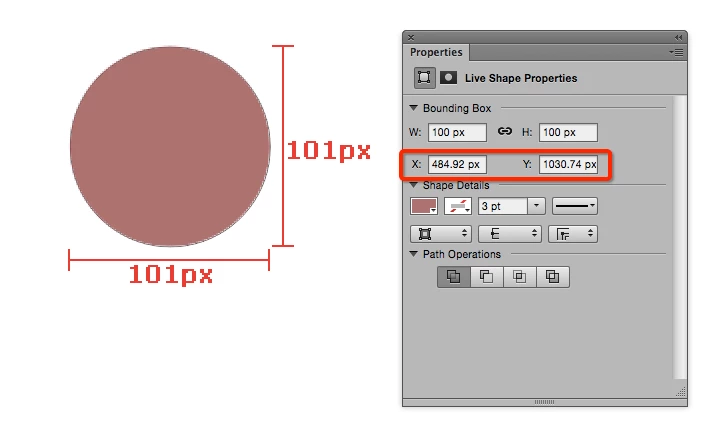
I create a demension 100 x 100 vector layer, as you can see in the properties panel.

But when I retrive the width and height of this layer, I get  101 x 101, this is the code below

I figure out that there are decimal points in the X,Y position, and they are rounded when calculate bounds...

So, I found the reason but can't get a solution to this case.

Would you help me out of this?  thanks a lot.

This topic has been closed for replies.

2 replies

xiaoq98912843
Participating Frequently
October 30, 2015

After some time thinking, I figure out a way to get the accurate bounds of the vector layer. using path point.

as the api layer.bounds would rounding the x,y coordinate, which make the result unexpected, but path point contains double value, like this:

197.228464419476,197.021301498127

287.228464419476,197.021301498127

292.228464419476,202.021301498127

292.228464419476,292.021301498127

287.228464419476,297.021301498127

197.228464419476,297.021301498127

192.228464419476,292.021301498127

192.228464419476,202.021301498127

So all I need is to find the min x, max x, min y and max y through these path points, here is my solution code:

first check if the snap option uncheck or not

Document.prototype.snapToPixelGridEnabled = function()

{

    var ref = new ActionReference();

    ref.putProperty(charIDToTypeID('Prpr'), charIDToTypeID('GnrP'));

    ref.putEnumerated(charIDToTypeID('capp'), charIDToTypeID('Ordn'), charIDToTypeID('Trgt'));

    var desc = executeActionGet(ref);

    var gnrp = desc.getObjectValue(charIDToTypeID('GnrP'));

    return gnrp.getBoolean(stringIDToTypeID('transformsSnapToPixels'));

};

and parse the path point of the vector layer:

Layer.prototype.getVectorBound = function()

{

    if (!this.isSolidFill()) {

        console_debug("is not solid fill layer");

        return -1;

    }

    var name = this.getName();

    try {

        var doc = app.activeDocument;

        var pathItem = null;

        for (var i= 0, len = doc.pathItems.length; i < len; i++) {

            var p = doc.pathItems;

            if (p.name.indexOf(name) > -1) {

                pathItem = p;

                break;

            }

        }

        if (pathItem != null && pathItem.subPathItems.length > 0) {

            var subItem = pathItem.subPathItems[0];

            if (subItem.closed && subItem.pathPoints.length > 0) {

                return getBounds(subItem.pathPoints);

            }

        }

        return Rect.zeroRect();

    } catch (e) {

        console_debug("err: " + e.toString());

        return Rect.zeroRect();

    }

    function getBounds(points) {

        var left = right = points[0].anchor[0];

        var top = bottom = points[0].anchor[1];

        for (var i=1; i<points.length; i++) {

            var x = points.anchor[0];

            var y = points.anchor[1];

            if (x < left) { left = x; }

            if (x > right) { right = x; }

            if (y < top) { top = y; }

            if (y > bottom) { bottom = y; }

        }

        console_debug(left + "," + right + "," + top + "," + bottom);

        return new Rect(left, top, Math.round(right - left), Math.round(bottom - top));

    }

};

at last I got what I want.

JJMack
Community Expert
Community Expert
October 29, 2015

It may be rounding. It may also be that when Photoshop files that shape with pixels it may do some anti-aliasing. I just tride a shapr the had a inner 1 px stroke. Snap to on with center guide lines.

// enable double-clicking from Mac Finder or Windows Explorer

#target photoshop // this command only works in Photoshop CS2 and higher

// bring application forward for double-click events

app.bringToFront();

// Save the current preferences

var startRulerUnits = app.preferences.rulerUnits;

// Set Photoshop to use pixels

app.preferences.rulerUnits = Units.PIXELS;

var LB = activeDocument.activeLayer.bounds;

var LWidth = (LB[2].value) - (LB[0].value);

var LHeight = (LB[3].value) - (LB[1].value);

alert("'" + activeDocument.activeLayer.name + "' Layer Bounds\nTop Left " +  LB[0].value + "X," +  LB[1].value + "Y   Bottom Right "  +  LB[2].value + "X," +  LB[3].value

  + "Y\nWidth " +  LWidth + "px   Height " + LHeight +"px"

  + "\nLayer center relative to canvas " + (LB[0].value + LWidth/2) + "X," +  (LB[1].value + LHeight/2) +"Y" );

// Return the app preferences

app.preferences.rulerUnits = startRulerUnits;

JJMack
xiaoq98912843
Participating Frequently
October 29, 2015

@JJMack 

Would you please try again, while uncheck this options in the preference.

Step:

1. uncheck this option

2. draw a vector image

3. get bounds

I found out that the position get decimal points while uncheck the "Snap ..." option, and the bounds get wrong.

JJMack
Community Expert
Community Expert
October 29, 2015

I do not know why you can not do the testing yourself.  I do not think the you will be able to get perfect results unless you have a perfect setup. A document with an even number of pixel in height and width and some sort of snap to a pixel boundary.  I set that option off and restarted CC 2014, CC 2015 has many issues. However with a canvas having a even width and height number of  pixels and center guides to snap to the results are still perfect. If a vector is not based off the center of a pixel I would expect some rounding in the width, height or both being. I would expect 101 for I think the rounding would be up not down..

JJMack