Celia Agnes
Participant
October 28, 2019
Answered

Ghosting while using Perfect Pencil 2 from KTW

  • October 28, 2019
  • 3 replies
  • 1356 views


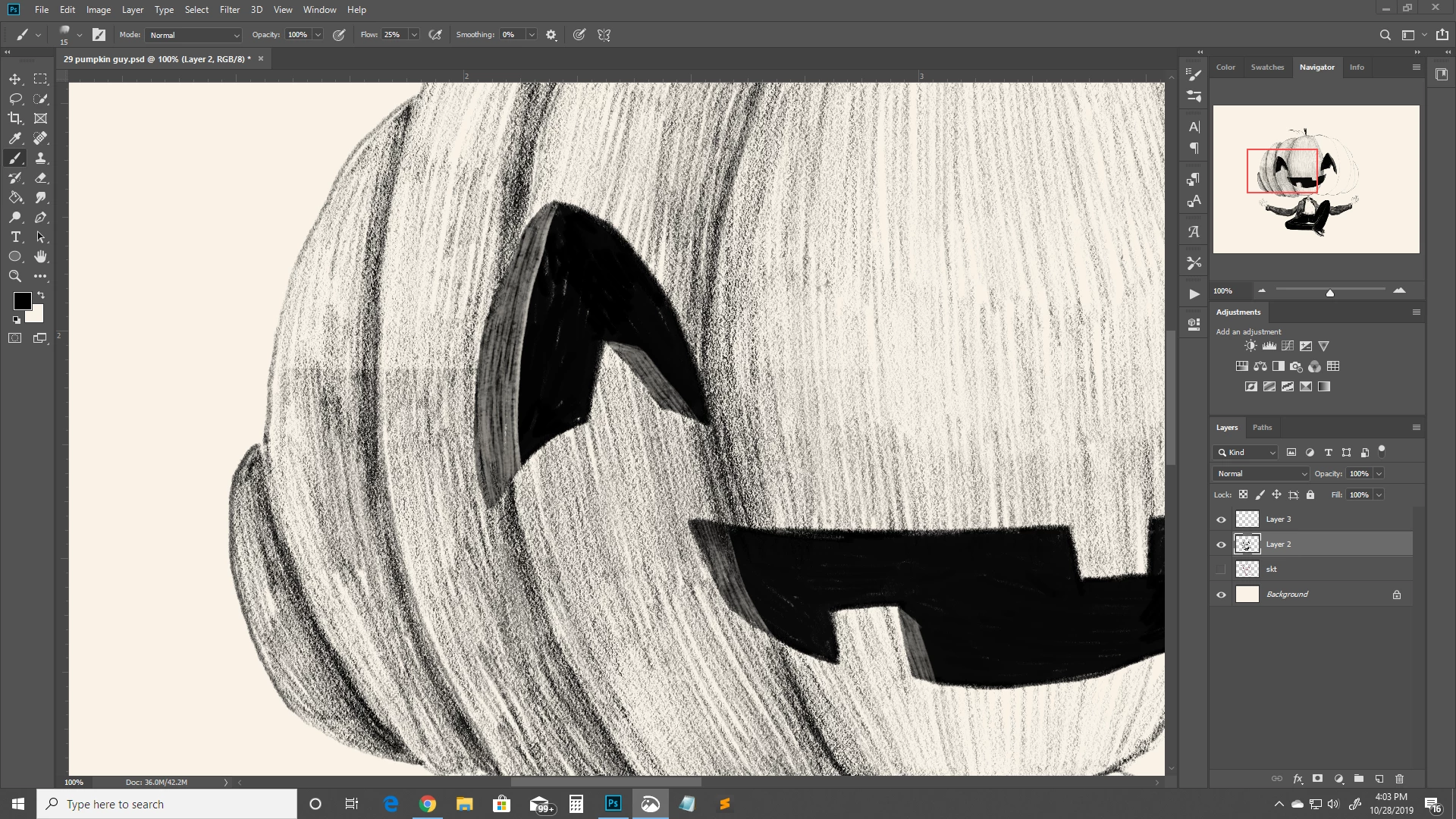
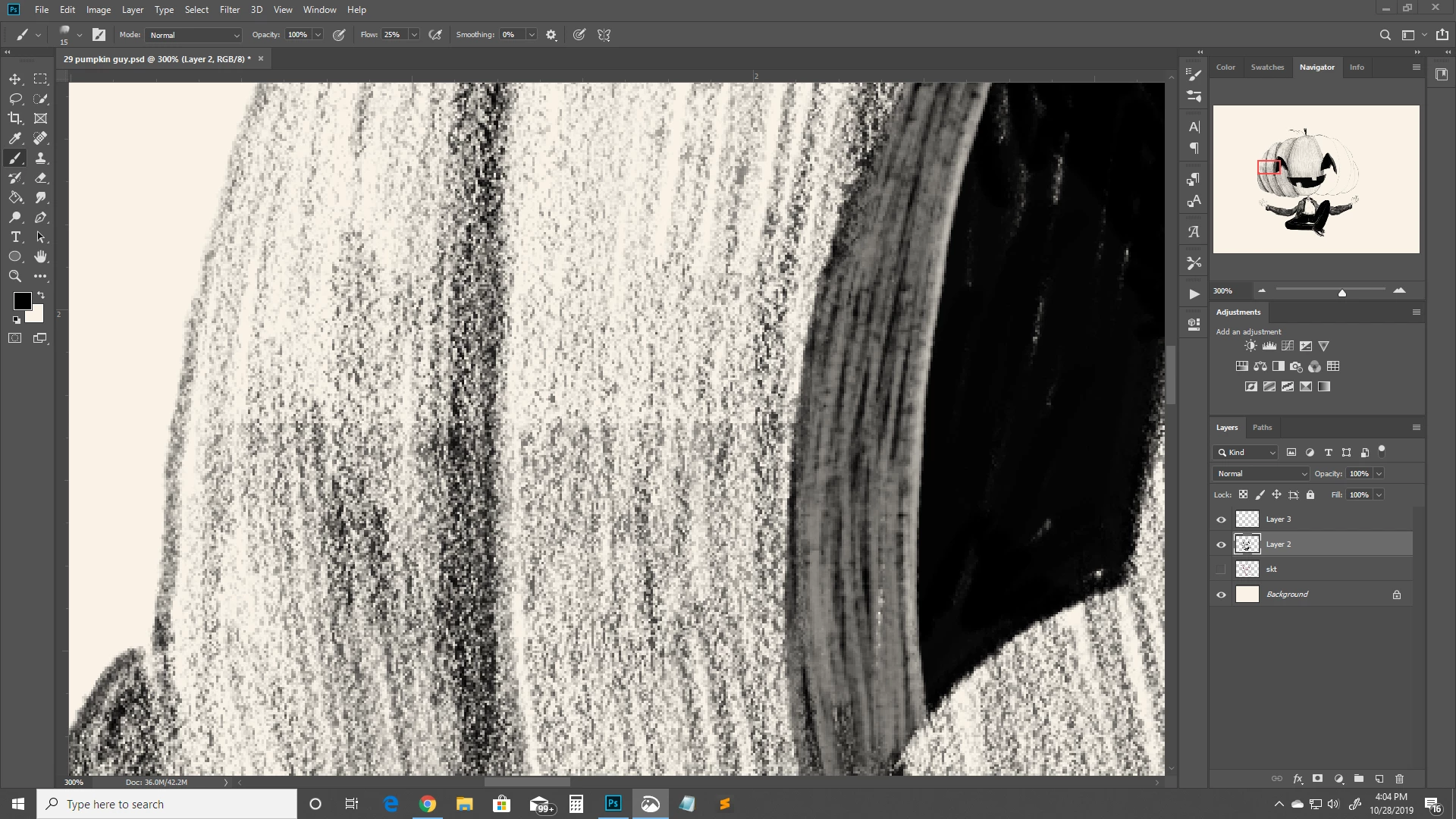
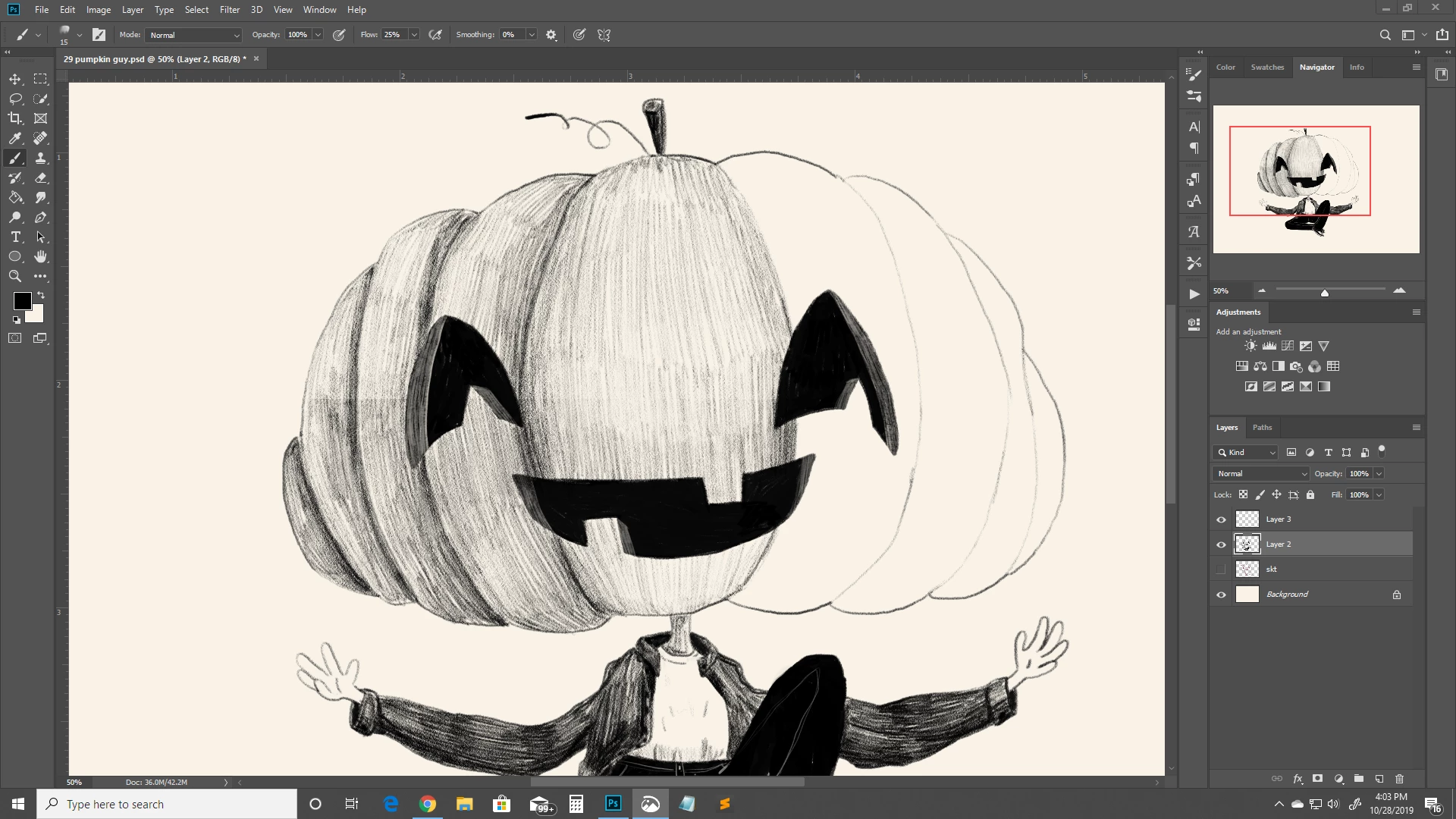
Can anyone explain this? Only happens when I use this brush exclusively in a piece. It happens in different spots, if I erase that portion and go back over it, it's still there. I have no idea what this could be. 😅

This topic has been closed for replies.
Correct answer davescm

Hi

I've just checked out that brush (in Kyle Websters Megapack Drawing Box - thanks to Jane-E for finding it). The problem is indeed the texture. It is based on a 2500 x 2500 pixel texture that does not tile well as you can see below where I've used it to fill a 4096 x 4096 pixel area
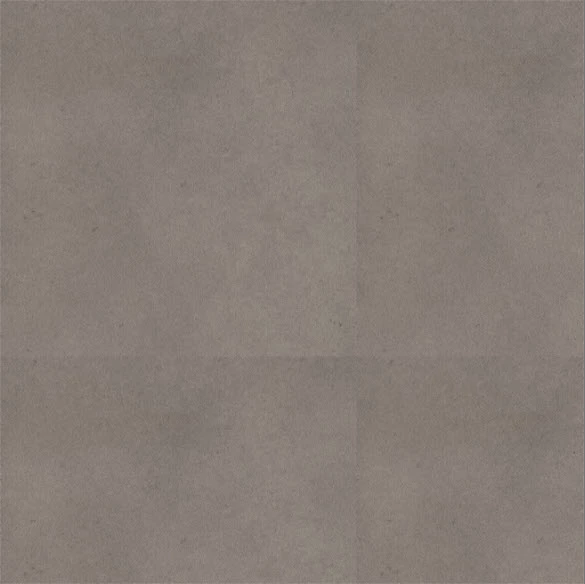
 

It can be fixed.

1. In the brush panel click here to save the pattern :
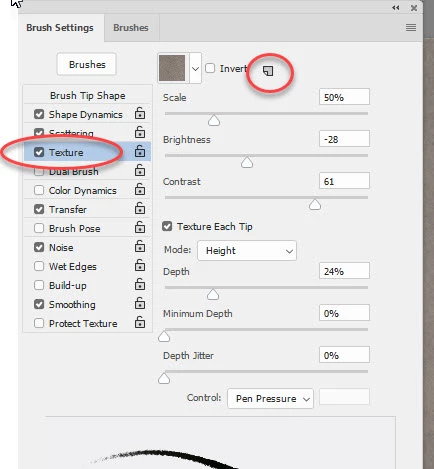
 

2. Open a new document 2500px  x 2500 px and use Edit >Fill >Pattern to fill it with that pattern

3. Use Filter >Other Offset   and set the offset to 1250 in each direction

4. Use the spot healing brush/clone tool to cover the now visible join

5. Use Filter >Offset again to restore the position to the original

6 Select All

7 Edit > Define Pattern

8 Go to the brush panel and select the brush 

9. In texture go to the top and select the newly saved pattern
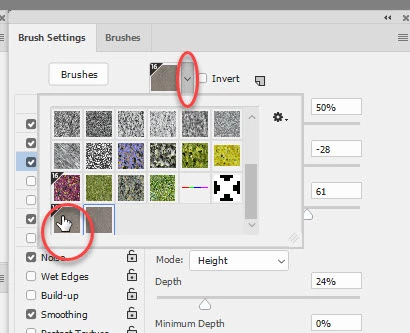
10. Click the drop down menu at the top right of the brush panel and choose New Brush Preset.
11. Give the brush a new name and save it


Dave

 

3 replies

davescm
Community Expert
davescmCommunity ExpertCorrect answer
Community Expert
October 29, 2019

Hi

I've just checked out that brush (in Kyle Websters Megapack Drawing Box - thanks to Jane-E for finding it). The problem is indeed the texture. It is based on a 2500 x 2500 pixel texture that does not tile well as you can see below where I've used it to fill a 4096 x 4096 pixel area


It can be fixed.

1. In the brush panel click here to save the pattern :


2. Open a new document 2500px  x 2500 px and use Edit >Fill >Pattern to fill it with that pattern

3. Use Filter >Other Offset   and set the offset to 1250 in each direction

4. Use the spot healing brush/clone tool to cover the now visible join

5. Use Filter >Offset again to restore the position to the original

6 Select All

7 Edit > Define Pattern

8 Go to the brush panel and select the brush 

9. In texture go to the top and select the newly saved pattern

10. Click the drop down menu at the top right of the brush panel and choose New Brush Preset.
11. Give the brush a new name and save it


Dave
 

jane-e
Community Expert
Community Expert
October 30, 2019

That's brilliant, Dave! 😊

davescm
Community Expert
Community Expert
October 29, 2019

That brush is using a tiled texture. Temporarily turn off the texture in the brushes panel and see if the issue disappears (the brush stroke will change but ignore that for now). It could be that the texture is not made perfectly for seamless tiling.


Dave

davescm
Community Expert
Community Expert
October 28, 2019

What is on layer 3?

Dave

Celia Agnes
Participant
October 29, 2019

It's blank.