



bartonlew
Legend
November 22, 2023
Answered

gradient tool not working - please help

  • November 22, 2023
  • 2 replies
  • 1595 views

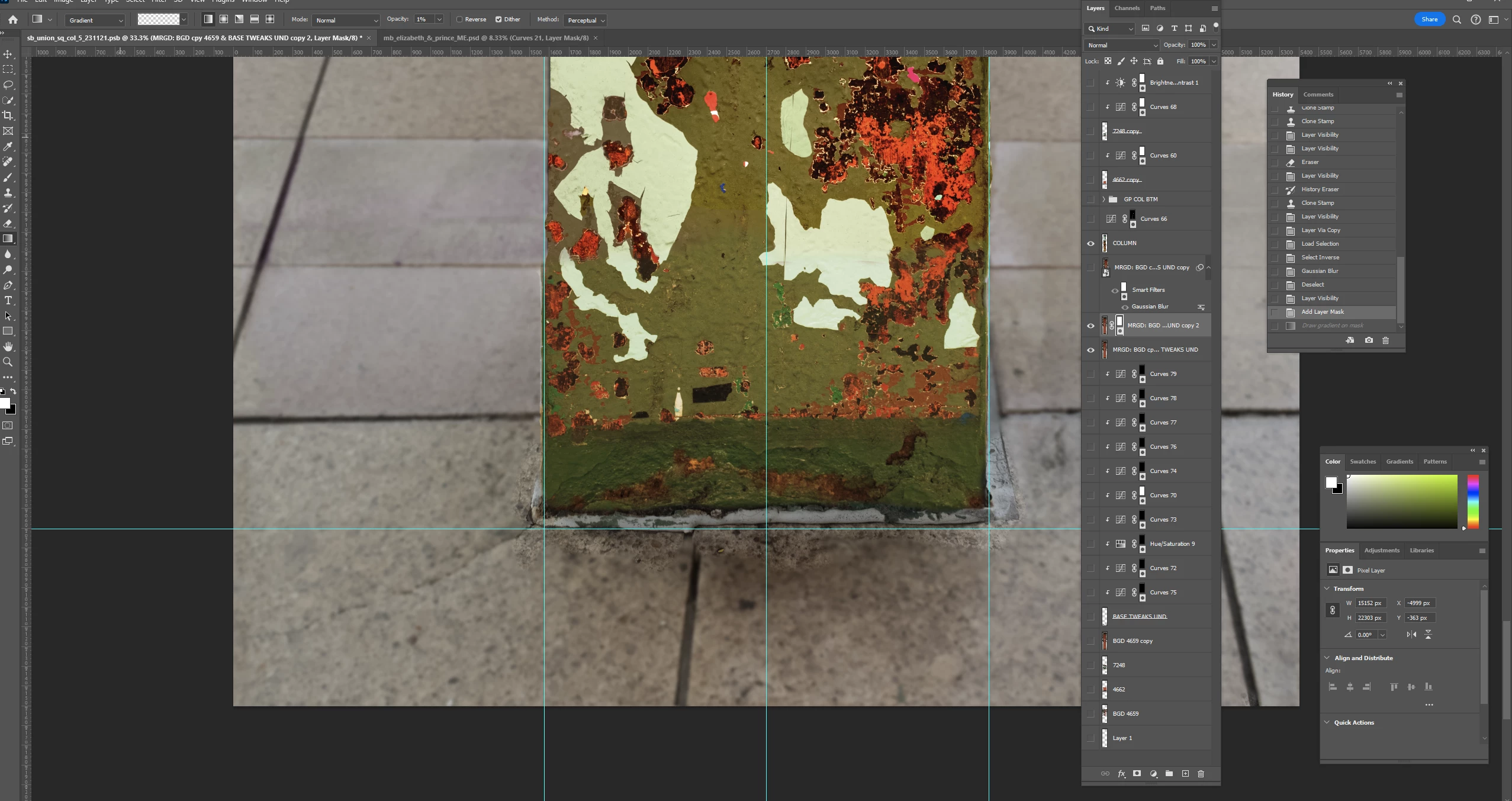
I know it's the day before Thankgiving but I have a deadline to meet Monday and if anyone can help me I really would appreciate it.  I can't get a gradient to work with a blur effect.  I had to reset my Preferences recently so I don't know if there's a setting that's off but nothing I do works.  In the screen shot below you can see I have 3 active layers - a foreground (column) layer; and 2 copies of a background layer.  I've followed the steps below for trying to create a blur effect in the middle and upper part of the image in the background, keeping the column and lower background in focus.  Nothing works - everything is the same blurriness and drawing the gradient from the low-mid part of the image does nothing.


1.  Dup the background layer
2.  Hide the column layer.  Click on the column layer on the image inside the icon and hit ctrl click. Only the column will be selected. Move your cursor back to the copied background layer.
3. Invert the selection while on the background copy layer (ctrl shift i)
4. Blur the layer by going to Filter, Blur, Gaussian Blur.
5. Deselect the layer
6. Turn the column layer on
7. Add a layer mask to the copied background layer
8. Select linear gradient
9. Drag from the middle to the bottom of the image



This topic has been closed for replies.
Correct answer Myra Ferguson

You might try a different approach where you make a Smart Object out of your content and use the Depth Blur Neural Filter. Here's how:

  1. Select your background and foreground content
  2. In the Layers panel to the right of thumbnail and layer name, right-click and select Convert to Smart Object (you can also go to Layer > Smart Objects > Convert to Smart Object)
  3. Go to Filter > Neural Filters...
  4. In the Neural Filters panel in the All filters tab, use the switch on the right to toggle on Depth Blur (If you haven't downloaded this filter yet, download it)
  5. Click on the preview image in the Neural Filters panel to set the focal point
  6. Adjust the sliders as desired for Focal Distance, Focal Range, Blur strength, and other options
  7. Click OK


2 replies

Trevor.Dennis
Community Expert
Community Expert
November 22, 2023

From what we can see of your layers panel, you have (my red arrow) layer selected, and while it's difficult to see, I think that's were you have rune the gradient.  However, the (my green arrow) layer a little further up the stack looks to be obsquring the column, and has no mask, so the contents of that layer will  be hiding any layers below it in the stack.


Myra's Smart Object approach is the way to go as it is non destructive, and the SO has a mask that you can run the gradiant down.

Myra Ferguson
Community Expert
Myra FergusonCommunity ExpertCorrect answer
Community Expert
November 22, 2023

You might try a different approach where you make a Smart Object out of your content and use the Depth Blur Neural Filter. Here's how:

  1. Select your background and foreground content
  2. In the Layers panel to the right of thumbnail and layer name, right-click and select Convert to Smart Object (you can also go to Layer > Smart Objects > Convert to Smart Object)
  3. Go to Filter > Neural Filters...
  4. In the Neural Filters panel in the All filters tab, use the switch on the right to toggle on Depth Blur (If you haven't downloaded this filter yet, download it)
  5. Click on the preview image in the Neural Filters panel to set the focal point
  6. Adjust the sliders as desired for Focal Distance, Focal Range, Blur strength, and other options
  7. Click OK


bartonlew
bartonlewAuthor
Legend
November 23, 2023

Thank you @Myra Ferguson and @Trevor.Dennis both for your replies, very nice of you on the day before Thanksgiving.  I'm not sure what was going on here but I noticed that in the "select and manage gradient presets" window, canvas was showing.  No matter what I did (choosing white to black or any other option in the drop down), canvas would only show here.  I think that might have been the problem. I had to reset my Preferences recently, perhaps that's what the problem was.  Anyway, by resetting all tools, I was then able to choose a white to black gradient type.  I followed Myra's suggestion for making the copied background layer a SO and created a blur filter, and when I drew the gradient - voila!  All worked well.  Happy Thanksgiving, all.