Participant
October 17, 2018
Answered

Graphics Processor Not Detected

  • October 17, 2018
  • 3 replies
  • 50574 views

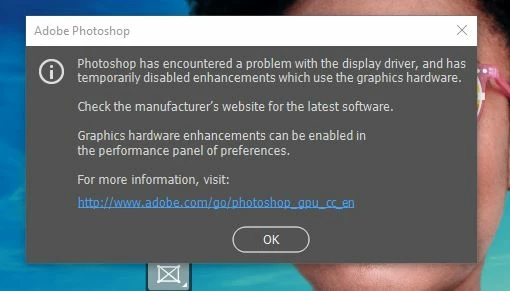
Seeing this window

upon opening Photoshop CC 2019 makes me understand that there is something wrong with my graphics processor (is this the same as the graphics card?).

I went to Preferences > Performance, wanting to click the tickbox for PS to use my graphics processor, but I got this instead:
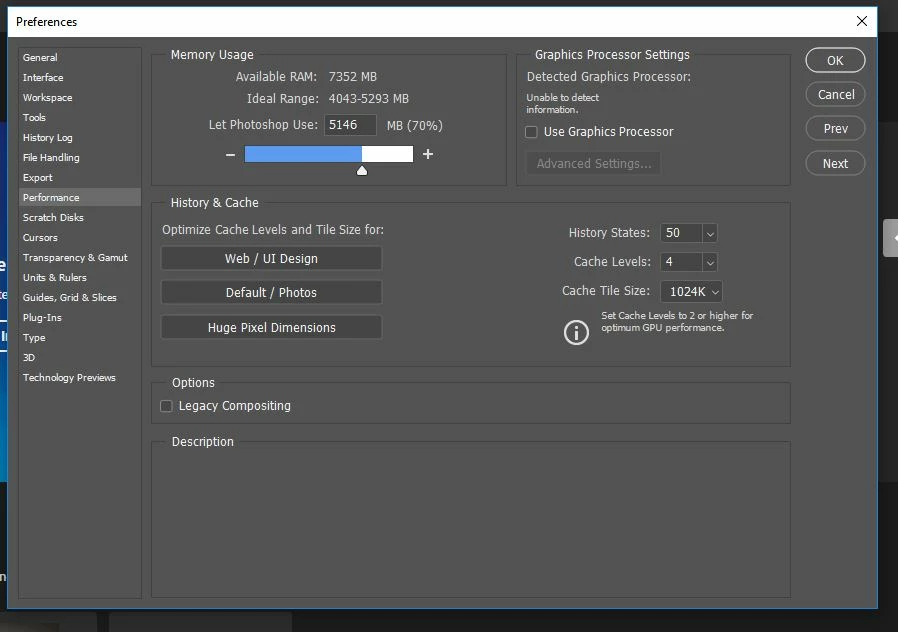
Apparently, PS is not able to detect any information about it! Whenever I attempt to click on that tickbox, PS crashes. I've also tried it on PS CC 2017, which I was still able to use the day before yesterday. The very same message is there.

Image below shows info on my system, including that of my desktop's graphics processor:
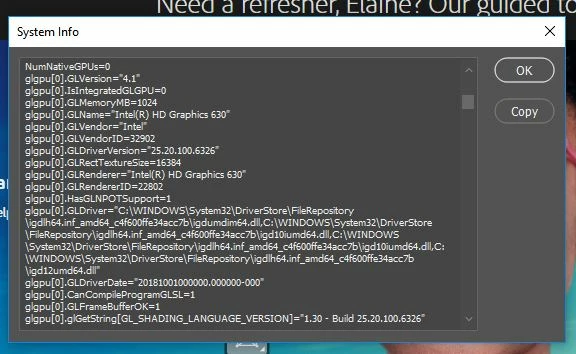
I've updated it to the latest version, and yet PS still cannot detect anything. I've also checked the list of PS tested cards at Photoshop graphics processor (GPU) card FAQ and I think I see my driver card version there? Intel HD Graphics 630... Unless the P630 mentioned in the link means something else...

If anyone has any idea what's going on, please let me know. It'll be greatly appreciated!

This topic has been closed for replies.
Correct answer

Hi

Did you take a look at the GPU troubleshooting guide

Troubleshoot Photoshop graphics processor (GPU) and graphics driver issues

3 replies

Participant
August 11, 2019

Hi there, so i came at this forum. in case someone still having this issue and have been wandering around looking for answer, If you are using Nvidia as a discrete graphic (in my case i am using AMD as Integrated), and this one might work for you. i just figured it out how to choose the GPU without disabling them , it's really simple.

1. You can set it on "Nvidia Control Panel" > Program Setting, and browse for your program "photoshop" for example. > Select the GPU, and set "Power Management Mode" to Maximum Performance. Restart

2. If you are using windows, search for "Display Setting" , and then look down below for "Graphic Setting". Choose "Classic app" and browse your program. After that Click "option" and you can choose between "Power Saving" or "High Performance". Restart

In my case, the 2nd option work for me. Also note that you need to update the GPU driver. Hope this help

Legend
October 17, 2018

A small correction: you say there is something wrong with the "graphics processor". That's the hardware on your graphics card: these can go wrong. But it's not what the message says. What it says is that there is a problem with your "display driver".

The display driver is the software that talks to your graphics card. These are constantly updated, and often have serious bugs, so chasing updates to drivers (or sometimes installing old versions of drivers) is a constant part of the life of the person with a powerful graphics card. At least Photoshop gives an early warning and stops using it, rather than just giving the wrong results or crashing later.

Correct answer
October 17, 2018

Hi

Did you take a look at the GPU troubleshooting guide

Troubleshoot Photoshop graphics processor (GPU) and graphics driver issues

Participant
October 17, 2018

Yes, I did. I followed it until step 3, but the graphics processor still cannot be detected, as mentioned above. Should I be trying the following steps as well?

October 17, 2018

Yes try all the steps that's applicable to you, it seems like you GPU driver is up to date, try using this Intel tool to see if there's anymore updates for your system

Intel® Driver & Support Assistant