kocieTexty
Participant
August 22, 2023
Answered

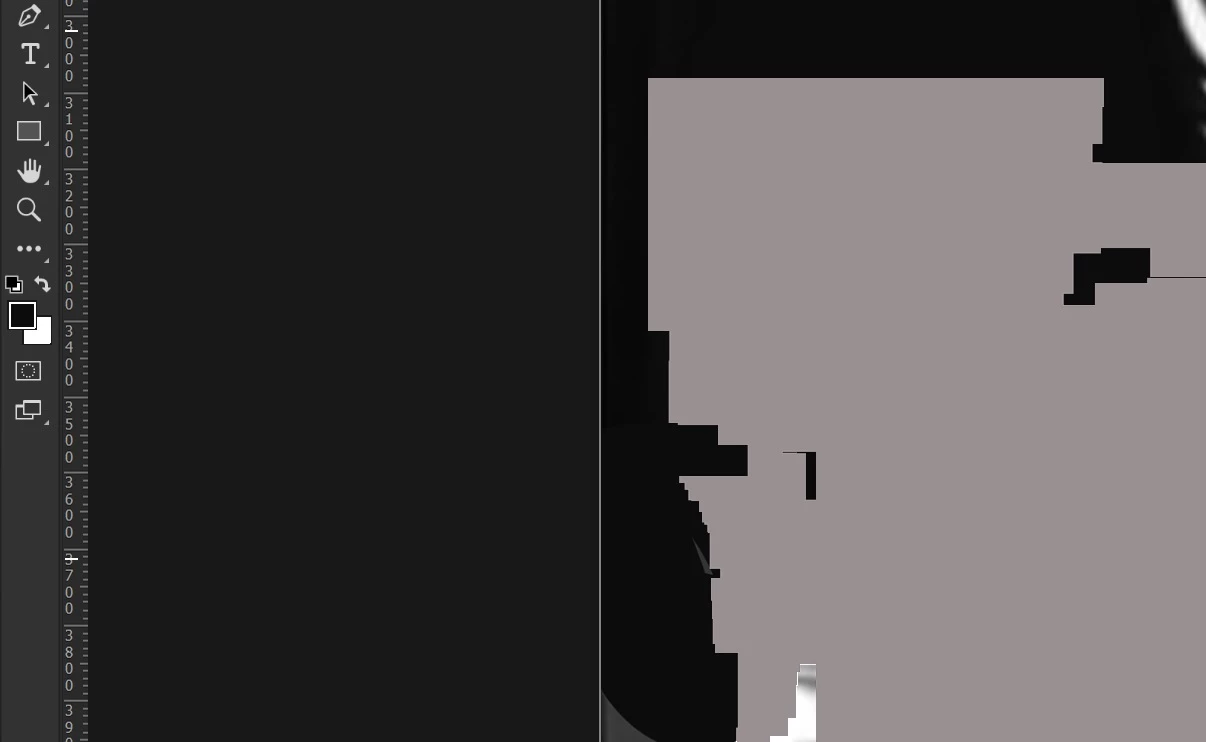
Grey squares appearing after update

  • August 22, 2023
  • 3 replies
  • 3181 views

Whenever I use my brush I get huge grey squares preventing me from using Photoshop at all. It's unusable...

I tried the solution listed here: https://community.adobe.com/t5/photoshop-ecosystem-discussions/photoshop-23-1-1-strange-grey-boxes-object-transformation-problems/m-p/12695854


However checking that option didn't work, because it needed "Disabling graphic processor" and without that my whole Photoshop just crashes... Great update Adobe.

This topic has been closed for replies.
Correct answer AxelMatt

Please try to disable the option to "Use Graphics Procesor" from Photoshop by going to Preferences, then Performance. Once done, quit & relaunch Photoshop to check if that helps.

If it helps, you can check out the steps suggested here:  https://helpx.adobe.com/photoshop/kb/troubleshoot-gpu-graphics-card.html


If the issue persists, you can try to reset the preferences of Photoshop using the steps described here:

Preferences in Photoshop (adobe.com)

Please backup your settings before resetting the preferences. You can check:

Migrate presets, actions, and settings (adobe.com)


Another try is to enable the Older GPU Mode option in "Preferences" > "Technology Previews" > "Use Older GPU Mode (pre 2016)". Then goto "Preferences" > "Technology Previews" and enable "Disable Native Canvas". Restart Photoshop.


If this all doesn't help, we need more informations aubout your system. Maybe you can post your Photoshop system info. In Photoshop goto Help > System Info and hit the copy button. Then paste the entire informations into this thread.

 

3 replies

AxelMatt
Community Expert
Community Expert
August 22, 2023

It seems there's a issue with the graphic card or the graphic device driver.

Please check if you have installed the recent version of you graphic driver.


My System: Intel i7-8700K - 64GB RAM - NVidia Geforce RTX 3060 - Windows 11 Pro 25H2 -- LR-Classic 15 - Photoshop 27 - Nik Collection 8 - PureRAW 6 - Topaz Photo AI
kocieTexty
Participant
August 22, 2023

Thanks for quick response.

As I've stated, "Use Graphics Procesor" would crash my Photoshop.

The correct solution was:

Another try is to enable the Older GPU Mode option in "Preferences" > "Technology Previews" > "Use Older GPU Mode (pre 2016)". Then goto "Preferences" > "Technology Previews" and enable "Disable Native Canvas". Restart Photoshop.

AxelMatt
Community Expert
AxelMattCommunity ExpertCorrect answer
Community Expert
August 22, 2023

Please try to disable the option to "Use Graphics Procesor" from Photoshop by going to Preferences, then Performance. Once done, quit & relaunch Photoshop to check if that helps.

If it helps, you can check out the steps suggested here:  https://helpx.adobe.com/photoshop/kb/troubleshoot-gpu-graphics-card.html


If the issue persists, you can try to reset the preferences of Photoshop using the steps described here:

Preferences in Photoshop (adobe.com)

Please backup your settings before resetting the preferences. You can check:

Migrate presets, actions, and settings (adobe.com)


Another try is to enable the Older GPU Mode option in "Preferences" > "Technology Previews" > "Use Older GPU Mode (pre 2016)". Then goto "Preferences" > "Technology Previews" and enable "Disable Native Canvas". Restart Photoshop.


If this all doesn't help, we need more informations aubout your system. Maybe you can post your Photoshop system info. In Photoshop goto Help > System Info and hit the copy button. Then paste the entire informations into this thread.


My System: Intel i7-8700K - 64GB RAM - NVidia Geforce RTX 3060 - Windows 11 Pro 25H2 -- LR-Classic 15 - Photoshop 27 - Nik Collection 8 - PureRAW 6 - Topaz Photo AI