Participant
April 20, 2020
Answered

Half Red, Half White

  • April 20, 2020
  • 4 replies
  • 1487 views

Hi Everybody,

I have a Photoshop drawing that ive done just using the included brushes and tools.

It's all in white. What id like to do is colour half of the drawing in red and leave the other half in white. (Horizontaly). In After effects i would create an adjustment layer and do it that way. But in Photoshop i've no idea.

Can anyone help on how to do this please?

Regards

Dave
This topic has been closed for replies.
Correct answer War Unicorn

If I'm understanding you correctly:


Make the desired selection using any of the selection tools.


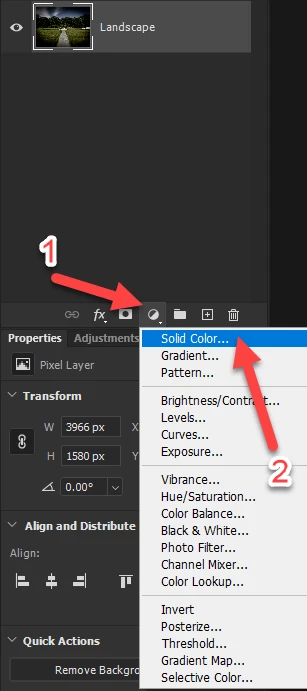
While holding down Alt, right-click and hold the adjustments layer button on the Layers panel. Mouse over "Solid Color" and release.

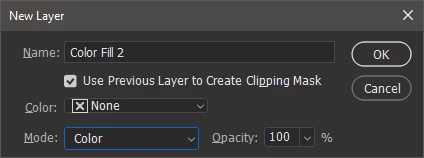
Change the "Mode" to "Color". If you need to clip this to the immediate layer below, use the "Use Previous Layer to Create a Clipping Mask" option. Click OK.

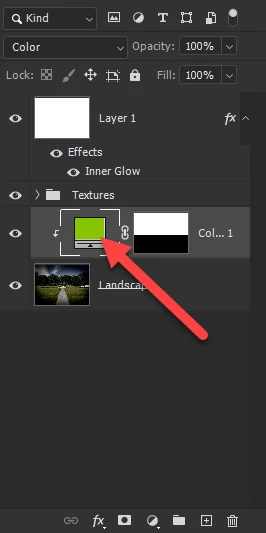
If you need to change the color at any point, double-click the layer thumbnail. If you need to adjust the mask, use the Brush Tool (or similar tool) and paint on the adjustment layer's mask.

4 replies

April 21, 2020

You can do with few steps.

1st: Merge your layers

2nd: Select the area as much as you like to paint with selection tool

3rd: and color with Alt+Shift+Backspace

Thanks

Work Gloves Wholesale

melissapiccone
Community Expert
Community Expert
April 20, 2020

As Warunicorn demonstrated, it's the same process in PS.You can use a Solid Color Adjustment layer with a layer mask.

Melissa Piccone | Adobe Trainer | Online Courses Author | Fine Artist
Participant
April 21, 2020

Hi c pfaffenbichler Here's a screenshot of what i'm trying to achieve.

This logo was done for a friends business, but never done on a scale that looks good for an intro to a video i'm doing so i thought id make it larger. It is the size of an icon hence the poor quality.


Warunicorn, tried that and either all of the circles turn red. Dunno if  i'm doing that right.
melissapiccone, That sounds like something i would do in After Effects... (Bit rusty in that also)
As you can all see i'm a little novice at Photoshop lol

I've probably gone about it all wrong. But loving the help guys.

Thank you

c.pfaffenbichler
Community Expert
Community Expert
April 21, 2020

Drop all the elements into one group and apply Clipping Masked Solid Color Layers to that. 

c.pfaffenbichler
Community Expert
Community Expert
April 20, 2020

Could you please post a screenshot with the pertinent Panels (Toolbar, Layers, Options Bar, …) visible? 

War Unicorn
Community Expert
War UnicornCommunity ExpertCorrect answer
Community Expert
April 20, 2020

If I'm understanding you correctly:


Make the desired selection using any of the selection tools.


While holding down Alt, right-click and hold the adjustments layer button on the Layers panel. Mouse over "Solid Color" and release.

Change the "Mode" to "Color". If you need to clip this to the immediate layer below, use the "Use Previous Layer to Create a Clipping Mask" option. Click OK.

If you need to change the color at any point, double-click the layer thumbnail. If you need to adjust the mask, use the Brush Tool (or similar tool) and paint on the adjustment layer's mask.