
Participant
June 15, 2018
Answered

Halos appear after using Photoshop

  • June 15, 2018
  • 2 replies
  • 784 views

I have an image thatI have been working on in Lightroom. I made several adjustments until it looked the way I wanted it to. At this point I had not applied any sharpening yet. I then took the image into Photoshop in order to clone out a trcky shadow and straighten one side of the image. The is all that I did in PS. I then selected file>save to save the changes to Lightroom. Then when I compared a railing of a staircase in the image the version before the trip to PS looked fine while the version after the trip (which is now a Tiff file) has a noticeable hali around the railing. Granted you can only see this at 200%, but I’m wondering what caused this. Is it the conversion to a Tiff file?
    This topic has been closed for replies.
    Correct answer Trevor.Dennis

    I assume that the area you cloned did not include the railing that gained the halo artefact? 

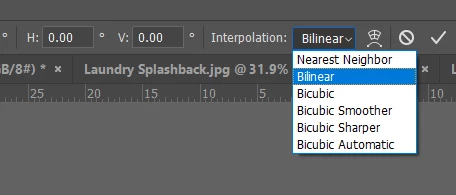
    Did you resize perhaps?  The default Image Size algorithm selection of Automatic, uses Biqubic Sharper to downsize, which is pretty nasty and best avoided with an already very sharp image.

    Free Transform also has options (in the Options Bar) which need to be used with care.  Nearest Neighbour uses no anti aliasing, and produces nasty jaggy edges.

    If you are sure that you did nothing that might have involved the above, then I can't think what it might be, other than simply the way Photoshop _displays_ the image at different zoom ratios.  People here will tell you that you can't trust anything other than 100% (1:1)  zoom ratio for seeing how your image actually looks like.

    2 replies

    Trevor.Dennis
    Community Expert
    Trevor.DennisCommunity ExpertCorrect answer
    Community Expert
    June 15, 2018

    I assume that the area you cloned did not include the railing that gained the halo artefact? 

    Did you resize perhaps?  The default Image Size algorithm selection of Automatic, uses Biqubic Sharper to downsize, which is pretty nasty and best avoided with an already very sharp image.

    Free Transform also has options (in the Options Bar) which need to be used with care.  Nearest Neighbour uses no anti aliasing, and produces nasty jaggy edges.

    If you are sure that you did nothing that might have involved the above, then I can't think what it might be, other than simply the way Photoshop _displays_ the image at different zoom ratios.  People here will tell you that you can't trust anything other than 100% (1:1)  zoom ratio for seeing how your image actually looks like.

    Jon-M-Spear
    Legend
    June 15, 2018

    200%?  You'll see every imperfection going at that degree of magnification.  If it's not unduly noticeable at the correct viewing size, I really wouldn't worry.

    For the record, Dehaze and Contrast can increase the halo effect between contrasting areas.