
Tereyn
Participating Frequently
September 25, 2019
Question

Has the solid color adjustment layer icon ("thumbnail") changed?

  • September 25, 2019
  • 3 replies
  • 1120 views

I am studying multiple tutorials for Photoshop CC (2019) on a Macbook Pro. In all the tutorials thus far, when asked to add a solid color adjustment layer to the background, the tutorial shows a new layer in the layers panel with an icon or thumbnail that looks like this:
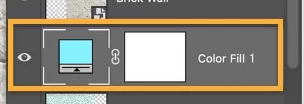
But when I click the adjustment layer icon in the layers panel and select 'solid color,' my new layer looks like this:
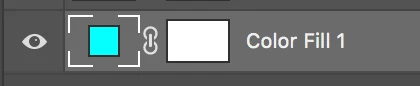
Has the thumbnail icon changed or am I doing something wrong? I don't see the tiny "slider" at the bottom of the color thumbnail. The tutorials I'm using are for PS CS6 or CC 2019. I try not to watch anything older because it's too confusing.

This may be a small detail, but it's driving me nuts.


This topic has been closed for replies.

3 replies

Tereyn
TereynAuthor
Participating Frequently
September 25, 2019

Thank you, federico_platon, but when someone is learning a new application there's no way to know the function or range of functions of an icon, so when you see a different icon, you imagine that it provides a different function, e.g., Adobe often uses superscript +/- signs or arrows to indicate different functions within a single tool.


Thank you, Bojan_Žiković, for explaining why I'm seeing a different version of the icon! In the layers panel options, I did have the icons set to view in a smaller size. Now I see that the next larger size icon looks like the one I'm seeing in the tutorials. This issue is resolved!

Legend
September 25, 2019

It's a plain icon -not a tool- on a panel with just a single function or action, like everyone else. I just suggested you that while it works, not to worry about it.


And yes Bojan is exactly right.

When you use the smallest thumbnail size in the Panel Optiomns in the Layers panel side menu, those icons get simplified. 

Bojan Živković11378569
Community Expert
Community Expert
September 25, 2019

Which icon is displayed in the Layers panel also depends on Layers Panel Options. Select any layer then click on Layers panel menu and choose Panel Options. In the dialog which appears change Thumbnail Size.


Legend
September 25, 2019

First, it has no importance at all if it works as intended.

The icon in your copy of Photoshop (on your display resolution) is missing that slider.

When you 2x click on the icon, reappears the Color Picker window? That's waht it matters.