
Participant
March 29, 2021
Question

HELP! Photoshop shows black screen and no files work anymore???

  • March 29, 2021
  • 2 replies
  • 540 views

Here is a picture of what happens once I open a file or make a new one. Before I open anything, PS works just as usual, but just when I open a file or make a new one, the screen looks like this:
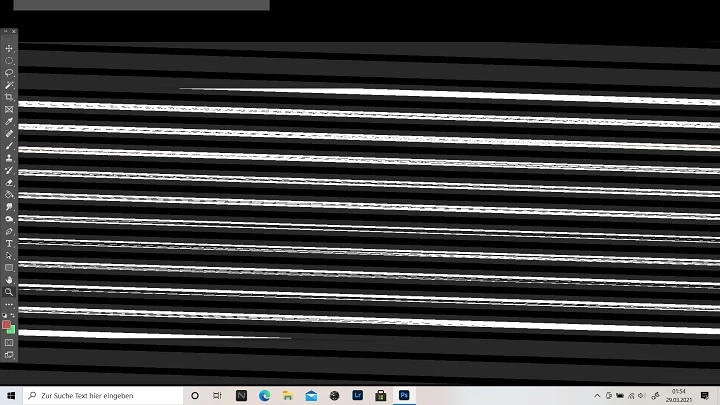
The weird thing is, the whole screen looks like this but I can still click on the (invisble) tools etc and they work...

I already:
- deinstalled and reinstalled PS
- emptied my system memory
- renamed the PS folder (as recommendet by Adobe support)
- updated PS and my graphic card to the newest versions
- made a new User, made it administrator and tried PS there but the same problem appears
- turned the laptop on and off (yes, also inbetween installing and deinstalling etc.)

It worked just fine yesterday and then I closed the file for an hour to get me some dinner and when I reopened it EVERY file I tried to open looked like this.
Support seems to just give me the solutions which you can already find online with google and neither of them could help me.
Does anyone have a solution? 😞

This topic has been closed for replies.

2 replies

Participant
July 11, 2021

im having the same problem, im tryna get this resolved and fast as possible!!

War Unicorn
Community Expert
Community Expert
March 29, 2021

Did you try disabling the bargain-basement GPU and just use the discrete GPU? It'll use more battery power but could help:


https://helpx.adobe.com/photoshop/kb/troubleshoot-gpu-graphics-card.html#multiple-gpus

Participant
March 29, 2021

Thank you for your help, sadly this also doesn't seem to solve my problem. I also checked if there might be a problem with my computer but everything seems fine. Not sure what else I can do 😕😕 I am also not very smart in fixing problems with my computer so it's even harder to figure out the problem.

War Unicorn
Community Expert
Community Expert
March 29, 2021

And I take it you tried disabling GPU acceleration?

(On the menu bar: Edit > Preferences > Performance > Graphics Processor Settings > uncheck "Use Graphics Processor".) If this works, it's something to do with the driver itself; try another driver, maybe from earlier than when the problem first started.