
Known Participant
June 25, 2018
Question

Help Please: step by step how to create a composite image

  • June 25, 2018
  • 8 replies
  • 3986 views

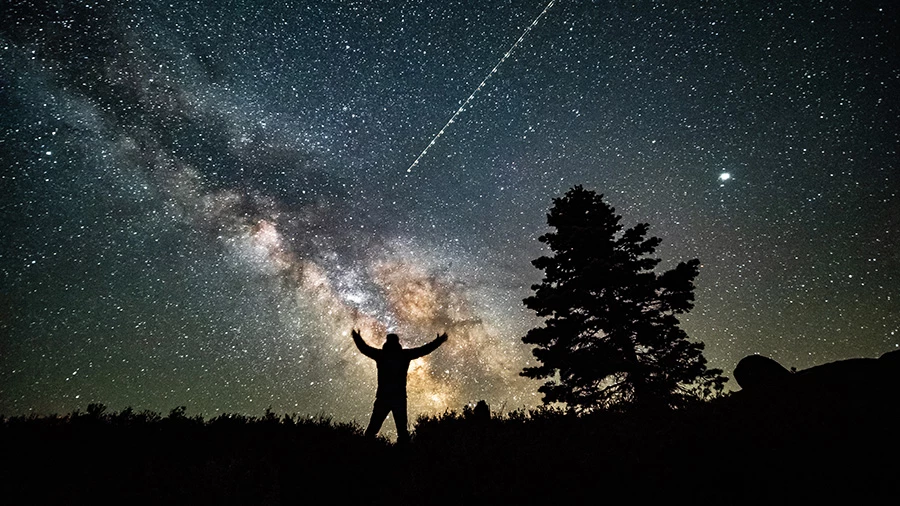
I am having problems finding step by step, (yes i am a somewhat beginner), on how to put 2 images together. What i am specifically trying to do is take 2 night images, 1 of short exposure length 2-3 seconds of people in it-foreground, then the second of the milky way at longer length 25 seconds to expose the sky-background, then combine them. I am trying to eliminate any movement by the people in the first image by shooting it short. I can not find the correct info on how to do step by step to do this. I have both current versions of LR and PS. I have tried watching a few videos on it, none show step by step, they just talk about very generally how to do it. The image below is a single 25 second exposure with obvious movements in my hands etc. Any help would be appreciated.
This topic has been closed for replies.

8 replies

DGC-22Author
Known Participant
October 9, 2018

yep, stuck again. I did a few really fast versions, no accuracy at all, just to see if it is working. I either gets lines through everyone, or i can not get the path between the legs as example to be the brightness it should. I am stumped. I thought it might have something to do with not having subtract front shaped checked, but it was. If you would not mind, have a look and see what you think.

DGC-22Author
Known Participant
October 7, 2018

davescm,

Been back awhile, very busy, just now getting back it at that image. I think i figured out my problem or steps i was doing wrong, will let you know further. Thanks again for all the help. Canada was awesome, tho the heavy smoke made it difficult to shoot sometimes. I highly recommend everyone experience it, especially the glaciers. Can't wait to go back.

davescm
Community Expert
Community Expert
October 7, 2018

Nice pics - welcome back

Shout out if you get stuck again !

Dave

DGC-22Author
Known Participant
June 27, 2018

I am leaving tomorrow for 5 days out of town. I will be shooting while gone so i will do a similar version of the shot i talk about. The shot has to be with 6 family members and the milky way in the background, all dark foreground, no light, flash etc on foreground. Then i will try to post something back up to this thread next week. It is the following weekend i have to do the shoot, and have 3 weeks to get it delivered to the family. I have shot tons of night sky images, just never exposed for the sky, then exposed for the foreground and combined them. What is giving me trouble is how to layer them in PS. I can get actions and layers windows open but can not either get both images on layers or some other way to overlay them. Or cut out the sky in the dark shot, showing just foreground silhouette of people, then layer over a second image of the sky exposure. Sorry if i am repeating myself.  Again i will show a few test images when i get back of what i have in mind. Thanks everyone so far for any help.

davescm
Community Expert
Community Expert
June 27, 2018

Hi

I would expose the sky shot with no people. Then expose the foreground shot with just enough exposure to make out the edge that you will mask. Masking the second and placing it over the first is then straightforward and you can always darken the foreground further to enhance the sillhouette.

Have a good trip

Dave

DGC-22Author
Known Participant
June 27, 2018

That is likely what i will do, but i do not know how to work masks or layers really. Almost all my editing is light amounts of color, shadow and highlight. I need to learn how to do masks and fast.

Thanks for your reply.

Simmer1
Community Expert
Community Expert
June 26, 2018

Hi,

Here is a tutorial I created using a few images in a similar fashion and it also show how to produce a pop art finish for the foreground character: Designing a Concert Poster in Photoshop | Pluralsight

Here is another which you may find useful: https://www.skillshare.com/classes/Photo-Manipulation-Master-Photo-Editing/1732902986?via=search-layout-grid 

Terri Stevens
Legend
June 26, 2018

You may like  to know you can do this with a single exposure providing you have a camera that can shoot in 'Raw'. Adobe Camera raw will enable you to process the same photograph with two separate exposures, the first with the foreground correctly exposed and the second with the starscape correctly exposed. You then bring the two different exposures into Photoshop as stacked layers. By masking out the sky from the foreground image the starscape will show through and the exposures will be correct. This will also work with a Jpeg but the results are far better with 16bit raw images.

I had to do something similar to this just last week and the photographer had only taken  one really usable photograph. I had my doubts but it worked surprisingly well. I am lucky enough to have a subscription to a website which has a 4 hour course on ACR and this technique was one of the modules. If you don't mind paying $35, I have put a link to the course below. It is actually well worth the money as it covers all the features of the latest camera raw which are quite difficult to find for free on YouTube

https://phlearn.com/tutorial/adobe-camera-raw-photoshop/

Marja de Klerk
Inspiring
June 26, 2018

Hi, I found a step by step tutorial that can be helpful to replace the sky in your image: Quick and Dirty Guide to Replacing Skies in Photoshop | Fstoppers

You can start with step 3: drag the long exposure sky on top of the short exposure photo. This means you'll have two layers, with the long exposure layer on top. 

And here's another step by step tutorial: How To Replace The Sky In A Photo With Photoshop

There are several ways to do this, but the workflow in both tutorials is similar.

Good luck with your project!

DGC-22Author
Known Participant
June 26, 2018

   Hello,

I have not taken the shots just yet. I will be doing this with a family end of next week. I could post them after that? Or since i will be out shooting this weekend, maybe i will do a test run of the shot idea.

davescm
Community Expert
Community Expert
June 26, 2018

Hi

That's even better. If you haven't taken any shots yet then take the background long exposure image with no-one in the foreground. Then take the foreground picture with the people (short exposure) separately. It will be much easier to composite that way as you wont have to clone out any movement on the long exposure shot.

Dave

davescm
Community Expert
Community Expert
June 25, 2018

Hi

Can you post both images you are trying to composite, at a reasonably high resolution, and we can try and help with steps

Dave