Participating Frequently
July 3, 2023
Answered

Help with clarification on "target Neutral" percentage

  • July 3, 2023
  • 1 reply
  • 289 views

Hi All, I have a quick question, I am doing an editing test for a potential retouching job, and I am a bit confused about the following instructions:


"White background Just left of subject should be hovering in the 92% - 94% in target neutral Just right of subject should be hovering in the 94% - 96% in target neutral"


This is for product photography where items (such as handbags) are on a white background, and I'm familiar with all of the other assignment requirements except this one. Does anyone have an idea what this means

This topic has been closed for replies.
Correct answer Conrad_C

A traditional method for this is to drop color samplers by Shift-clicking the Eyedropper tool on each region of interest, then see what the Info panel says about the color value at each sampler. You can change the color model of each Info panel sampler readout, by clicking the readout # and choosing the color model from the menu that appears.


As you make edits, the sampler readouts update, so for example you could edit a Curves adjustment layer until the sampler reports that the value is within the correct range.


In my example, Sampler #1 is set to Grayscale (K) and reads 5% (5% black ink). But for some reason, your test is asking for “white” as 92–94%. This is possible only in a color model where white is defined as 100%. The only info panel readout that displays that way is HSB (Hue/Saturation/Brightness), so the sampler #2 readout is set to HSB and is reporting 96%, which in your test would be within spec.
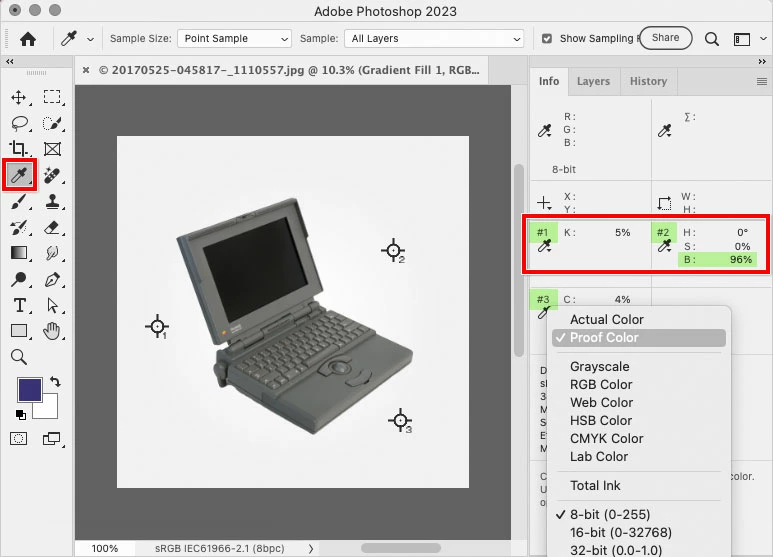
 

For sampler #3, the menu is shown open just to show how to change the readout. The fact that I am selecting Proof Color is not important, although it’s very useful if you have set up View > Proof Setup > Custom to show you what the values will be on the final delivery conditions (such as the color profile for the printer, ink, and paper).

1 reply

Conrad_C
Community Expert
Conrad_CCommunity ExpertCorrect answer
Community Expert
July 3, 2023

A traditional method for this is to drop color samplers by Shift-clicking the Eyedropper tool on each region of interest, then see what the Info panel says about the color value at each sampler. You can change the color model of each Info panel sampler readout, by clicking the readout # and choosing the color model from the menu that appears.


As you make edits, the sampler readouts update, so for example you could edit a Curves adjustment layer until the sampler reports that the value is within the correct range.


In my example, Sampler #1 is set to Grayscale (K) and reads 5% (5% black ink). But for some reason, your test is asking for “white” as 92–94%. This is possible only in a color model where white is defined as 100%. The only info panel readout that displays that way is HSB (Hue/Saturation/Brightness), so the sampler #2 readout is set to HSB and is reporting 96%, which in your test would be within spec.


For sampler #3, the menu is shown open just to show how to change the readout. The fact that I am selecting Proof Color is not important, although it’s very useful if you have set up View > Proof Setup > Custom to show you what the values will be on the final delivery conditions (such as the color profile for the printer, ink, and paper).

peggphotoAuthor
Participating Frequently
July 6, 2023

Thank you so much!